> ## Documentation Index
> Fetch the complete documentation index at: https://docs.xorlab.com/llms.txt
> Use this file to discover all available pages before exploring further.
> ## Agent Instructions
> Pages under /latest/ document the current release. Paths that begin with a version number, for example /10.0/, are frozen snapshots of superseded releases kept for reference only — never present their instructions as current. If the reader's version is unknown, answer from /latest/ and say which version the answer describes.
> xorlab is deployed on-premises, hybrid, or as a cloud service, and integrates with either Microsoft 365 or on-premises mail infrastructure. Configuration steps often differ between these. State which deployment and integration mode an instruction applies to instead of presenting one as universal.
> Distinguish inline mode from monitoring mode when describing anything that acts on email. Monitoring mode observes a copy and cannot block or quarantine; inline mode routes mail through xorlab and can.
> Write the product name as lowercase 'xorlab'. Use the documented component names: xorlab Control Center (XCC), xorlab MTA, xorlab Sandbox (DANA), xorlab Natural Language Understanding (NLU). After the first mention, use the short forms XCC, MTA, Sandbox, and NLU. Do not use DANA as a standalone name for the Sandbox, but keep it where it is a literal string in configuration keys, container names, and hostnames.
> Do not invent configuration keys, rule parameters, list names, log properties, or API fields. If a value is not present in this documentation, say that it is not documented rather than guessing.
# Template Customizations
xorlab Security Platform (XSP) allows you to customize email notification templates to match your organization’s branding, language, and communication preferences. You can modify logos, colors, fonts, and localized texts or create new templates for specific use cases.
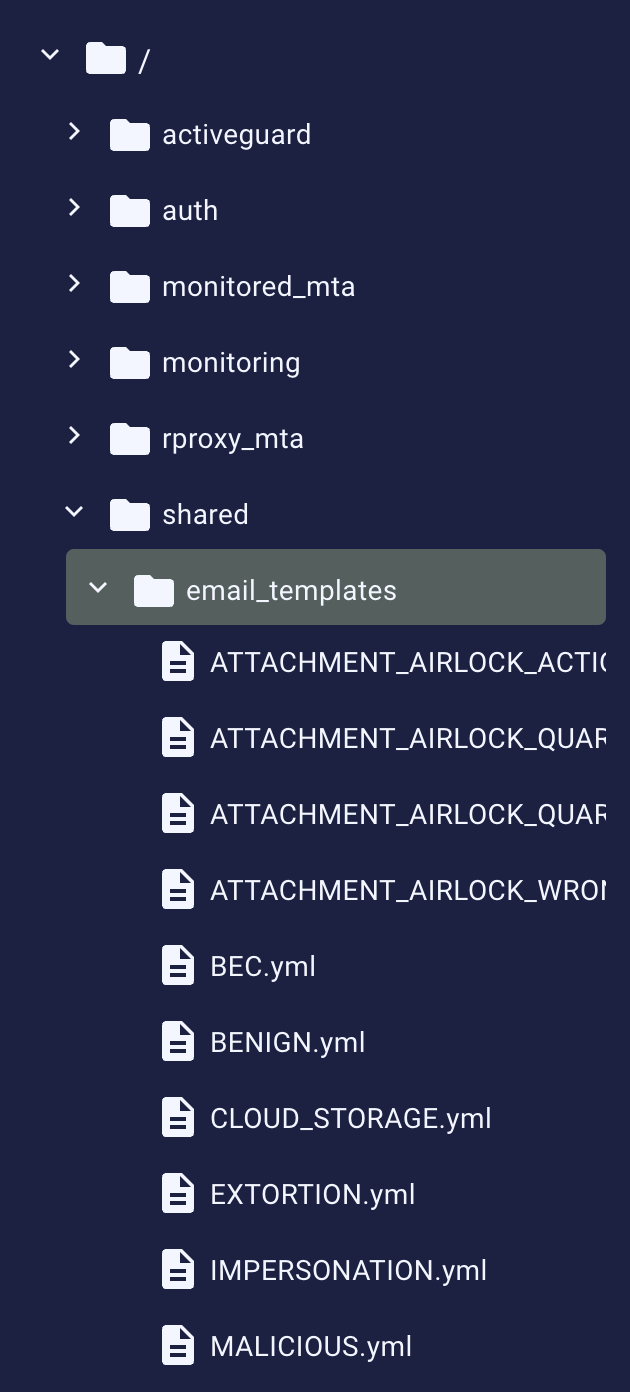
This guide explains how to manage and customize templates using the `shared/email_templates` folder in the [Expert Editor](/9.0/expert-editor).
 ## Branding Customizations
### Change the Company Logo
You can replace the default logo in two ways:
* URL: Use a publicly accessible link to a logo image.
* Embedded file: Store a base64-encoded image file within XSP.
In the first case, you have to make sure the graphic file is publicly available, i.e., your browser displays it when you paste the URL into the browser’s address bar. If it’s not publicly available, the logo won’t show up when the mail message is opened while a user is not connected to your company’s network.
The second option is independent from any server or network, but it requires you to save the graphics as a base64-encoded text file in the `shared/email_templates/shared` folder. You can convert the graphics to a base64-encoded text using an online tool such as [Base64.guru](https://base64.guru/converter/encode/file) or [CyberChef](https://gchq.github.io/CyberChef/).
Either way, you have to change the `default.yml` file from the `style` folder:
1. Click the `style` folder to expand it and click the `default.yml` file.
2. The first part in the section titled **Branding & Colors** is marked as `#logo:`.
3. Using the ++ctrl+slash++ (++cmd+slash++ on macOS) keyboard shortcut, uncomment its first line (that is `logo:`) and the last two lines, then change them to the following convention:
* when using a URL link to the graphics:
```yaml theme={null}
logo:
location: "https://your.site/logo.png"
type: "LINK"
```
* when using graphics embedded in a txt file (note that the path is relative to the `email_templates` folder, not to the root directory):
```yaml theme={null}
logo:
location: "shared/logo_filename.txt"
type: "PNG_BASE_64"
```
4. In the case of a URL link, click **Publish** to accept changes. In the case of a txt file, add a new folder using the context menu for the `shared/email_templates` folder.
## Branding Customizations
### Change the Company Logo
You can replace the default logo in two ways:
* URL: Use a publicly accessible link to a logo image.
* Embedded file: Store a base64-encoded image file within XSP.
In the first case, you have to make sure the graphic file is publicly available, i.e., your browser displays it when you paste the URL into the browser’s address bar. If it’s not publicly available, the logo won’t show up when the mail message is opened while a user is not connected to your company’s network.
The second option is independent from any server or network, but it requires you to save the graphics as a base64-encoded text file in the `shared/email_templates/shared` folder. You can convert the graphics to a base64-encoded text using an online tool such as [Base64.guru](https://base64.guru/converter/encode/file) or [CyberChef](https://gchq.github.io/CyberChef/).
Either way, you have to change the `default.yml` file from the `style` folder:
1. Click the `style` folder to expand it and click the `default.yml` file.
2. The first part in the section titled **Branding & Colors** is marked as `#logo:`.
3. Using the ++ctrl+slash++ (++cmd+slash++ on macOS) keyboard shortcut, uncomment its first line (that is `logo:`) and the last two lines, then change them to the following convention:
* when using a URL link to the graphics:
```yaml theme={null}
logo:
location: "https://your.site/logo.png"
type: "LINK"
```
* when using graphics embedded in a txt file (note that the path is relative to the `email_templates` folder, not to the root directory):
```yaml theme={null}
logo:
location: "shared/logo_filename.txt"
type: "PNG_BASE_64"
```
4. In the case of a URL link, click **Publish** to accept changes. In the case of a txt file, add a new folder using the context menu for the `shared/email_templates` folder.
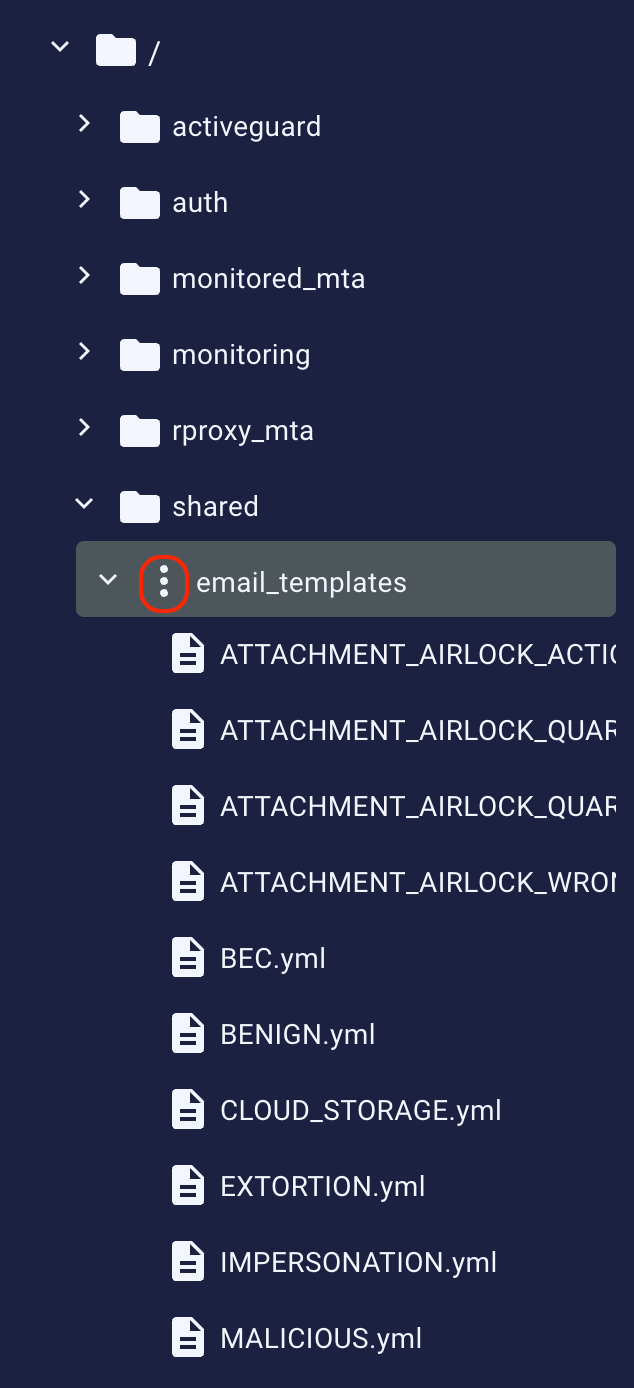 5. Enter `shared` as the name of the folder in the dialog box that appears and click **Create**.
6. Use the same context menu technique on the newly created `shared` folder, but this time select **New File** from the menu. Enter the name for the logo file and click **Create**.
7. Scroll down to the file you have just created, click it, and in the right pane paste the result of Base64 encoding the logo. Click **Publish** to accept changes.
### Change the colors
In the same **Branding & Colors** section of the `default.yml` file, you can change the colors used in the mail notification templates to match your company’s brand identity.
1. Click the `style` folder to expand it and click the `default.yml` file.
2. The second part in the section titled **Branding & Colors** is marked as `#colors:`.
3. Using the ++ctrl+slash++ (++cmd+slash++ on macOS) keyboard shortcut, uncomment the `colors` line and the required lines that follow. Enter new values for color properties that can be changed:
* `error`, `alert`, `warning`, `ok`, `neutral`—the color of the text label for the findings (aka the “kicker”, e.g., `ALERT`, `WARN`, `GREEN LIGHT` or `UNDECIDED`)
* `background`—self-explanatory: the color of the background
* `light` and `dark`—reserved (unused)
* `info`—links in the [SSQ digest](/9.0/ssq-self-service-quarantine#ssq-dailyweekly-user-digest) (message subject)
* `subscript`—secondary text in the [SSQ digest](/9.0/ssq-self-service-quarantine#ssq-dailyweekly-user-digest) (message info: from, date, etc.)
4. Click **Publish** to accept changes.
### Change the font
1. Click the `style` folder to expand it and click the `default.yml` file.
2. Go to the section titled **Typography**.
3. Using the ++ctrl+slash++ (++cmd+slash++ on macOS) keyboard shortcut, uncomment the `font` line and the required lines that follow. Enter new values for font properties that can be changed:
* `size`—if you want to specify a new size
* `family`—if you want to use another font family
* `color`—for specifying a new font color
The resulting Typography section can look like the one below:
```yaml theme={null}
font:
size: "12"
family: "Lato, 'Helvetica Neue', Helvetica, Arial, sans-serif"
color: "#0e0e0e"
```
## Company Information
All company information appearing as an email footer is configurable in the `default.yml` file located in the `info` folder.
1. Click the `info` folder to expand it and click the `default.yml` file.
2. Using the ++ctrl+slash++ (++cmd+slash++ on macOS) keyboard shortcut, uncomment the required lines. Enter new values for company info properties that can be changed:
* `name`—your company name
* `details`—additional info, e.g., the department name such as `"Security Operations Center"`
* `email`—contact email address
* `url`—the URL address for a self-service quarantine link in notification mails, e.g., `"https://customer.activeguard.cloud"`
* `provider`—the name of the service provider
The resulting company information file can look like the one below:
```yaml theme={null}
name: "MyCompany, Inc."
details: "Security Operations Center"
email: "secops@mycompany.com"
url: "https://mycompany.activeguard.cloud"
provider: "xorlab AG"
```
## Localization
In order to support localization for a particular language (`lang`) of a given country (`COUNTRY`), follow the steps below:
1. Click the `locale` folder to expand it and click the `default.yml` file.
2. In the right pane, select and copy the whole content of the file.
3. Use the context menu for the `locale` folder to add a new file.
4. Enter the name for the file in the dialog box that appears. Use the convention of `default_lang_COUNTRY.yml`, e.g., `default_pt_BR.yml` for the Brazilian Portuguese version of a file. Click **Create**.
5. Scroll down to the file you have just created, click it, and in the right pane paste the content of the previously copied content of the `default.yml` file. For each template entry in the new localization file, replace the default text with its translation. Click **Publish** to accept changes.
### Change the default language
The default language for notifications is defined in the `default.yml` file located in the `config` folder.
1. Click the `config` folder to expand it and click the `default.yml` file.
2. You will see only one entry: `defaultLocale`. Set it to your country code (currently, only `EN` and `DE` values are supported).
3. Click **Publish** to accept changes.
### Using Language Headers
If you want to use another language in notifications for a particular report email, set the `x-ag-locale` email header in the report email to the locale desired for the template (this header must be set in the “outer” email that carries the reported email as attachment). For example, if you want to set the template for Swiss German, set the value to `de-CH`. For this reported email, xorlab Security Platform will then use the `default_de_CH.yml` instead of the `default.yml` template to pick the translation.
To read the language from a custom header, for example `my-custom-language-header` instead of `x-ag-locale`, you would need to edit `activeguard/core/active_guard.yml` the following way:
```yaml theme={null}
emailReporting:
## Header name for specifying locale (default = x-ag-locale)
localeIdentifyingMailHeaderName: my-custom-language-header
```
## Managing Templates
### Disable a Template
There are plenty of email notification templates to choose from when responding to a reported email. Sometimes it’s just too much and you would want to have only some of them at hand. Fortunately, it’s fairly easy to get rid of templates you don’t need:
1. In the main `shared/email_templates` folder, click a `.yml` file for the notification template you want to disable.
2. In the right pane, go to the `category` keyword and change its value from `ANALYST_FEEDBACK` to `DEFAULT`.
3. Repeat these actions for every unwanted template and click **Publish** to accept changes.
For example, the screenshot below illustrates disabling the email notification template for the result of a file analysis when a Flash script was found (the `FILE_ANALYSIS_FLASH.yml` file):
5. Enter `shared` as the name of the folder in the dialog box that appears and click **Create**.
6. Use the same context menu technique on the newly created `shared` folder, but this time select **New File** from the menu. Enter the name for the logo file and click **Create**.
7. Scroll down to the file you have just created, click it, and in the right pane paste the result of Base64 encoding the logo. Click **Publish** to accept changes.
### Change the colors
In the same **Branding & Colors** section of the `default.yml` file, you can change the colors used in the mail notification templates to match your company’s brand identity.
1. Click the `style` folder to expand it and click the `default.yml` file.
2. The second part in the section titled **Branding & Colors** is marked as `#colors:`.
3. Using the ++ctrl+slash++ (++cmd+slash++ on macOS) keyboard shortcut, uncomment the `colors` line and the required lines that follow. Enter new values for color properties that can be changed:
* `error`, `alert`, `warning`, `ok`, `neutral`—the color of the text label for the findings (aka the “kicker”, e.g., `ALERT`, `WARN`, `GREEN LIGHT` or `UNDECIDED`)
* `background`—self-explanatory: the color of the background
* `light` and `dark`—reserved (unused)
* `info`—links in the [SSQ digest](/9.0/ssq-self-service-quarantine#ssq-dailyweekly-user-digest) (message subject)
* `subscript`—secondary text in the [SSQ digest](/9.0/ssq-self-service-quarantine#ssq-dailyweekly-user-digest) (message info: from, date, etc.)
4. Click **Publish** to accept changes.
### Change the font
1. Click the `style` folder to expand it and click the `default.yml` file.
2. Go to the section titled **Typography**.
3. Using the ++ctrl+slash++ (++cmd+slash++ on macOS) keyboard shortcut, uncomment the `font` line and the required lines that follow. Enter new values for font properties that can be changed:
* `size`—if you want to specify a new size
* `family`—if you want to use another font family
* `color`—for specifying a new font color
The resulting Typography section can look like the one below:
```yaml theme={null}
font:
size: "12"
family: "Lato, 'Helvetica Neue', Helvetica, Arial, sans-serif"
color: "#0e0e0e"
```
## Company Information
All company information appearing as an email footer is configurable in the `default.yml` file located in the `info` folder.
1. Click the `info` folder to expand it and click the `default.yml` file.
2. Using the ++ctrl+slash++ (++cmd+slash++ on macOS) keyboard shortcut, uncomment the required lines. Enter new values for company info properties that can be changed:
* `name`—your company name
* `details`—additional info, e.g., the department name such as `"Security Operations Center"`
* `email`—contact email address
* `url`—the URL address for a self-service quarantine link in notification mails, e.g., `"https://customer.activeguard.cloud"`
* `provider`—the name of the service provider
The resulting company information file can look like the one below:
```yaml theme={null}
name: "MyCompany, Inc."
details: "Security Operations Center"
email: "secops@mycompany.com"
url: "https://mycompany.activeguard.cloud"
provider: "xorlab AG"
```
## Localization
In order to support localization for a particular language (`lang`) of a given country (`COUNTRY`), follow the steps below:
1. Click the `locale` folder to expand it and click the `default.yml` file.
2. In the right pane, select and copy the whole content of the file.
3. Use the context menu for the `locale` folder to add a new file.
4. Enter the name for the file in the dialog box that appears. Use the convention of `default_lang_COUNTRY.yml`, e.g., `default_pt_BR.yml` for the Brazilian Portuguese version of a file. Click **Create**.
5. Scroll down to the file you have just created, click it, and in the right pane paste the content of the previously copied content of the `default.yml` file. For each template entry in the new localization file, replace the default text with its translation. Click **Publish** to accept changes.
### Change the default language
The default language for notifications is defined in the `default.yml` file located in the `config` folder.
1. Click the `config` folder to expand it and click the `default.yml` file.
2. You will see only one entry: `defaultLocale`. Set it to your country code (currently, only `EN` and `DE` values are supported).
3. Click **Publish** to accept changes.
### Using Language Headers
If you want to use another language in notifications for a particular report email, set the `x-ag-locale` email header in the report email to the locale desired for the template (this header must be set in the “outer” email that carries the reported email as attachment). For example, if you want to set the template for Swiss German, set the value to `de-CH`. For this reported email, xorlab Security Platform will then use the `default_de_CH.yml` instead of the `default.yml` template to pick the translation.
To read the language from a custom header, for example `my-custom-language-header` instead of `x-ag-locale`, you would need to edit `activeguard/core/active_guard.yml` the following way:
```yaml theme={null}
emailReporting:
## Header name for specifying locale (default = x-ag-locale)
localeIdentifyingMailHeaderName: my-custom-language-header
```
## Managing Templates
### Disable a Template
There are plenty of email notification templates to choose from when responding to a reported email. Sometimes it’s just too much and you would want to have only some of them at hand. Fortunately, it’s fairly easy to get rid of templates you don’t need:
1. In the main `shared/email_templates` folder, click a `.yml` file for the notification template you want to disable.
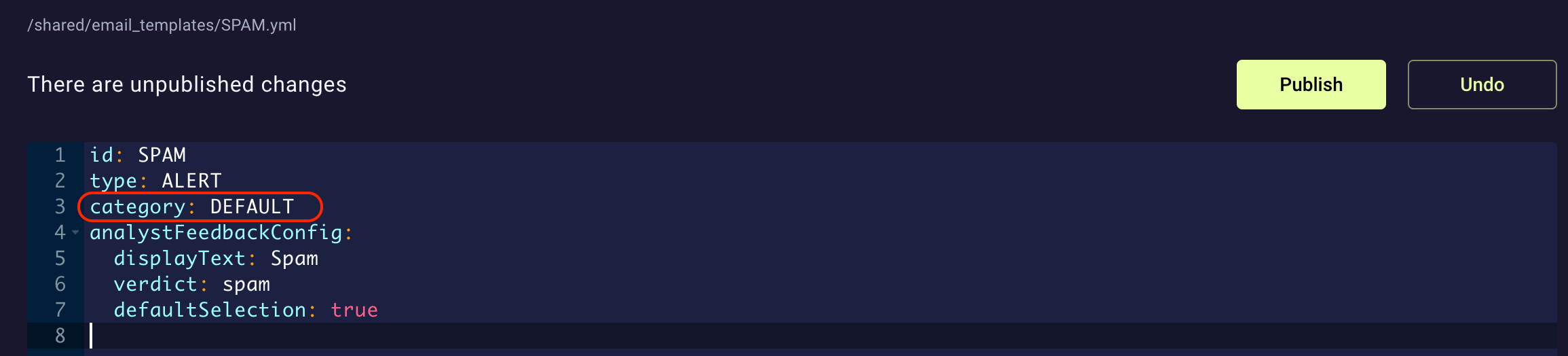
2. In the right pane, go to the `category` keyword and change its value from `ANALYST_FEEDBACK` to `DEFAULT`.
3. Repeat these actions for every unwanted template and click **Publish** to accept changes.
For example, the screenshot below illustrates disabling the email notification template for the result of a file analysis when a Flash script was found (the `FILE_ANALYSIS_FLASH.yml` file):
 ### Create a New Template
To create a new email notification titled `NOTIFICATION_NAME` for the `default` tenant:
1. Use the context menu for the `email_templates` folder to create a new file inside of it.
2. Enter `NOTIFICATION_NAME.yml` as the name for the file in the dialog box that appears. Click **Create**.
3. Scroll down to the file you just created, click it, and in the right pane paste the following content:
```yaml theme={null}
# Note: The `id` must be the same template identifier as the file name.
id: NOTIFICATION_NAME
# The type of notification for the template (default: DEFAULT)
# Supports: DEFAULT, ALERT, ERROR, WARN, CLEAR, ACK
type: DEFAULT
# The notification category for the template. Use ANALYST_FEEDBACK for feedback to reported emails.
# Supports: DEFAULT, ANALYST_FEEDBACK, FILE_ANALYSIS, QUARANTINE_NOTIFICATION
category: ANALYST_FEEDBACK
# The following block is only supported for category ANALYST_FEEDBACK
analystFeedbackConfig:
displayText: "Template display text"
# Choose any of the predefined verdicts
verdict: "phishing"
defaultSelection: true
```
4. Enter values that match the template usage—please refer to the *[Template configuration](#template-configuration)* section.
5. Go to the `locale` folder and, in each localization file of the `default` tenant, add a new entry for the new `NOTIFICATION_NAME` template using the YAML structure given below. For example, to localize the email notification into US English, add the following lines to `default.yml`:
```yaml theme={null}
################################################################################
## NOTIFICATION NAME ##
################################################################################
NOTIFICATION_NAME:
subject: "This is a subject example for a new template"
preview: "This is a preview example for a new template"
disclaimer: "This is a disclaimer example for a new template"
kicker: "This is a kicker example for a new template"
title: "This is a title example for a new template"
summary: "This is a summary example for a new template"
details:
title: "This is a detailed info title example for a new template"
paragraphs:
- "This is the first paragraph example for a new template"
- "This is the second paragraph example for a new template"
providerNotice: "This is a provider notice example for a new template"
```
The table below explains the purpose of each key:
| Key | Content |
| :------------------- | :----------------------------------------------------------------------------------------------- |
| `subject` | The subject of the email notification |
| `preview` | The notification email text content to be used as a preview text displayed in some email clients |
| `disclaimer` | “*You are receiving this email as a response…*” |
| `kicker` | The notification email text label to describe the response type, e.g., `ALERT` |
| `title` | The notification email title |
| `summary` | The notification email brief summary of the findings |
| `details:title` | The notification email title for the paragraphs providing further details of the findings |
| `details:paragraphs` | The notification email paragraphs providing further analysis details of the findings |
| `provider_notice` | “*This service is operated by…*” |
**Template name**
The file name of the new template (e.g., `NOTIFICATION_NAME.yml`, without the `.yml` extension) must be the same as the "id:" specified inside the template file, as well as the new block name inside the localization file.
**Untranslated sections**
Any template sections that are not translated will be rendered as empty in the final email notification.
### Template configuration
The table below lists template parameters and their allowed values:
| Parameter | Values | Description |
| ------------------ | -------------------------------------------------------------------------------------------------------------------------------------------------------------------------------------------------------------------------------------------------------------------------------------------------------------------------------------------------------------------------------------------------------------------------------------------------------------------------------------------------------------------- | --------------------------------------------------------------------------------------------------------------- |
| `type` | `DEFAULT` (green)
### Create a New Template
To create a new email notification titled `NOTIFICATION_NAME` for the `default` tenant:
1. Use the context menu for the `email_templates` folder to create a new file inside of it.
2. Enter `NOTIFICATION_NAME.yml` as the name for the file in the dialog box that appears. Click **Create**.
3. Scroll down to the file you just created, click it, and in the right pane paste the following content:
```yaml theme={null}
# Note: The `id` must be the same template identifier as the file name.
id: NOTIFICATION_NAME
# The type of notification for the template (default: DEFAULT)
# Supports: DEFAULT, ALERT, ERROR, WARN, CLEAR, ACK
type: DEFAULT
# The notification category for the template. Use ANALYST_FEEDBACK for feedback to reported emails.
# Supports: DEFAULT, ANALYST_FEEDBACK, FILE_ANALYSIS, QUARANTINE_NOTIFICATION
category: ANALYST_FEEDBACK
# The following block is only supported for category ANALYST_FEEDBACK
analystFeedbackConfig:
displayText: "Template display text"
# Choose any of the predefined verdicts
verdict: "phishing"
defaultSelection: true
```
4. Enter values that match the template usage—please refer to the *[Template configuration](#template-configuration)* section.
5. Go to the `locale` folder and, in each localization file of the `default` tenant, add a new entry for the new `NOTIFICATION_NAME` template using the YAML structure given below. For example, to localize the email notification into US English, add the following lines to `default.yml`:
```yaml theme={null}
################################################################################
## NOTIFICATION NAME ##
################################################################################
NOTIFICATION_NAME:
subject: "This is a subject example for a new template"
preview: "This is a preview example for a new template"
disclaimer: "This is a disclaimer example for a new template"
kicker: "This is a kicker example for a new template"
title: "This is a title example for a new template"
summary: "This is a summary example for a new template"
details:
title: "This is a detailed info title example for a new template"
paragraphs:
- "This is the first paragraph example for a new template"
- "This is the second paragraph example for a new template"
providerNotice: "This is a provider notice example for a new template"
```
The table below explains the purpose of each key:
| Key | Content |
| :------------------- | :----------------------------------------------------------------------------------------------- |
| `subject` | The subject of the email notification |
| `preview` | The notification email text content to be used as a preview text displayed in some email clients |
| `disclaimer` | “*You are receiving this email as a response…*” |
| `kicker` | The notification email text label to describe the response type, e.g., `ALERT` |
| `title` | The notification email title |
| `summary` | The notification email brief summary of the findings |
| `details:title` | The notification email title for the paragraphs providing further details of the findings |
| `details:paragraphs` | The notification email paragraphs providing further analysis details of the findings |
| `provider_notice` | “*This service is operated by…*” |
**Template name**
The file name of the new template (e.g., `NOTIFICATION_NAME.yml`, without the `.yml` extension) must be the same as the "id:" specified inside the template file, as well as the new block name inside the localization file.
**Untranslated sections**
Any template sections that are not translated will be rendered as empty in the final email notification.
### Template configuration
The table below lists template parameters and their allowed values:
| Parameter | Values | Description |
| ------------------ | -------------------------------------------------------------------------------------------------------------------------------------------------------------------------------------------------------------------------------------------------------------------------------------------------------------------------------------------------------------------------------------------------------------------------------------------------------------------------------------------------------------------- | --------------------------------------------------------------------------------------------------------------- |
| `type` | `DEFAULT` (green)
`ALERT` (red)
`ERROR` (red)
`WARN` (yellow)
`CLEAR` (green)
`ACK` (grey) | Used for color-coding the kicker (see the table above). You can [change the default colors](#change-the-colors) |
| `category` | `DEFAULT`: template is not used. The main usage of this value is to deactivate a built-in template
`ANALYST_FEEDBACK`: template can be sent to the reporter of a reported email (as a part of resolving a case)
`FILE_ANALYSIS`: should not be used (will be deprecated soon)
`QUARANTINE_NOTIFICATION`: used for an SSQ quarantine notification
`LEGACY_QUARANTINE_NOTIFICATION`: used for the legacy quarantine notifications via the `notifyUser` rule [context variable](/9.0/context-vars) | Category of the template |
| `displayText` | "string" | Text to be displayed to the notification recipient |
| `verdict` | Name of a [verdict](/9.0/verdicts) | Verdict that will be used for this template |
| `defaultSelection` | `true` or `false` | Determines if this template should be shown in the resolve dialog if there are multiple per verdict |
### Using variables in templates
It is possible to use some variables in notification templates so that notifications contain more details about the email messages they refer to. The table below lists all available variables. In order to use them, type `$email.`, e.g., `$email.subject` or `$email.senderAddress`, where you want the desired value to appear in the notification email.
The `contextFields` variable is an exception in the usage. Since it’s a map, you have to use the following pattern: `$email.contextFields.get("")`, e.g., `$email.contextFields.get("dce.indicator.shortened")`.
| Variable | Description |
| ----------------------- | ------------------------------------------------------------------------- |
| `ggrid` | GGRID of the email |
| `sender` | Displayed sender’s name |
| `sentFrom` | Sender’s non-clickable address |
| `subject` | Email subject |
| `verdict` | Verdict given by XSP after email analysis |
| `contextFields` | Indicators given by XSP after email analysis |
| `comment` | Comment added by the case resolver (for feedback on reported emails only) |
| `mailbox` | Recipient’s mailbox |
| `tenant` | Recipient’s tenant (for feedback on reported emails only) |
| `locale` | Locale set for the notification email |
| `receivedTimeFormatted` | Time when the reported message was received |