> ## Documentation Index
> Fetch the complete documentation index at: https://docs.xorlab.com/llms.txt
> Use this file to discover all available pages before exploring further.
> ## Agent Instructions
> Pages under /latest/ document the current release. Paths that begin with a version number, for example /10.0/, are frozen snapshots of superseded releases kept for reference only — never present their instructions as current. If the reader's version is unknown, answer from /latest/ and say which version the answer describes.
> xorlab is deployed on-premises, hybrid, or as a cloud service, and integrates with either Microsoft 365 or on-premises mail infrastructure. Configuration steps often differ between these. State which deployment and integration mode an instruction applies to instead of presenting one as universal.
> Distinguish inline mode from monitoring mode when describing anything that acts on email. Monitoring mode observes a copy and cannot block or quarantine; inline mode routes mail through xorlab and can.
> Write the product name as lowercase 'xorlab'. Use the documented component names: xorlab Control Center (XCC), xorlab MTA, xorlab Sandbox (DANA), xorlab Natural Language Understanding (NLU). After the first mention, use the short forms XCC, MTA, Sandbox, and NLU. Do not use DANA as a standalone name for the Sandbox, but keep it where it is a literal string in configuration keys, container names, and hostnames.
> Do not invent configuration keys, rule parameters, list names, log properties, or API fields. If a value is not present in this documentation, say that it is not documented rather than guessing.
# Expert Editor
Expert Editor is your basic admin tool in xorlab Control Center (XCC). This tool allows configuring and tweaking your XSP instance by editing configuration files. It not only opens the files for editing, but also provides basic file and folder operations, such as creating a new file/folder, or renaming, moving, and deleting existing files and folders.
## Accessing Expert Editor
1. Log in to the Control Center GUI with the URL address and credentials provided by xorlab.
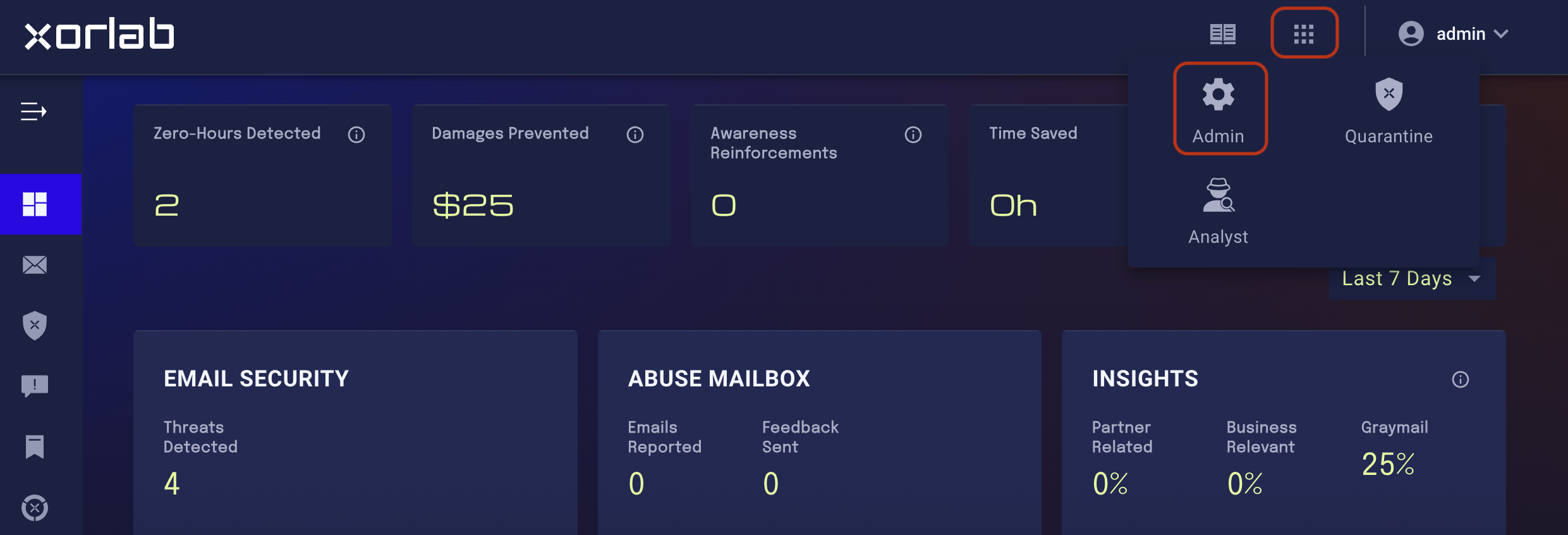
2. On the main screen, click the tiles icon next to your account name and click the **Admin** icon in the displayed menu:
 3. On the resulting **Admin** page, click the **Expert** tile:
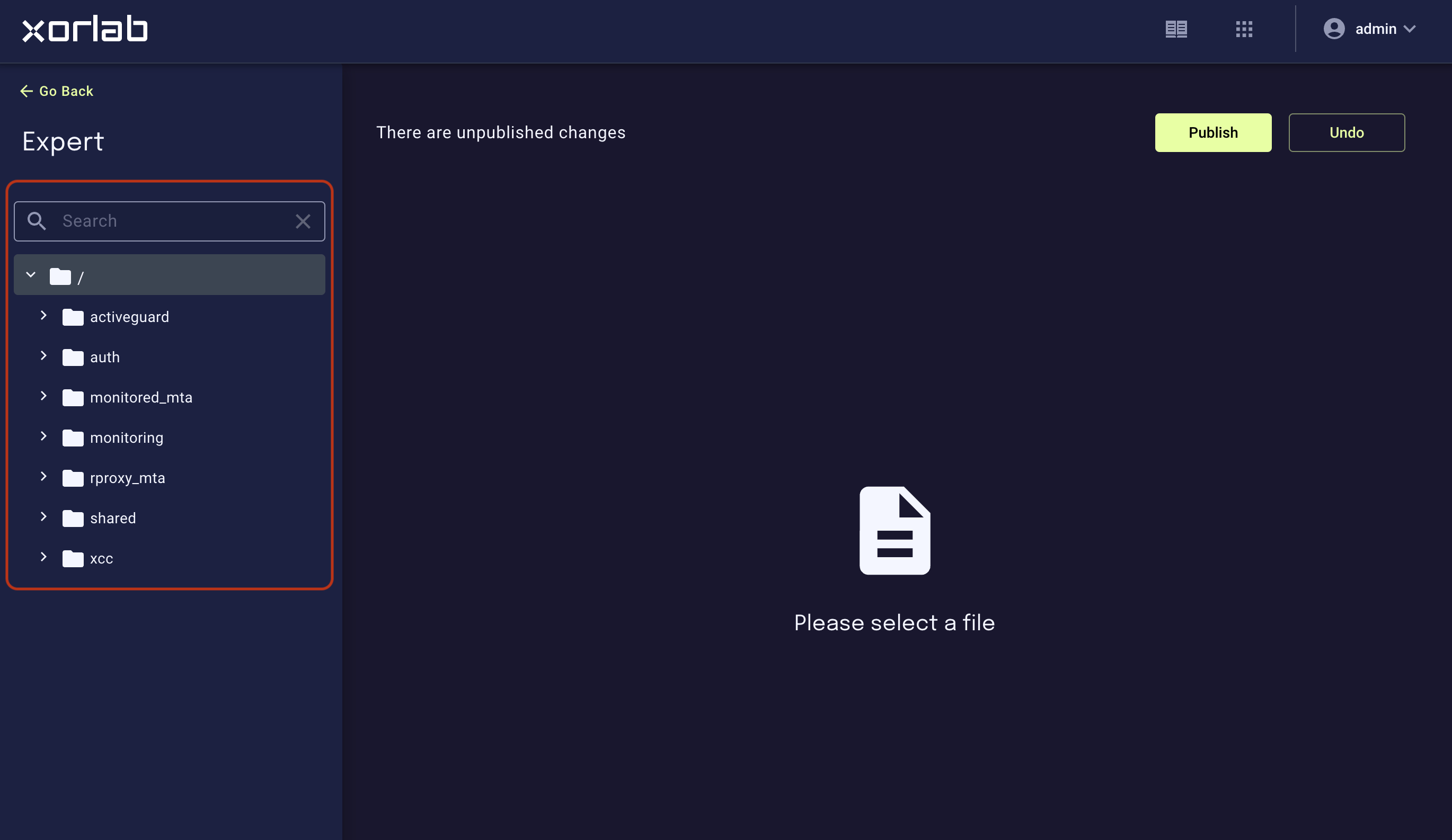
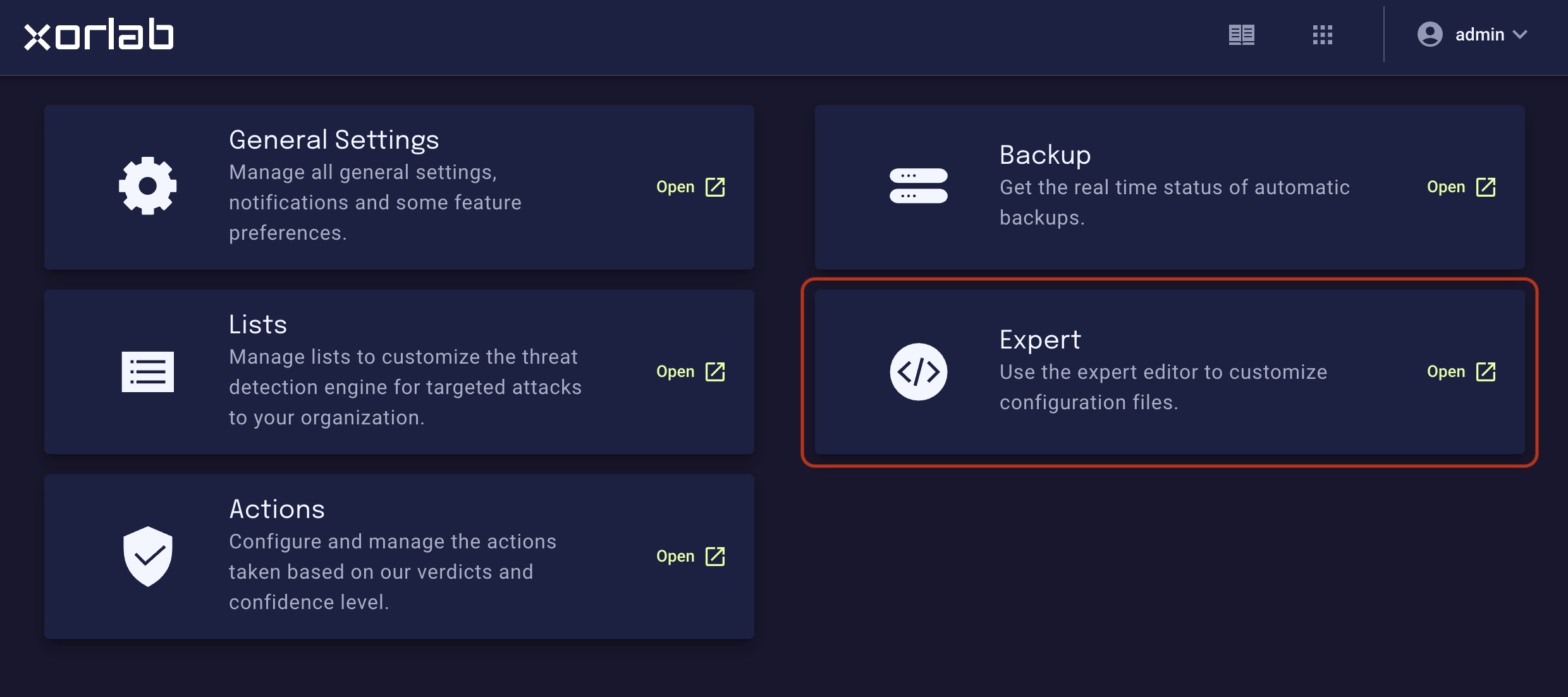 This opens Expert Editor and you can see the folder tree:
 ## Using Expert Editor
You can expand folders to navigate to the desired file or simply search for a file in the **Search** box. When you click the file, its content is displayed in the right pane, ready for editing.
All the changes you make are automatically saved, so you don’t have to worry about it. But these saved changes will not be deployed (in other words, will not have any effect) until you click the blue **PUBLISH** button. And until then, you can quickly discard your edits and revert to the original file by clicking the good old **UNDO** button.
### Context menu: file/folder operations
Expert Editor is not limited to editing only. Basic file and folder operations are available in the context menu:
1. Hover the mouse cursor over a folder or file icon. The icon will change to a vertical ellipsis (`…`) or a hamburger:
## Using Expert Editor
You can expand folders to navigate to the desired file or simply search for a file in the **Search** box. When you click the file, its content is displayed in the right pane, ready for editing.
All the changes you make are automatically saved, so you don’t have to worry about it. But these saved changes will not be deployed (in other words, will not have any effect) until you click the blue **PUBLISH** button. And until then, you can quickly discard your edits and revert to the original file by clicking the good old **UNDO** button.
### Context menu: file/folder operations
Expert Editor is not limited to editing only. Basic file and folder operations are available in the context menu:
1. Hover the mouse cursor over a folder or file icon. The icon will change to a vertical ellipsis (`…`) or a hamburger:
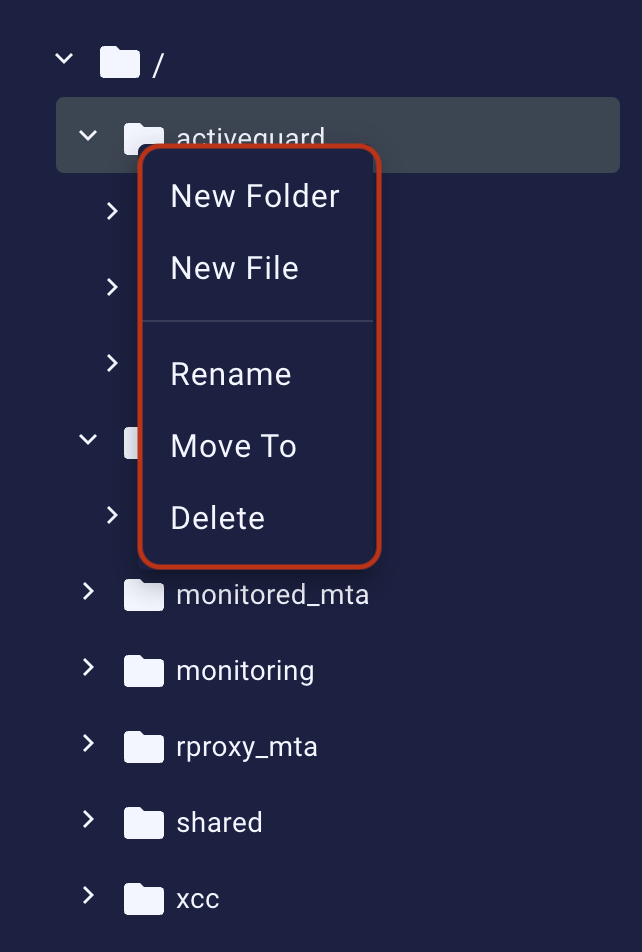
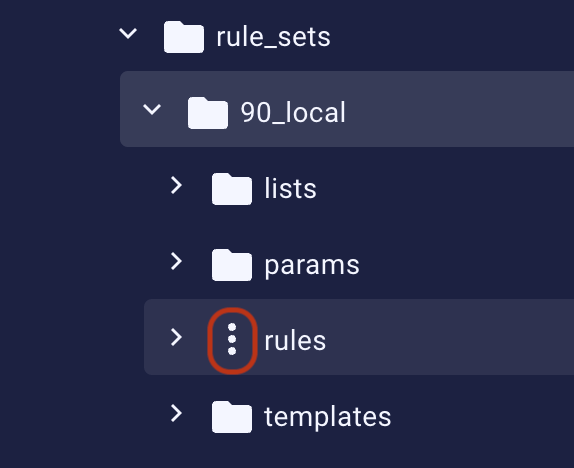 2. Click it to display the context menu. In the case of a folder, you can rename, delete, or move it, and add a new file/folder inside of it. In the case of a file, you can just rename, delete, or move it.
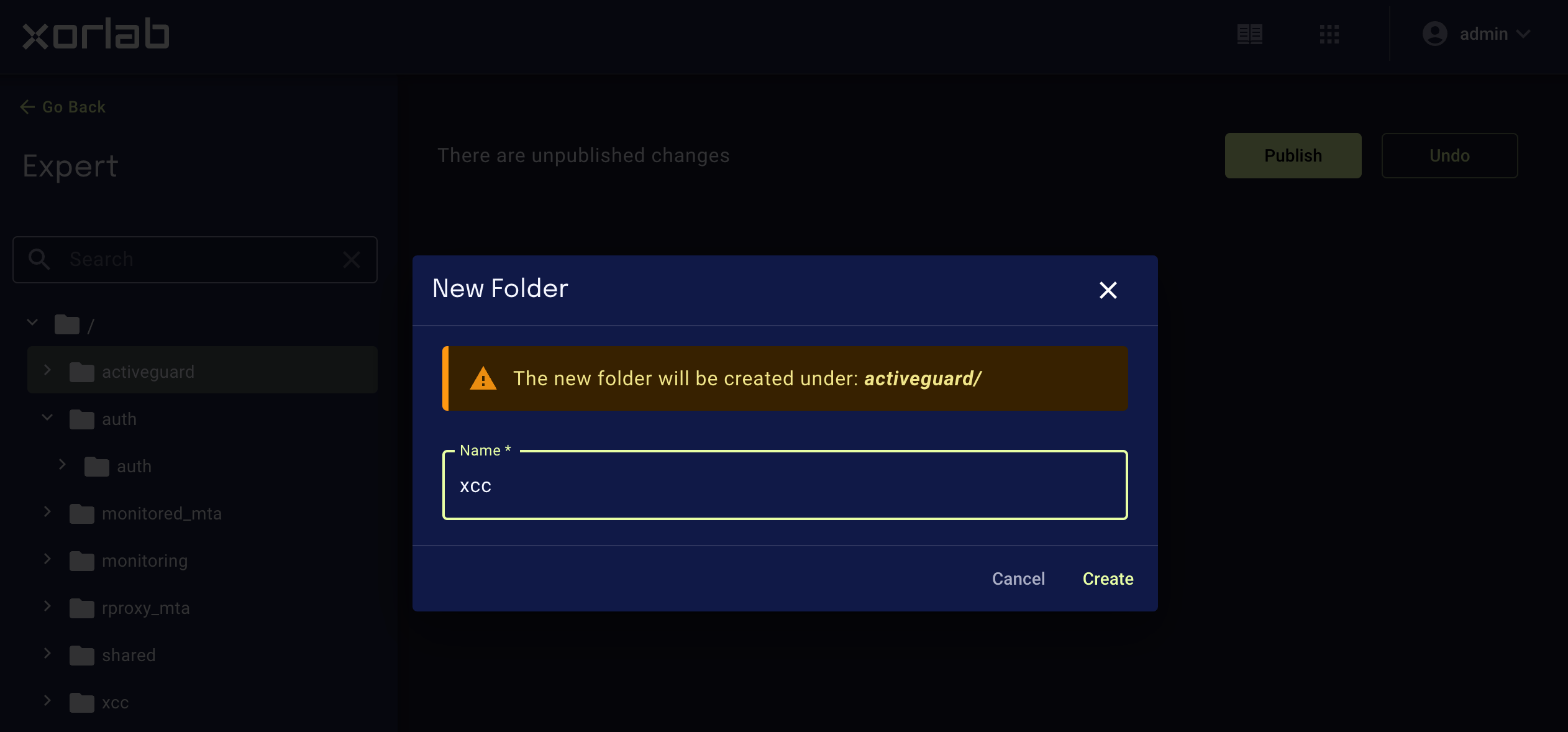
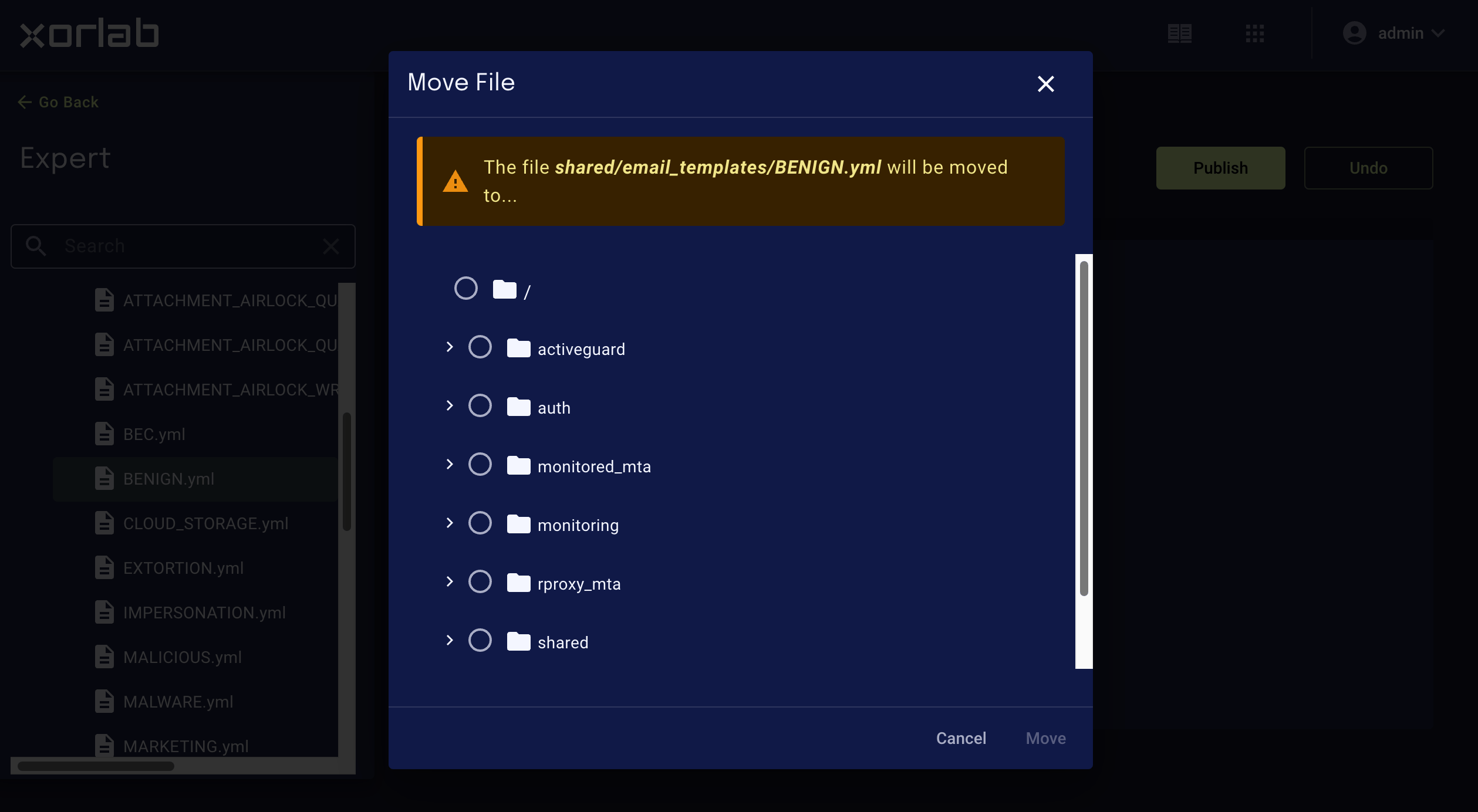
 3. If you choose to rename or add a folder/file, a dialog box for entering a name appears. When you’re done, click **Rename** or **Create**, respectively. If you choose to move the file, you will be asked to select the target location in the resulting dialog box. Click to select the parent folder and click **Move**.
 ### Commenting/uncommenting code
Expert Editor supports a common keyboard shortcut for commenting/uncommenting multiple lines of code. Just select the code to comment out or uncomment and press **Ctrl+/** (**Cmd+/** on macOS).
This shortcut works on lines of code only. It will not work if the selected block includes actual comments.
### Commenting/uncommenting code
Expert Editor supports a common keyboard shortcut for commenting/uncommenting multiple lines of code. Just select the code to comment out or uncomment and press **Ctrl+/** (**Cmd+/** on macOS).
This shortcut works on lines of code only. It will not work if the selected block includes actual comments.