> ## Documentation Index
> Fetch the complete documentation index at: https://docs.xorlab.com/llms.txt
> Use this file to discover all available pages before exploring further.
> ## Agent Instructions
> Pages under /latest/ document the current release. Paths that begin with a version number, for example /10.0/, are frozen snapshots of superseded releases kept for reference only — never present their instructions as current. If the reader's version is unknown, answer from /latest/ and say which version the answer describes.
> xorlab is deployed on-premises, hybrid, or as a cloud service, and integrates with either Microsoft 365 or on-premises mail infrastructure. Configuration steps often differ between these. State which deployment and integration mode an instruction applies to instead of presenting one as universal.
> Distinguish inline mode from monitoring mode when describing anything that acts on email. Monitoring mode observes a copy and cannot block or quarantine; inline mode routes mail through xorlab and can.
> Write the product name as lowercase 'xorlab'. Use the documented component names: xorlab Control Center (XCC), xorlab MTA, xorlab Sandbox (DANA), xorlab Natural Language Understanding (NLU). After the first mention, use the short forms XCC, MTA, Sandbox, and NLU. Do not use DANA as a standalone name for the Sandbox, but keep it where it is a literal string in configuration keys, container names, and hostnames.
> Do not invent configuration keys, rule parameters, list names, log properties, or API fields. If a value is not present in this documentation, say that it is not documented rather than guessing.
# SSQ (Self-Service Quarantine)
This page guides you through the configuration and activation of the self-service quarantine (SSQ).
The self-service quarantine portal allows your internal recipients to look at their quarantined emails and release them if necessary. Every user has access to their own emails only.
Here you can see how the SSQ portal works:
The SSQ portal is a part of xorlab Control Center (XCC) and is accessed with the same URL. SSQ users will only have access to the SSQ portal.
## Prerequisites
### SSQ Role
Every internal user that should access the SSQ to manage their quarantined emails must have the `xcc_quarantine_user` role (see *[Users, Roles, and Permissions](/9.0/users-roles-and-permissions#predefined-roles-and-permissions)*). Please refer to *[Authentication](/9.0/authentication)* for your specific authentication method (for example, LDAP or SAML) to make sure that this role is given to your SSQ users.
### Token based authentication
Token-based authentication can be used for SSQ users as an alternative to SAML or LDAP authentication to access their self-service quarantine. The Notification E-Mail which the user receives contains a link, with a generated token which allows users to access their SSQ.
More information about Token based authentication can be found here *[Auto-Login Authentication](/9.0/authentication-auto-login-link)*
### Accessible email addresses
If users have multiple emails to be accessed, you need to assign a list of accessible email addresses in SSQ to every SSQ user. **In most cases, this list is provided as a part of the authentication process through your LDAP server (e.g., Active Directory) or through your identity provider (IdP) for SAML**. Therefore, make sure that your LDAP server or IdP can provide the list of email addresses for every user. Then, please refer to *[Authentication](/9.0/authentication)* to configure `attributeMapping` for the `emails` attribute, which should contain the list of email addresses.
### Testing SSQ with password file authentication
If you only wish to test the SSQ with a local user, you can refer to the [local password file configuration](/9.0/authentication-with-a-password-file) to define a local user with the `xcc_quarantine_user` and a static list of accessible email addresses.
## Configuration
When all the requirements are met, users can log in to SSQ and start using it. There is no activation required. In the following sections, we will cover the available global SSQ settings which you can adjust if you want to change the already sensible default behavior.
**Configuration file**
All global SSQ settings are configured in the `shared/guarded_tenants.yml` file under the `quarantine` section in your tenant.
Besides the global SSQ settings, the individual SSQ users can customize the portal language or the notifications in their SSQ user settings menu.
### Appearance, language, and notifications
When users access the SSQ for the first time, the interface language is automatically set based on the language of their browser—provided it's English, German, French, or Italian. If the browser is set to a different language, the SSQ interface defaults to English.
SSQ users can change the interface language, notification language and frequency of the notifications on their own:
1. Click the user account in the upper right corner.
2. In the drop-down user menu, click `SETTINGS`.
3. On the **Settings** page that appears, a user can choose the theme for the portal (dark or light) on the **Appearance** tile, set **Quarantine notifications** (note that this option has to be [enabled by the admin](#notifications)), select the **Language** of the portal and the language of the **notification emails**. Currently supported languages for notification emails are German, English, Italian, and French.
**Language option**
The **Select language** option is only available to users that do not have access to the analyst or admin portal. Users that have, for example, the `xcc_admin` or `xcc_analyst` role will not see the option to change the language.
### SSQ quarantines
You can configure which of your [quarantines](data-retention.md/#quarantines) are a part of the SSQ. For every quarantine, you can specify if:
* Quarantined emails are shown to the user in the SSQ (`canView`).
* Quarantined emails can be released in the SSQ by the user (`canRelease`).
* Quarantined emails can be unlocked via entering a password, only for Airlock quarantine (`canUnlock`).
* Quarantined emails can be requested for release by the user (`canRequestRelease`).
Users can only release emails that are shown to them in the first place. And users can only request the release of an email if they can not release it themselves.
See [guarded\_tenants.yml](/9.0/./guarded_tenants.yml) for the default SSQ configuration. The following snippet shows how to adjust the config for a specific quarantine:
```yaml title="shared/guarded_tenants.yml" theme={null}
tenants:
- name: xorlab
bccFallbackDomain: xorlab.com
domains:
- xorlab.com
quarantine:
quarantines:
## The name of the quarantine.
- name: Malware
displayText: Malware
## Users can see messages in this quarantine.
canView: true
## Users release the message in this quarantine.
canRelease: false
## Users can request the release a quarantined message to an admin.
canRequestRelease: false
## Enable the message unlock feature
canUnlock: false
```
### Notifications
xorlab supports immediate, daily and weekly user email notifications for quarantined SSQ emails. By default, notifications are globally disabled and the corresponding user setting is hidden. If you would like to enable notifications, set `enabled: true` (see below). Afterwards, every user can enable or disable notifications through their [individual SSQ](#appearance-language-and-notifications).
Notifications are only sent for emails in quarantines that are at least viewable (`canView: true`). Otherwise, no notification is sent.
After enabling notifications, make sure that you set your company info and the SSQ URL that will be included in notifications as described in [*Changing the company information*](/9.0/email-template-modifications#company-information).
```yaml title="shared/guarded_tenants.yml" theme={null}
tenants:
- name: xorlab
bccFallbackDomain: xorlab.com
domains:
- xorlab.com
quarantine:
## Notification settings for the self-service quarantine portal.
notifications:
## Enables/disables the quarantine notification feature.
enabled: false
## The default setting for the quarantine notification frequency for new users:
## - NEVER: Sending of a quarantine notification is disabled for the user.
## - IMMEDIATELY: Sending of a quarantine notification happens immediately if a message for the user is quarantined.
## - DAILY: Sending the quarantine notification every day at the time specified in the dailyCron option.
## - WEEKLY: Sending the quarantine notification once a week at the time specified in the weeklyCron option.
frequency: DAILY
```
Every user with access to a mailbox can configure the notification settings for that specific mailbox. The notification setting per mailbox is global, so for shared mailboxes the setting is changeable by every user that has SSQ access to that mailbox.
The defaults specified in the `guarded_tenants.yml` file apply only until the first time that a user logs in for that specific mailibox. Afterwards, this mailbox has its own configuration and if you change `guarded_tenants.yml`, it will not affect the mailbox anymore. Therefore, if you want to change the config for all mailboxes after they have already been used in SSQ, you have to perform an SQL query on XCC. In the example below, all users who had notifications individually disabled will have their notification frequency set to `IMMEDIATELY`:
```sql theme={null}
SELECT * FROM xcc.user_settings_quarantine_notification;
UPDATE xcc.user_settings_quarantine_notification SET frequency='IMMEDIATELY' WHERE frequency='NEVER';
```
#### SSQ daily/weekly user digest
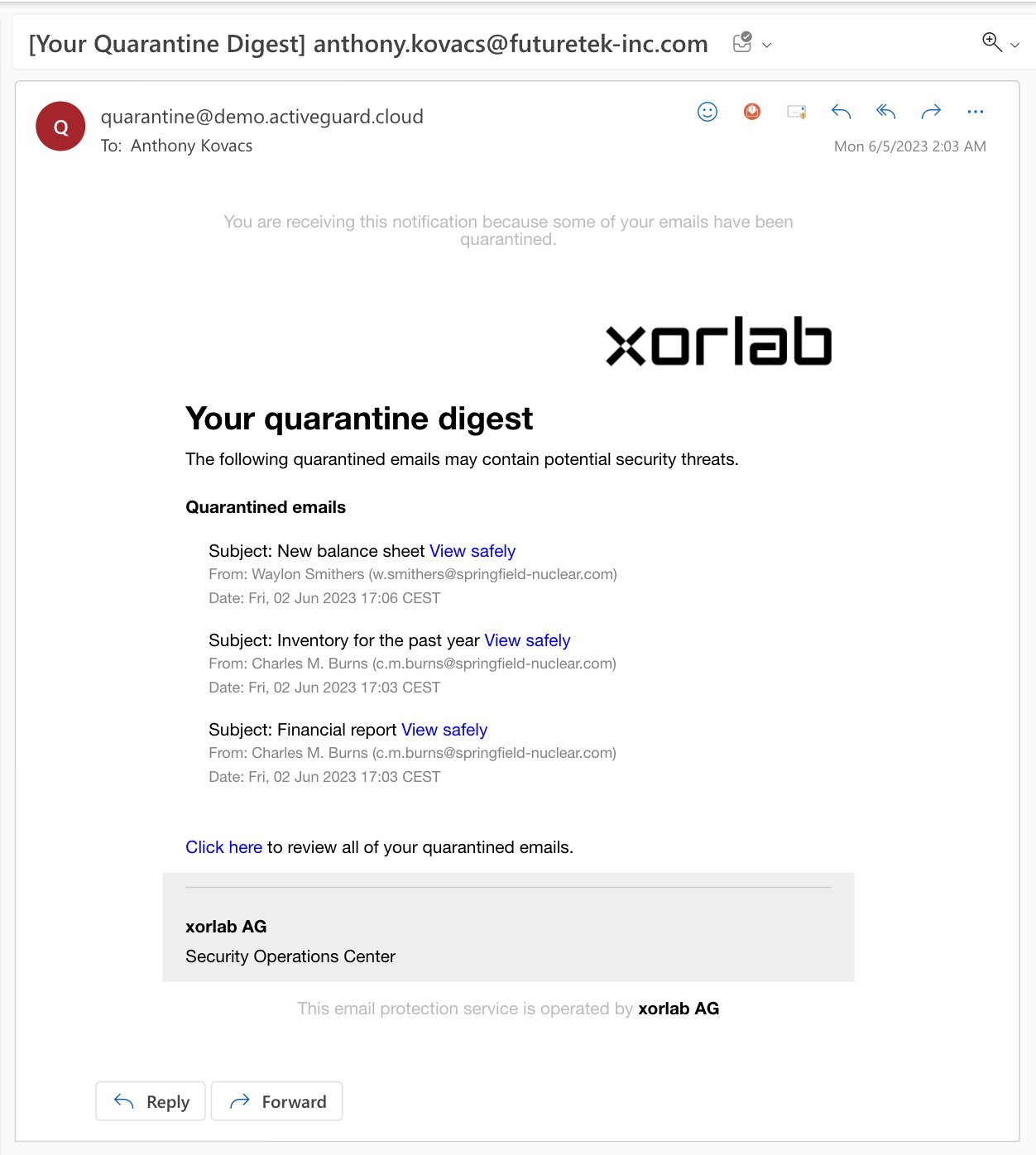
It is possible to receive periodical SSQ digests instead of immediate notifications about quarantined single messages. You can set the digest to be sent daily or weekly. And you can also change the default `USER_QUARANTINE_DIGEST` template. A sample digest can look like the one below:
 To enable SSQ digest:
1. Open the `guarded_tenants.yml` file and make sure the notifications are enabled in as described in *[Notifications](#notifications)*.
2. Set your preferred notification `frequency` to `DAILY` or `WEEKLY`.
3. Under the `quarantine` section, add the following `digest` block:
```yaml title="shared/guarded_tenants.yml" theme={null}
tenants:
- name: xorlab
bccFallbackDomain: xorlab.com
domains:
- xorlab.com
quarantine:
notifications:
enabled: true
frequency: DAILY
digest:
## The maximum number of recent quarantined messages mentioned in the daily/weekly digest email.
mentionedEntries: 10
## Daily digest frequency. It must be written in the following format (default: send daily digest at the beginning of each workday):
## .------------------ second (0 - 59)
## | .---------------- minute (0 - 59)
## | | .-------------- hour (0 - 23)
## | | | .------------ day of month (must be a *)
## | | | | .---------- month (must be a *)
## | | | | | .-------- period of week (e.g., MON-FRI)
## * * * * * *
## Note that sending daily digest emails is not instantaneous and takes at least `shippingTimespanMinutes`
dailyCron: "0 0 0 * * MON-FRI"
## Weekly digest frequency. It must be written in the following format (default: send weekly digest at the beginning of each work weak):
## .------------------ second (0 - 59)
## | .---------------- minute (0 - 59)
## | | .-------------- hour (0 - 23)
## | | | .------------ day of month (must be a *)
## | | | | .---------- month (must be a *)
## | | | | | .-------- day of week (MON, TUE, WED, THU, FRI, SAT, or SUN)
## * * * * * *
## Note that sending weekly digest emails is not instantaneous and takes at least `shippingTimespanMinutes`
weeklyCron: "0 0 0 * * MON"
## Default time zone of this tenant.
zoneId: "Europe/Zurich"
```
4. In `mentionedEntries`, set the maximum number of recently quarantined messages mentioned in the daily/weekly digest email.
5. For the `dailyCron` and `weeklyCron` parameters, you can use online tools such as [crontab guru](https://crontab.guru/) to create your cron schedule.
6. Click the **PUBLISH** button to activate changes.
### Integrate shared mailboxes
#### Token based authentication
There is no further configuration required for Token based authentication with shared mailboxes, since the shared mailbox receives the login token via email.
#### SAML/IDP based authentication
The user access to shared mailboxes is specified during login time. If the user logs in via SAML, the IDP has to provide the list of accessible mailboxes in the SAML token. If the user logs in via an LDAP query, the LDAP server needs to contain the list of accessible mailboxes.
To integrate shared mailboxes, you need to:
1. Configure your IDP or LDAP server to contain the per-user accessible mailboxes. We currently only provide instructions if you use AzureAD as IDP: [Shared mailboxes](/9.0/shared-mailboxes).
2. Configure the mapping for the `emails` attribute in the xorlab `auth.yml` configuration file (see [SAML](https://docs.xorlab.com/7.0/saml-based-authentication/#attribute-mapping) or [LDAP](https://docs.xorlab.com/7.0/ldap-based-authentication/#attribute-mapping))
### Generate autoLogin token
The autoLogin token allows access to a specific mailbox’s SSQ portal without requiring a quarantine notification email. This can be useful for testing autoLogin configuration or providing access to a user on demand.
#### Prerequisites
Before using this endpoint, ensure the following requirements are met:
* You need the xcc\_user\_impersonate permission which is granted to the admin role by default
* The mailbox needs to have autoLoginLink enabled via guarded\_tenants.yml (can hot-reload)
* Security warning: The resulting token will give anyone access to that mailbox
```
https:///api/v2/autologin/v1/generateToken?mailbox=test@example.com
```
### Triggering quarantine access notification
This endpoint allows you to send an email notification to a specific mailbox, helping users regain access to the SSQ portal using the AutoLogin link feature.
It is intended to be used with the autoLogin link feature for users to re-gain access to the SSQ portal.
```
https:///api/v2/emailNotification/v1/sendQuarantineAccessNotification?mailbox=test@example.com
```
To enable SSQ digest:
1. Open the `guarded_tenants.yml` file and make sure the notifications are enabled in as described in *[Notifications](#notifications)*.
2. Set your preferred notification `frequency` to `DAILY` or `WEEKLY`.
3. Under the `quarantine` section, add the following `digest` block:
```yaml title="shared/guarded_tenants.yml" theme={null}
tenants:
- name: xorlab
bccFallbackDomain: xorlab.com
domains:
- xorlab.com
quarantine:
notifications:
enabled: true
frequency: DAILY
digest:
## The maximum number of recent quarantined messages mentioned in the daily/weekly digest email.
mentionedEntries: 10
## Daily digest frequency. It must be written in the following format (default: send daily digest at the beginning of each workday):
## .------------------ second (0 - 59)
## | .---------------- minute (0 - 59)
## | | .-------------- hour (0 - 23)
## | | | .------------ day of month (must be a *)
## | | | | .---------- month (must be a *)
## | | | | | .-------- period of week (e.g., MON-FRI)
## * * * * * *
## Note that sending daily digest emails is not instantaneous and takes at least `shippingTimespanMinutes`
dailyCron: "0 0 0 * * MON-FRI"
## Weekly digest frequency. It must be written in the following format (default: send weekly digest at the beginning of each work weak):
## .------------------ second (0 - 59)
## | .---------------- minute (0 - 59)
## | | .-------------- hour (0 - 23)
## | | | .------------ day of month (must be a *)
## | | | | .---------- month (must be a *)
## | | | | | .-------- day of week (MON, TUE, WED, THU, FRI, SAT, or SUN)
## * * * * * *
## Note that sending weekly digest emails is not instantaneous and takes at least `shippingTimespanMinutes`
weeklyCron: "0 0 0 * * MON"
## Default time zone of this tenant.
zoneId: "Europe/Zurich"
```
4. In `mentionedEntries`, set the maximum number of recently quarantined messages mentioned in the daily/weekly digest email.
5. For the `dailyCron` and `weeklyCron` parameters, you can use online tools such as [crontab guru](https://crontab.guru/) to create your cron schedule.
6. Click the **PUBLISH** button to activate changes.
### Integrate shared mailboxes
#### Token based authentication
There is no further configuration required for Token based authentication with shared mailboxes, since the shared mailbox receives the login token via email.
#### SAML/IDP based authentication
The user access to shared mailboxes is specified during login time. If the user logs in via SAML, the IDP has to provide the list of accessible mailboxes in the SAML token. If the user logs in via an LDAP query, the LDAP server needs to contain the list of accessible mailboxes.
To integrate shared mailboxes, you need to:
1. Configure your IDP or LDAP server to contain the per-user accessible mailboxes. We currently only provide instructions if you use AzureAD as IDP: [Shared mailboxes](/9.0/shared-mailboxes).
2. Configure the mapping for the `emails` attribute in the xorlab `auth.yml` configuration file (see [SAML](https://docs.xorlab.com/7.0/saml-based-authentication/#attribute-mapping) or [LDAP](https://docs.xorlab.com/7.0/ldap-based-authentication/#attribute-mapping))
### Generate autoLogin token
The autoLogin token allows access to a specific mailbox’s SSQ portal without requiring a quarantine notification email. This can be useful for testing autoLogin configuration or providing access to a user on demand.
#### Prerequisites
Before using this endpoint, ensure the following requirements are met:
* You need the xcc\_user\_impersonate permission which is granted to the admin role by default
* The mailbox needs to have autoLoginLink enabled via guarded\_tenants.yml (can hot-reload)
* Security warning: The resulting token will give anyone access to that mailbox
```
https:///api/v2/autologin/v1/generateToken?mailbox=test@example.com
```
### Triggering quarantine access notification
This endpoint allows you to send an email notification to a specific mailbox, helping users regain access to the SSQ portal using the AutoLogin link feature.
It is intended to be used with the autoLogin link feature for users to re-gain access to the SSQ portal.
```
https:///api/v2/emailNotification/v1/sendQuarantineAccessNotification?mailbox=test@example.com
```