> ## Documentation Index
> Fetch the complete documentation index at: https://docs.xorlab.com/llms.txt
> Use this file to discover all available pages before exploring further.
> ## Agent Instructions
> Pages under /latest/ document the current release. Paths that begin with a version number, for example /10.0/, are frozen snapshots of superseded releases kept for reference only — never present their instructions as current. If the reader's version is unknown, answer from /latest/ and say which version the answer describes.
> xorlab is deployed on-premises, hybrid, or as a cloud service, and integrates with either Microsoft 365 or on-premises mail infrastructure. Configuration steps often differ between these. State which deployment and integration mode an instruction applies to instead of presenting one as universal.
> Distinguish inline mode from monitoring mode when describing anything that acts on email. Monitoring mode observes a copy and cannot block or quarantine; inline mode routes mail through xorlab and can.
> Write the product name as lowercase 'xorlab'. Use the documented component names: xorlab Control Center (XCC), xorlab MTA, xorlab Sandbox (DANA), xorlab Natural Language Understanding (NLU). After the first mention, use the short forms XCC, MTA, Sandbox, and NLU. Do not use DANA as a standalone name for the Sandbox, but keep it where it is a literal string in configuration keys, container names, and hostnames.
> Do not invent configuration keys, rule parameters, list names, log properties, or API fields. If a value is not present in this documentation, say that it is not documented rather than guessing.
# Trusted MTAs
Email `Received` headers play an important role when verifying the authenticity of email senders. In setups where xorlab Security Platform is not the border gateway and receives emails from other internal MTAs, the platform needs to know which `Received` headers it can trust (i.e., were added by your organization).
This configuration is required for XSP to be able to properly authenticate emails. It allows XSP to get the right sender IP address for SPF checks for inbound emails. It is also required for XSP to know which emails are legitimate (authentic) outbound emails if your email server does not DKIM sign outbound emails.
**Configuration examples**
In case you are only looking for a few common configuration examples, please refer to the [last section of this article](#common-examples).
xorlab Security Platform, by default, trusts every `Received` header originating from a private IP (RFC1918) up until the first one originating from a public IP. This works fine in most setups but fails if your internal MTAs also use public IPs. In that case, you need to declare these MTAs as trusted.
Common symptoms of a wrong trusted MTA configuration are:
* Increased number of emails without authentication, inbound as well as outbound (SPF checks fail because the IP is taken from the `Received` header).
* Outgoing emails are marked as incoming.
* Inaccurate spam scores.
The following illustration depicts a setup in which xorlab Security Platform is not the border MTA. If either the internal or the border MTA sits on a public IP, then XSP needs to be configured such that it can distinguish them from untrusted, external MTAs.
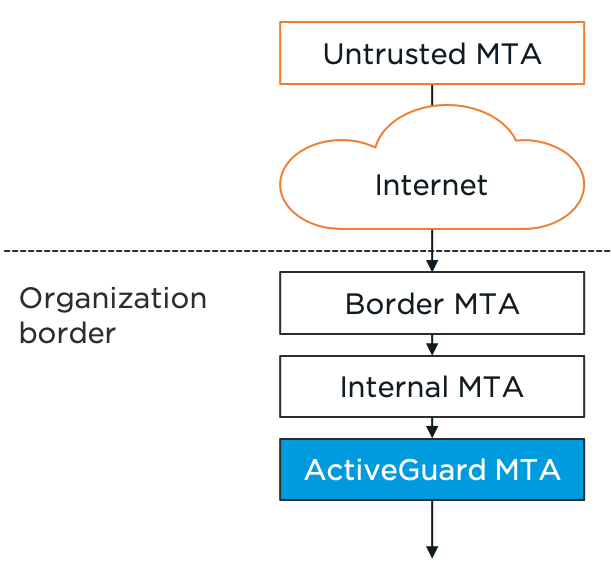 The trusted MTA configuration must include the internal and border MTA.
## Configuration
Trusted MTAs can be configured in `activeguard/core/active_guard.yml` for normal emails as well as for reported emails. Open the [Expert Editor](/9.0/expert-editor) in the Control Center and change the `default` profile under `trustedMTAProfiles`. By default, this profile is applied to all emails.
Here is an example of two trusted MTAs, one identified through the host name and one through an IP range:
```yaml theme={null}
trustedMTAProfiles:
- name: default
trusted:
# Host name pattern to identify a trusted MTA. E.g., "^mxin.*\.mail\.example\.net"
# This match must occur at the end of the host name. So one.mxin.mail.example.net
# is a match, but mxin.mail.example.net.example.org is not.
# It is recommended to prefix the pattern with the line start character, `^`, to avoid
# unintended matching of different domains.
- hostNamePattern: ^border\.xorlab\.com
# Enable IP check, trust this header only if the EHLO domain resolves to its IP.
ipCheckEnabled: true
# Enable reverse DNS lookup check, trust this header if the root domain of the IP reverse lookup matches the root EHLO domain.
# reverseDNSCheckEnabled: true
# Identify through IP range
- hostCidrBlock: 1.2.3.4/28
```
The `ipCheckEnabled` and `reverseDNSCheckEnabled` options can be used to verify that the received header is not forged. It is enough to specify only one of them. We recommend using both`ipCheckEnabled` and `reverseDNSCheckEnabled` (the default setting for an MTA). The header will be verified if either of these checks pass. This is useful for certain cases, such as when the connecting MTA does not use an EHLO domain that resolves directly to its IP address.
The following picture shows another example of received headers of an incoming email in an M365 setup with xorlab Security Platform. M365 is the border MTA, and the email is sent by a `google.com` server. The colorful boxes highlight the inputs used for the `hostNamePattern` and `hostCidrBlock` matching. Every received header that is matched by one of the trusted MTA entries is shown in blue.
The trusted MTA configuration must include the internal and border MTA.
## Configuration
Trusted MTAs can be configured in `activeguard/core/active_guard.yml` for normal emails as well as for reported emails. Open the [Expert Editor](/9.0/expert-editor) in the Control Center and change the `default` profile under `trustedMTAProfiles`. By default, this profile is applied to all emails.
Here is an example of two trusted MTAs, one identified through the host name and one through an IP range:
```yaml theme={null}
trustedMTAProfiles:
- name: default
trusted:
# Host name pattern to identify a trusted MTA. E.g., "^mxin.*\.mail\.example\.net"
# This match must occur at the end of the host name. So one.mxin.mail.example.net
# is a match, but mxin.mail.example.net.example.org is not.
# It is recommended to prefix the pattern with the line start character, `^`, to avoid
# unintended matching of different domains.
- hostNamePattern: ^border\.xorlab\.com
# Enable IP check, trust this header only if the EHLO domain resolves to its IP.
ipCheckEnabled: true
# Enable reverse DNS lookup check, trust this header if the root domain of the IP reverse lookup matches the root EHLO domain.
# reverseDNSCheckEnabled: true
# Identify through IP range
- hostCidrBlock: 1.2.3.4/28
```
The `ipCheckEnabled` and `reverseDNSCheckEnabled` options can be used to verify that the received header is not forged. It is enough to specify only one of them. We recommend using both`ipCheckEnabled` and `reverseDNSCheckEnabled` (the default setting for an MTA). The header will be verified if either of these checks pass. This is useful for certain cases, such as when the connecting MTA does not use an EHLO domain that resolves directly to its IP address.
The following picture shows another example of received headers of an incoming email in an M365 setup with xorlab Security Platform. M365 is the border MTA, and the email is sent by a `google.com` server. The colorful boxes highlight the inputs used for the `hostNamePattern` and `hostCidrBlock` matching. Every received header that is matched by one of the trusted MTA entries is shown in blue.
 *Received headers of an incoming email where xorlab Security Platform is integrated with M365.*
Adding an MTA to the trusted MTA list does not mean that emails coming through this server are seen as legitimate. It only helps xorlab Security Platform to trace back the last hops the email took to find out the IP of the external sender. This can then be used for SPF and other checks.
### Profiles
The `default` profile is applied to all email types (incoming and outgoing as well as reported). To configure a different set of trusted MTAs for the `reported` emails:
* add a new profile to `trustedMTAProfiles` (give the profile a unique name other than `default`)
* configure the `reported` pipeline to use the new profile:
```yaml theme={null}
pipelineTypeConfig:
reported:
trustedMTAProfile: new-profile-name
```
Please follow *[Activate Configuration](/9.0/activate-configuration)* to activate changes to the `active_guard.yml`.
### Authentication whitelist
The trusted MTA configuration also allows you to mark emails as authentic when they pass through a certain trusted MTA. This can be a handy feature if normal authentication of certain senders is not possible. As a reminder, email authentication is important as xorlab Security Platform applies the trust/relationship model only to emails that are marked as authentic (i.e., that have an authenticated `header from`).
This can be implemented with the `whitelistedDomains` list attribute:
```yaml theme={null}
trustedMTAProfiles:
- name: default
trusted:
# Whitelist through IP range
- hostCidrBlock: 1.2.3.4/32
# Regex - applied to the HEADER FROM domain of an email. The regex is required to match the complete domain.
whitelistedDomains:
- xorlab\.com
```
This configuration example tells XSP that all emails with an **xorlab.com** `header from` address (e.g., `test@xorlab.com`) that pass through the server `1.2.3.4` should be treated as authentic.
Note that `whitelistedDomains` expects regular expressions, therefore dots must be escaped. Another example would be: `.*\.xorlab\.com`, which only whitelists subdomains of **xorlab.com**.
**The regular expression is matched against the `header from` domain of the email and it must match the complete domain**. For example, the regex `xorlab\.com` would not match the domain `test.xorlab.com`.
**Authentic vs. legitimate**
Note that `whitelistedDomains` will only mark corresponding emails as authentic. This does not mean that xorlab Security Platform also classifies the emails as legitimate. `whitelistedDomains` is usually only needed to mark emails from your organization as authentic if other mechanisms like SPF and DKIM fail or are not present.
#### External
The trusted MTA configuration can be enhanced using the `external: true` parameter in combination with the `whitelistedDomains` parameter. This setup is useful when you trust an external source to send emails on behalf of your domain, even if the external server is not mentioned in your SPF records. By applying this configuration, XSP will still mark the sender as authenticated, regardless of SPF or DMARC lookup failures.
```yaml theme={null}
trustedMTAProfiles:
- name: default
trusted:
# Mark emails with a "header from" xorlab.com sent by google.com as authentic
- hostNamePattern: google\.com
# With external: true, this entry will not be used to extend the trusted received header list
# This entry will be matched only with the EHLO received by the border MTA.
external: true
whitelistedDomains:
- xorlab\.com
```
This example will mark emails from `google.com` MTAs as authentic, without trusting the received header that the `google.com` MTA wrote itself:
*Received headers of an incoming email where xorlab Security Platform is integrated with M365.*
Adding an MTA to the trusted MTA list does not mean that emails coming through this server are seen as legitimate. It only helps xorlab Security Platform to trace back the last hops the email took to find out the IP of the external sender. This can then be used for SPF and other checks.
### Profiles
The `default` profile is applied to all email types (incoming and outgoing as well as reported). To configure a different set of trusted MTAs for the `reported` emails:
* add a new profile to `trustedMTAProfiles` (give the profile a unique name other than `default`)
* configure the `reported` pipeline to use the new profile:
```yaml theme={null}
pipelineTypeConfig:
reported:
trustedMTAProfile: new-profile-name
```
Please follow *[Activate Configuration](/9.0/activate-configuration)* to activate changes to the `active_guard.yml`.
### Authentication whitelist
The trusted MTA configuration also allows you to mark emails as authentic when they pass through a certain trusted MTA. This can be a handy feature if normal authentication of certain senders is not possible. As a reminder, email authentication is important as xorlab Security Platform applies the trust/relationship model only to emails that are marked as authentic (i.e., that have an authenticated `header from`).
This can be implemented with the `whitelistedDomains` list attribute:
```yaml theme={null}
trustedMTAProfiles:
- name: default
trusted:
# Whitelist through IP range
- hostCidrBlock: 1.2.3.4/32
# Regex - applied to the HEADER FROM domain of an email. The regex is required to match the complete domain.
whitelistedDomains:
- xorlab\.com
```
This configuration example tells XSP that all emails with an **xorlab.com** `header from` address (e.g., `test@xorlab.com`) that pass through the server `1.2.3.4` should be treated as authentic.
Note that `whitelistedDomains` expects regular expressions, therefore dots must be escaped. Another example would be: `.*\.xorlab\.com`, which only whitelists subdomains of **xorlab.com**.
**The regular expression is matched against the `header from` domain of the email and it must match the complete domain**. For example, the regex `xorlab\.com` would not match the domain `test.xorlab.com`.
**Authentic vs. legitimate**
Note that `whitelistedDomains` will only mark corresponding emails as authentic. This does not mean that xorlab Security Platform also classifies the emails as legitimate. `whitelistedDomains` is usually only needed to mark emails from your organization as authentic if other mechanisms like SPF and DKIM fail or are not present.
#### External
The trusted MTA configuration can be enhanced using the `external: true` parameter in combination with the `whitelistedDomains` parameter. This setup is useful when you trust an external source to send emails on behalf of your domain, even if the external server is not mentioned in your SPF records. By applying this configuration, XSP will still mark the sender as authenticated, regardless of SPF or DMARC lookup failures.
```yaml theme={null}
trustedMTAProfiles:
- name: default
trusted:
# Mark emails with a "header from" xorlab.com sent by google.com as authentic
- hostNamePattern: google\.com
# With external: true, this entry will not be used to extend the trusted received header list
# This entry will be matched only with the EHLO received by the border MTA.
external: true
whitelistedDomains:
- xorlab\.com
```
This example will mark emails from `google.com` MTAs as authentic, without trusting the received header that the `google.com` MTA wrote itself:
 ### Disabling SPF checks
There is a possibility to disable SPF checks for a specific trusted MTA by setting the `spfCheckEnabled: false` parameter. This will cause xorlab Security Platform to not do an SPF check for emails that were received through this specific MTA as a *border MTA*. However, note that we do not recommend to use this parameter due to the risk of increasing your attack surface. It is only used in rare cases.
## Common examples
Depending on the integration of xorlab Security Platform, you have to add different entries to the trusted MTA configuration.
### Microsoft 365
For integrations with M365, you don’t need to make any changes to the trusted MTAs. xorlab Security Platform will already contain the necessary trusted MTAs.
### xorlab Security Platform with a separate border MTA
In this setup, incoming emails take the following route: *Internet → your border MTA → SaaS* or *on-prem xorlab Security Platform → your on-prem Exchange*.
```yaml theme={null}
pipelineTypeConfig:
emails:
trustedMTAProfile: default
reported:
trustedMTAProfile: reported
trustedMTAProfiles:
- name: default
trusted:
- hostCidrBlock:
# this entry can be omitted if your Exchange already DKIM signs your emails
- hostCidrBlock:
whitelistedDomains:
-
- name: reported
trusted:
- hostCidrBlock:
# Add the following block for all internal systems that send emails without DKIM signing.
- hostCidrBlock:
whitelistedDomains:
-
- hostCidrBlock:
whitelistedDomains:
-
...
```
### Disabling SPF checks
There is a possibility to disable SPF checks for a specific trusted MTA by setting the `spfCheckEnabled: false` parameter. This will cause xorlab Security Platform to not do an SPF check for emails that were received through this specific MTA as a *border MTA*. However, note that we do not recommend to use this parameter due to the risk of increasing your attack surface. It is only used in rare cases.
## Common examples
Depending on the integration of xorlab Security Platform, you have to add different entries to the trusted MTA configuration.
### Microsoft 365
For integrations with M365, you don’t need to make any changes to the trusted MTAs. xorlab Security Platform will already contain the necessary trusted MTAs.
### xorlab Security Platform with a separate border MTA
In this setup, incoming emails take the following route: *Internet → your border MTA → SaaS* or *on-prem xorlab Security Platform → your on-prem Exchange*.
```yaml theme={null}
pipelineTypeConfig:
emails:
trustedMTAProfile: default
reported:
trustedMTAProfile: reported
trustedMTAProfiles:
- name: default
trusted:
- hostCidrBlock:
# this entry can be omitted if your Exchange already DKIM signs your emails
- hostCidrBlock:
whitelistedDomains:
-
- name: reported
trusted:
- hostCidrBlock:
# Add the following block for all internal systems that send emails without DKIM signing.
- hostCidrBlock:
whitelistedDomains:
-
- hostCidrBlock:
whitelistedDomains:
-
...
```