> ## Documentation Index
> Fetch the complete documentation index at: https://docs.xorlab.com/llms.txt
> Use this file to discover all available pages before exploring further.
> ## Agent Instructions
> Pages under /latest/ document the current release. Paths that begin with a version number, for example /10.0/, are frozen snapshots of superseded releases kept for reference only — never present their instructions as current. If the reader's version is unknown, answer from /latest/ and say which version the answer describes.
> xorlab is deployed on-premises, hybrid, or as a cloud service, and integrates with either Microsoft 365 or on-premises mail infrastructure. Configuration steps often differ between these. State which deployment and integration mode an instruction applies to instead of presenting one as universal.
> Distinguish inline mode from monitoring mode when describing anything that acts on email. Monitoring mode observes a copy and cannot block or quarantine; inline mode routes mail through xorlab and can.
> Write the product name as lowercase 'xorlab'. Use the documented component names: xorlab Control Center (XCC), xorlab MTA, xorlab Sandbox (DANA), xorlab Natural Language Understanding (NLU). After the first mention, use the short forms XCC, MTA, Sandbox, and NLU. Do not use DANA as a standalone name for the Sandbox, but keep it where it is a literal string in configuration keys, container names, and hostnames.
> Do not invent configuration keys, rule parameters, list names, log properties, or API fields. If a value is not present in this documentation, say that it is not documented rather than guessing.
# Handling the Abuse Mailbox
> Triage, analyze, and respond to employee-reported emails in the Abuse Mailbox, including automated resolution and reporter feedback.
## Manually resolve
### Review a case
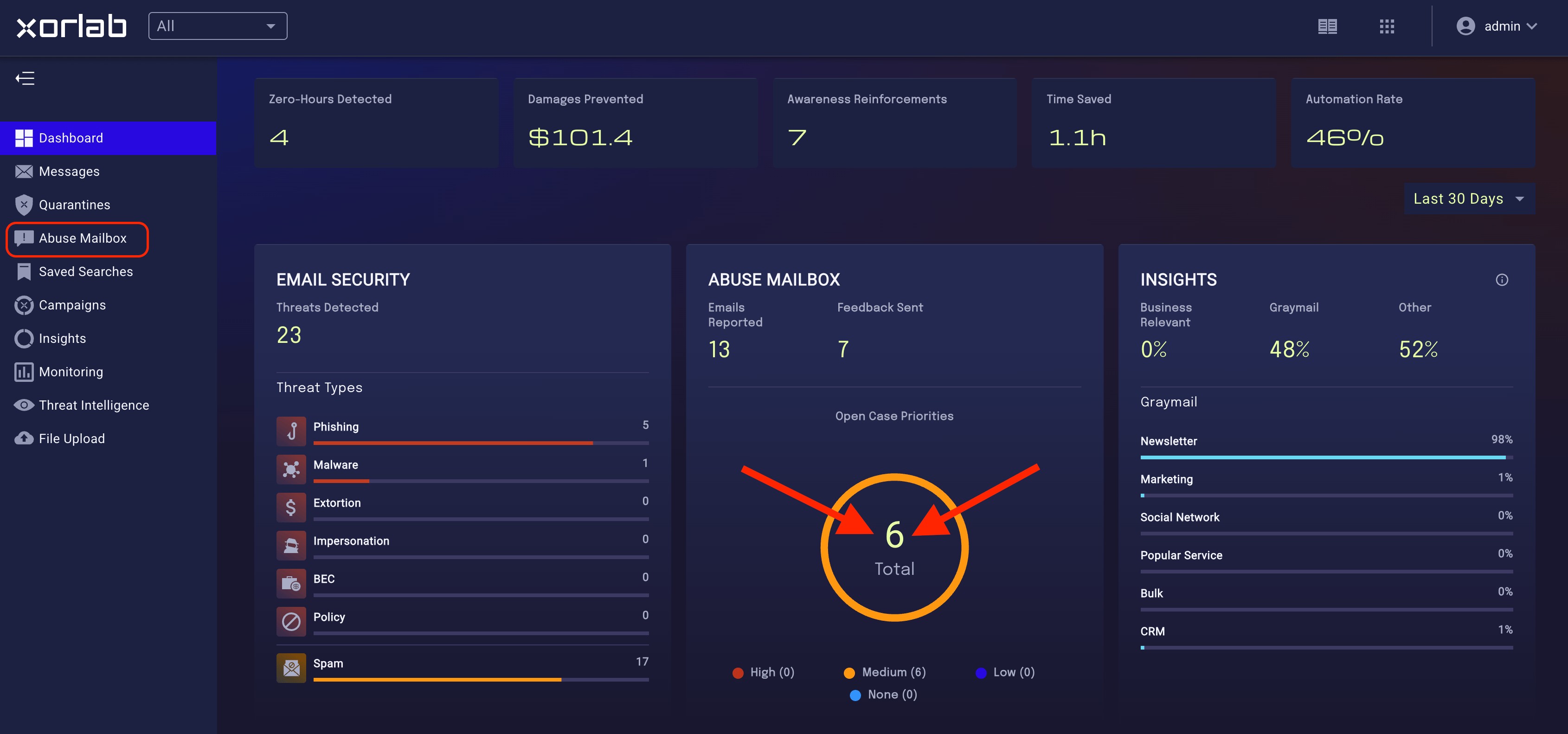
1. To view open cases, click on **Abuse Mailbox** in the left menu or on the diagram in the dashboard.
 2. Click on a message to view in detail
3. Review the email, paying attention to:
* Message Preview
* From and Envelope From address
* Authentication
* Relationship
* Attachment Analysis (if applicable)
* Reputation of links (if applicable)
4. Resolve the case
2. Click on a message to view in detail
3. Review the email, paying attention to:
* Message Preview
* From and Envelope From address
* Authentication
* Relationship
* Attachment Analysis (if applicable)
* Reputation of links (if applicable)
4. Resolve the case
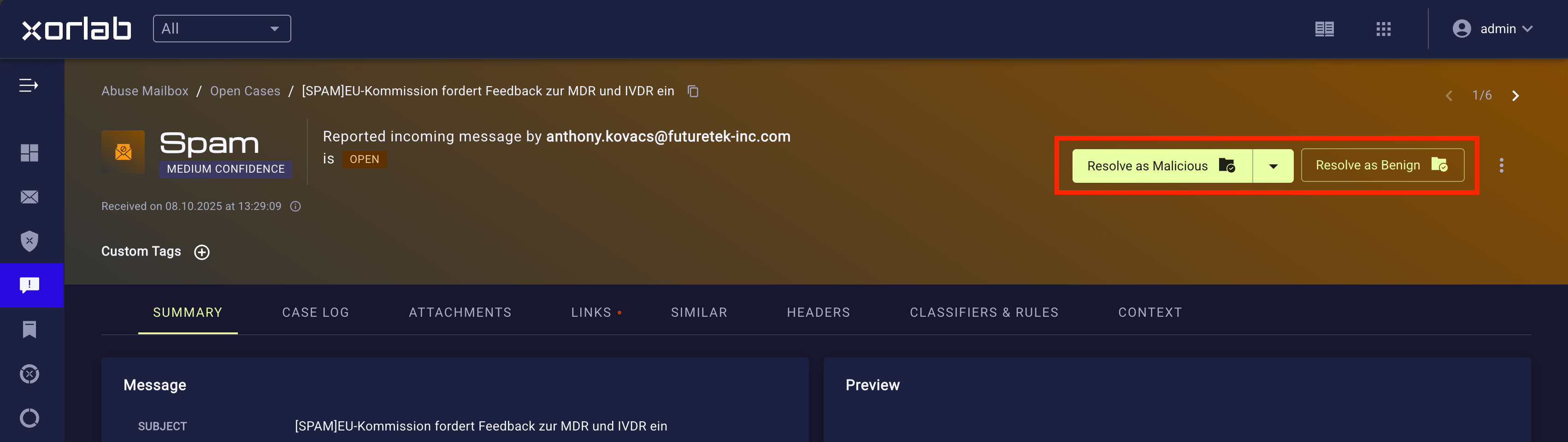 5. The pop-up enables you to modify:
* The verdict of the email
* The Feedback Template for the employee
* Add a comment to the feedback
* Report the misclassification
### Resolve multiple cases
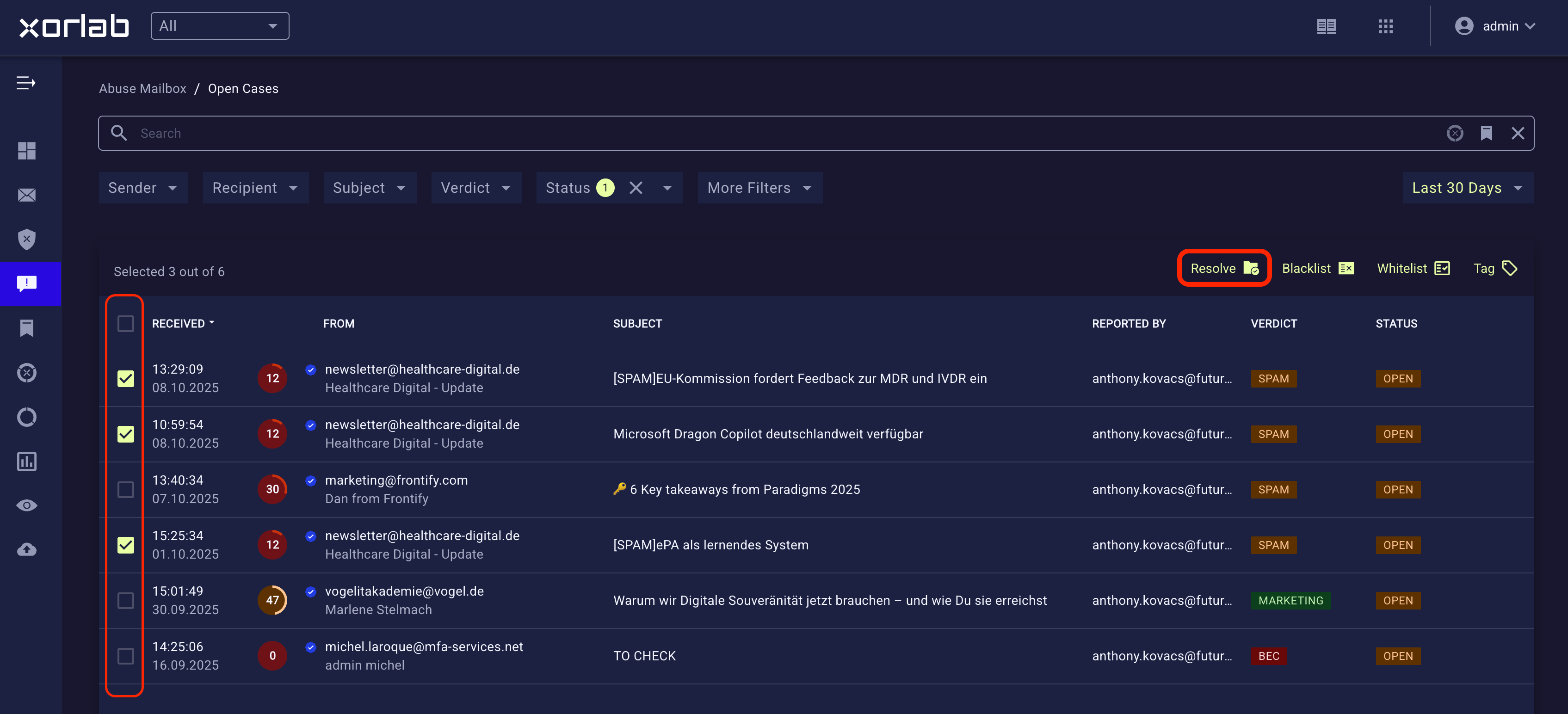
In the Abuse Mailbox view, you can also select multiple cases and resolve them simultaneously.
5. The pop-up enables you to modify:
* The verdict of the email
* The Feedback Template for the employee
* Add a comment to the feedback
* Report the misclassification
### Resolve multiple cases
In the Abuse Mailbox view, you can also select multiple cases and resolve them simultaneously.
 ## Auto resolve cases
xorlab Security Platform provides two mechanisms to automatically send feedback emails to reporters and close corresponding cases without manual interaction.
* **Verdict-based Automation** – determines actions based on the verdict and confidence of reported emails.
* **Campaign Automation** – enables a fine-tune approach when a reported email matches a specific campaign query.
### Verdict-based automation
The verdict-based automation of reported emails is enabled by default and can be modified via the [Actions](/latest/detection-actions) configuration screen.
1. In the dashboard, click the tiles icon next to your account name to click the **Admin** icon.
2. On the **Admin** page, click the **Actions** tile.
3. In the left menu, click **Abuse Mailbox**
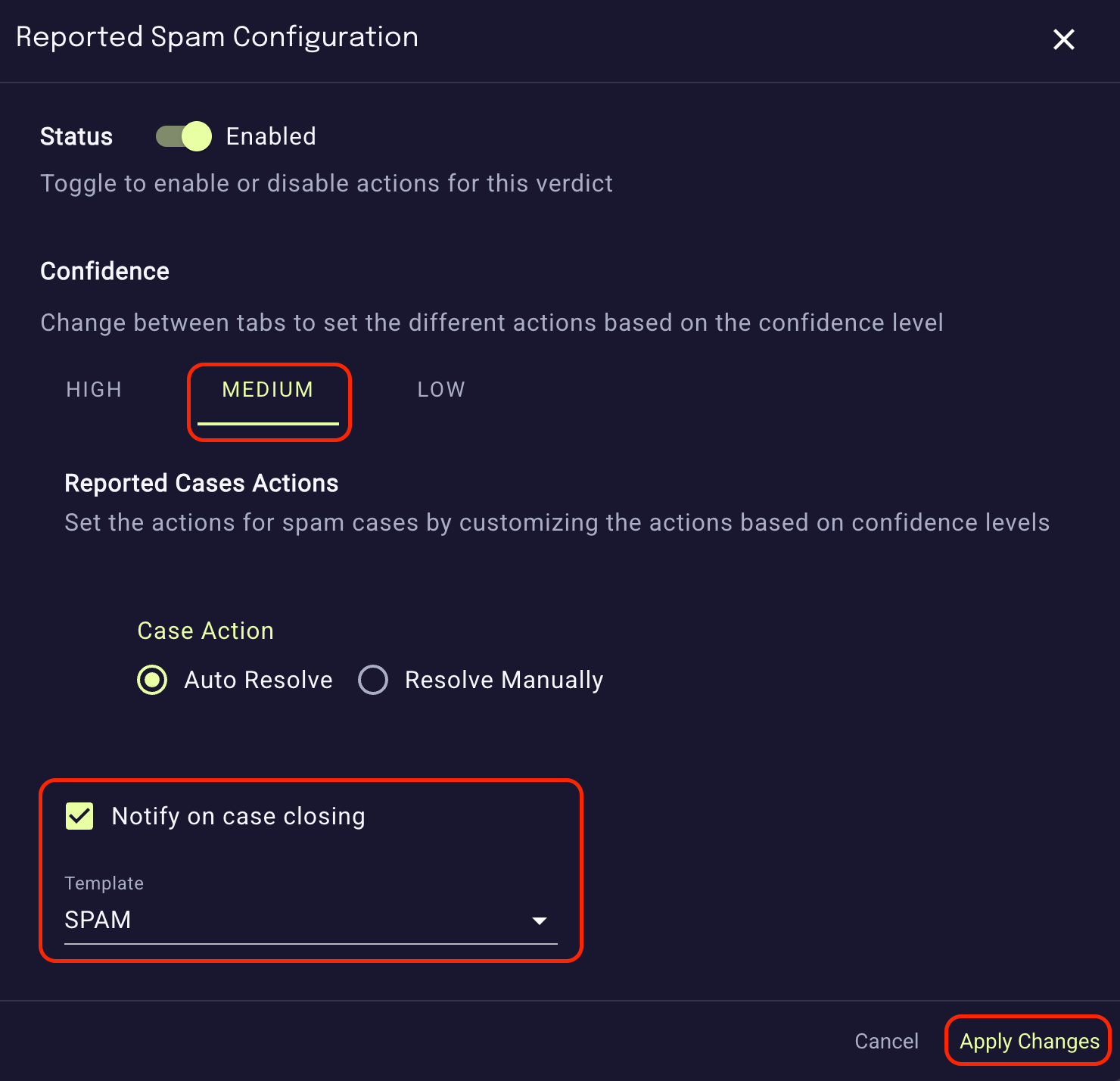
4. Hover over the verdict to modify the action:
## Auto resolve cases
xorlab Security Platform provides two mechanisms to automatically send feedback emails to reporters and close corresponding cases without manual interaction.
* **Verdict-based Automation** – determines actions based on the verdict and confidence of reported emails.
* **Campaign Automation** – enables a fine-tune approach when a reported email matches a specific campaign query.
### Verdict-based automation
The verdict-based automation of reported emails is enabled by default and can be modified via the [Actions](/latest/detection-actions) configuration screen.
1. In the dashboard, click the tiles icon next to your account name to click the **Admin** icon.
2. On the **Admin** page, click the **Actions** tile.
3. In the left menu, click **Abuse Mailbox**
4. Hover over the verdict to modify the action:
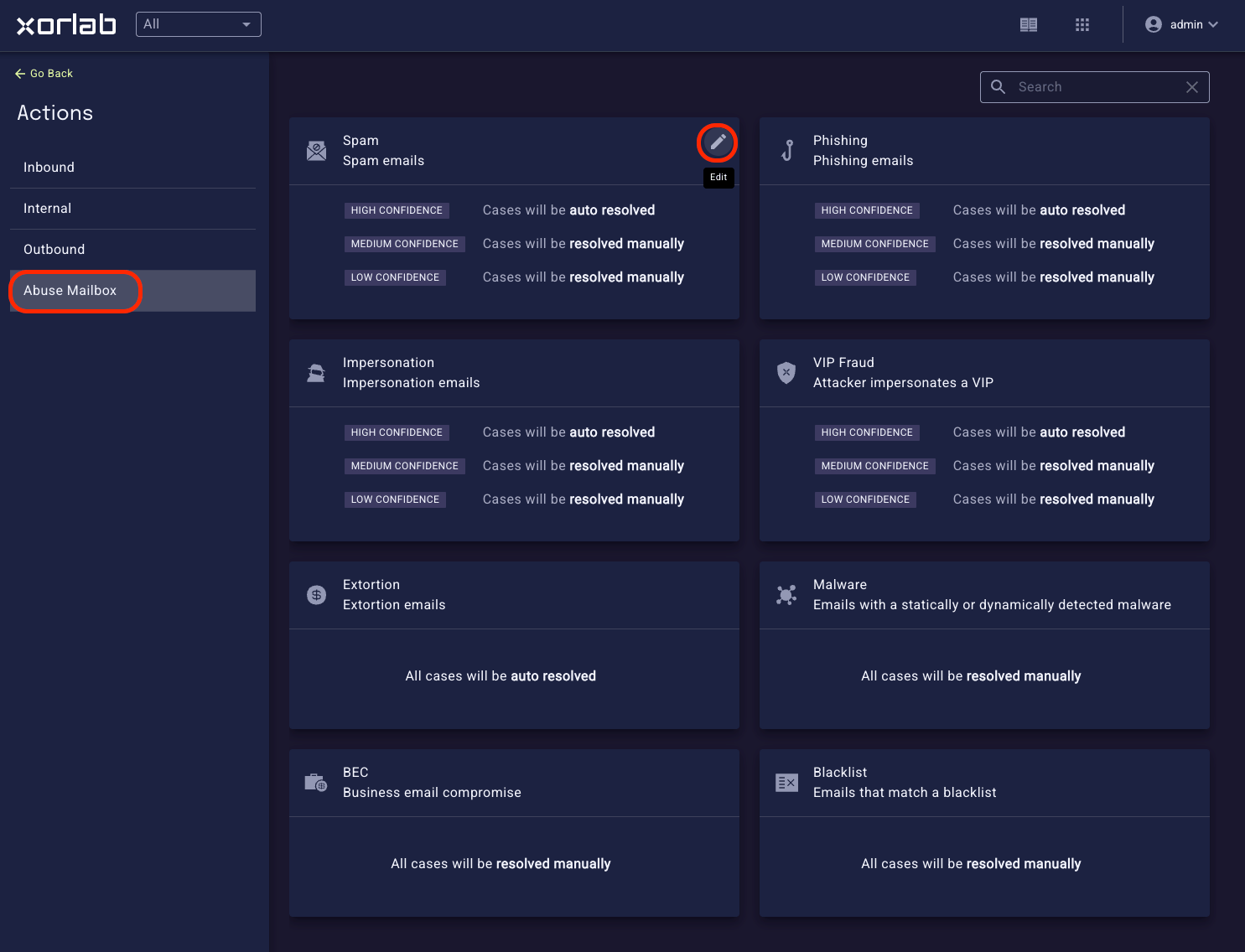 5. Choose whether to resolve cases automatically or manually. For automatically resolved cases, select the email template to send to the employee.
 ### Campaign automation
You can use [Campaigns](/latest/campaigns) to automatically resolve reported emails that match a campaign query. This option is suitable when you detect a pattern in reported emails and wish to fine-tune the system accordingly.
1. **Define the Search Query**
* In the Abuse Mailbox view, enter a search query that captures the type of reported emails you want to handle automatically.
* You can use tags and attributes such as sender, domain, or attachment type to make the query more specific.
* Avoid using fields related to verdicts or actions, as they are not compatible with campaigns.
2. **Review the Results**
* Inspect the list of matching emails to make sure your query captures only the messages you want to automate.
* To reduce false matches, add inclusion tags like `#auth` or `#trusted` to narrow the scope.
* Exclusion tags like `not #document` or `not #cloudstorage` can also be helpful in avoiding false matches.
3. **Create the Campaign**
* When the search query is ready, press Enter to refresh the search results.
* Then click on the campaign icon next to the search bar to create a new campaign.
* If the icon is grayed out, your query contains unsupported fields — remove them and try again.
4. **Configure the Campaign**
* Message Action: **None**
* Resolve Action:
* **Benign** – for legitimate, safe emails; specify which feedback message to send to the employee who reported the email.
* **Malicious** – for unwanted or harmful emails; also choose a feedback message to inform the employee who reported the email.
### Campaign examples
The following examples show some ideas on how to automatically resolve reported cases with campaigns.
* Resolve all reported messages with young domains (sender domain or embedded URL):
`(#365daysoldsender or #365daysold) and (#spam or #phishing)`
* Resolve all reported messages with shortened URLs (all confidences):
`#phishing #shortened`
* Resolve all reported internal emails without attachments:
`#internal not #nolocalreputation not #document`
* Resolve all reported partner emails without attachments or links to cloud storage:
`#partner #auth #trusted not #nolocalreputation not #cloudstorage not #document`
* Resolve all greymail without attachments or links to cloud storage:
` (#marketing or #crm or #newsletter or #bulk or #external) not #nolocalreputation not(#cloudstorage or #cloudstoragesender) not #document not #spffail not #dkimfail not #subjectcvip not #bodylt75words not #lowtrusted not #internal`
Hints:
* Use `not #nolocalreputation not(#cloudstorage or #cloudstoragesender)` to avoid any phishing false negatives.
* Use `not #document` to avoid any malware false negatives.
### Campaign automation
You can use [Campaigns](/latest/campaigns) to automatically resolve reported emails that match a campaign query. This option is suitable when you detect a pattern in reported emails and wish to fine-tune the system accordingly.
1. **Define the Search Query**
* In the Abuse Mailbox view, enter a search query that captures the type of reported emails you want to handle automatically.
* You can use tags and attributes such as sender, domain, or attachment type to make the query more specific.
* Avoid using fields related to verdicts or actions, as they are not compatible with campaigns.
2. **Review the Results**
* Inspect the list of matching emails to make sure your query captures only the messages you want to automate.
* To reduce false matches, add inclusion tags like `#auth` or `#trusted` to narrow the scope.
* Exclusion tags like `not #document` or `not #cloudstorage` can also be helpful in avoiding false matches.
3. **Create the Campaign**
* When the search query is ready, press Enter to refresh the search results.
* Then click on the campaign icon next to the search bar to create a new campaign.
* If the icon is grayed out, your query contains unsupported fields — remove them and try again.
4. **Configure the Campaign**
* Message Action: **None**
* Resolve Action:
* **Benign** – for legitimate, safe emails; specify which feedback message to send to the employee who reported the email.
* **Malicious** – for unwanted or harmful emails; also choose a feedback message to inform the employee who reported the email.
### Campaign examples
The following examples show some ideas on how to automatically resolve reported cases with campaigns.
* Resolve all reported messages with young domains (sender domain or embedded URL):
`(#365daysoldsender or #365daysold) and (#spam or #phishing)`
* Resolve all reported messages with shortened URLs (all confidences):
`#phishing #shortened`
* Resolve all reported internal emails without attachments:
`#internal not #nolocalreputation not #document`
* Resolve all reported partner emails without attachments or links to cloud storage:
`#partner #auth #trusted not #nolocalreputation not #cloudstorage not #document`
* Resolve all greymail without attachments or links to cloud storage:
` (#marketing or #crm or #newsletter or #bulk or #external) not #nolocalreputation not(#cloudstorage or #cloudstoragesender) not #document not #spffail not #dkimfail not #subjectcvip not #bodylt75words not #lowtrusted not #internal`
Hints:
* Use `not #nolocalreputation not(#cloudstorage or #cloudstoragesender)` to avoid any phishing false negatives.
* Use `not #document` to avoid any malware false negatives.