> ## Documentation Index
> Fetch the complete documentation index at: https://docs.xorlab.com/llms.txt
> Use this file to discover all available pages before exploring further.
> ## Agent Instructions
> Pages under /latest/ document the current release. Paths that begin with a version number, for example /10.0/, are frozen snapshots of superseded releases kept for reference only — never present their instructions as current. If the reader's version is unknown, answer from /latest/ and say which version the answer describes.
> xorlab is deployed on-premises, hybrid, or as a cloud service, and integrates with either Microsoft 365 or on-premises mail infrastructure. Configuration steps often differ between these. State which deployment and integration mode an instruction applies to instead of presenting one as universal.
> Distinguish inline mode from monitoring mode when describing anything that acts on email. Monitoring mode observes a copy and cannot block or quarantine; inline mode routes mail through xorlab and can.
> Write the product name as lowercase 'xorlab'. Use the documented component names: xorlab Control Center (XCC), xorlab MTA, xorlab Sandbox (DANA), xorlab Natural Language Understanding (NLU). After the first mention, use the short forms XCC, MTA, Sandbox, and NLU. Do not use DANA as a standalone name for the Sandbox, but keep it where it is a literal string in configuration keys, container names, and hostnames.
> Do not invent configuration keys, rule parameters, list names, log properties, or API fields. If a value is not present in this documentation, say that it is not documented rather than guessing.
# Using Campaigns
> Turn a search query into a standing rule, so analysts can close a detection gap without editing configuration files.
Campaigns enable analysts to adjust the built-in detection. They allow the creation of new security policies in response to undetected threats or recurring false positives.
## Create a campaign
### 1. Search
Every campaign starts with a search query in the All Messages view. Use the predefined search filters to specify email attributes, or write your own query directly in the search bar. For a syntax description of the search functionality, checkout [Search](/latest/search).
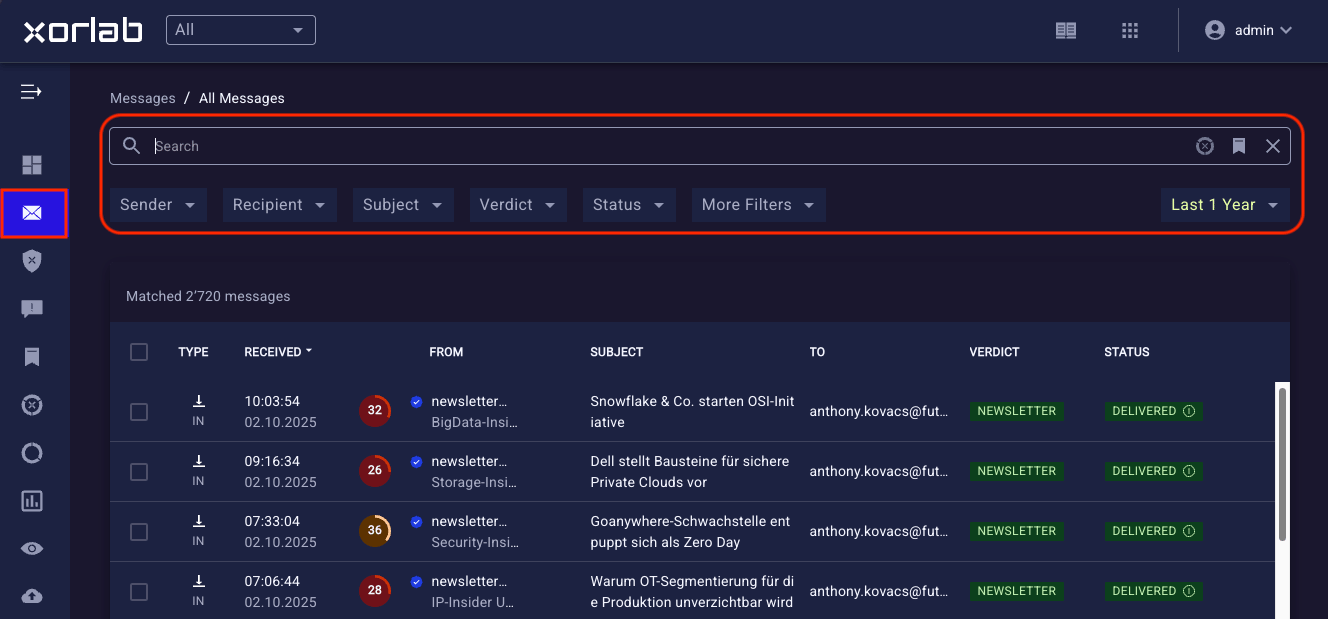 The table below lists useful search parameters that can be used to define a campaign. Keep in mind that campaigns cannot include attributes related to verdicts or actions.
| Search | Example |
| :----------------------------------------------------------------------------------------------------------- | :------------------------------------------------------------------------------------------------------------------------------------------------------------------------------------------------ |
| `From`, `To`, `CC` email address and display name
The table below lists useful search parameters that can be used to define a campaign. Keep in mind that campaigns cannot include attributes related to verdicts or actions.
| Search | Example |
| :----------------------------------------------------------------------------------------------------------- | :------------------------------------------------------------------------------------------------------------------------------------------------------------------------------------------------ |
| `From`, `To`, `CC` email address and display name
Envelope `from` and envelope recipient email address. | `from:search@xorlab.com`, `from.displayname:search`, `envfrom:search@xorlab.com`, `sender:search@xorlab.com`, `recipient:search@xorlab.com`, `involves:search@xorlab.com`
Supports wildcards |
| Tags (note that the `#quarantine` and `#subjectrewrite` tags can’t be used in campaigns) | `#untrusted #newdomain` |
| Domains in the email (incl. sender domains as well as URL domains in the email body) | `domain:test.xorlab.com`
Supports wildcards |
| Attachment name and hash | `file.name:text.exe`, `file.hash:abcdefg`
Supports wildcards |
| Spam score | `spam:gt:4` |
| Rspamd score | `rsd:gt:2` |
| Subject | `subject:"hi there"`
Supports wildcards |
| Content similarity | N/A
The similarity search query is automatically generated in the similarity detail view |
| Links URL and display text | `link:"https://www.test.com"`, `link.displaytext:"click here!"`
Supports wildcards |
| Headers | `header.name:x-xor-example`, `header.value:abcdefg`, `header:{ name:x-xor-example value:abcdefg }`
Supports wildcards |
### 2. Evaluate
After entering your search query, carefully review the results it returns. Because campaigns override all default detection rules, it’s crucial to design a query that matches only the intended emails — no more, no less.
[Tags](/latest/tags) are a powerful way to narrow the campaign’s scope. Start by examining two or three emails that should match your campaign and identify which tags they have in common. Add these tags to your search query to make it more precise. For example, adding `#auth` ensures that the campaign only applies to senders that can be authenticated by SPF or DKIM.
You can also use a NOT clause to exclude certain emails based on missing attributes. For example, adding `NOT #file` ensures the campaign doesn’t apply to emails that contain attachments.
Press Enter after modifying your search query to refresh the results.
### 3. Create
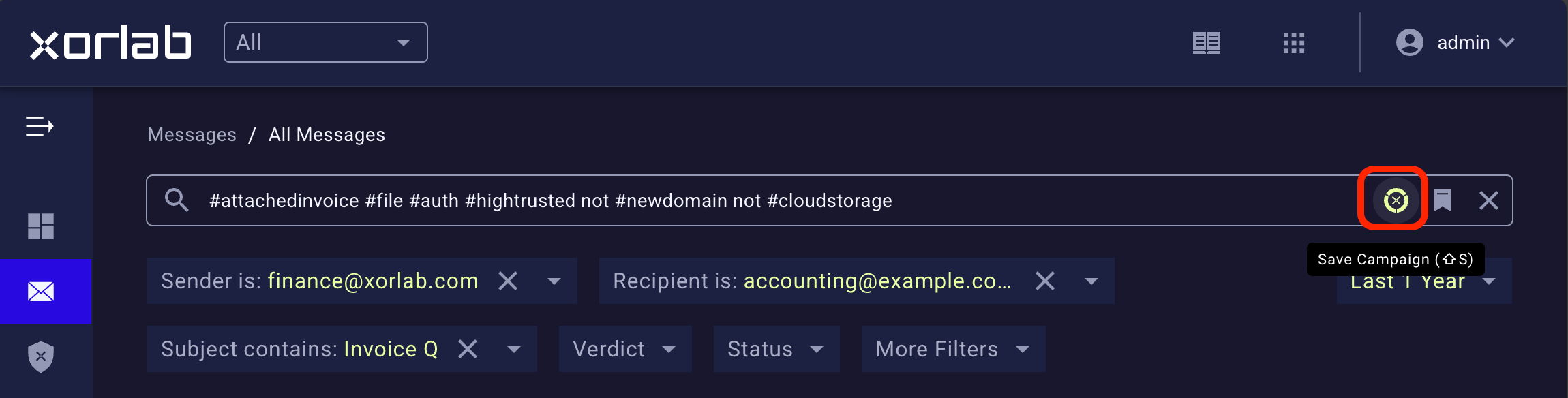
Once you are satisfied with your search query, click the campaign icon on the right side of the search bar to create a campaign.
If the icon is not clickable, the current search query includes one or more attributes that are not compatible with campaigns. Review your query and remove unsupported fields before proceeding.
 ### 4. Save
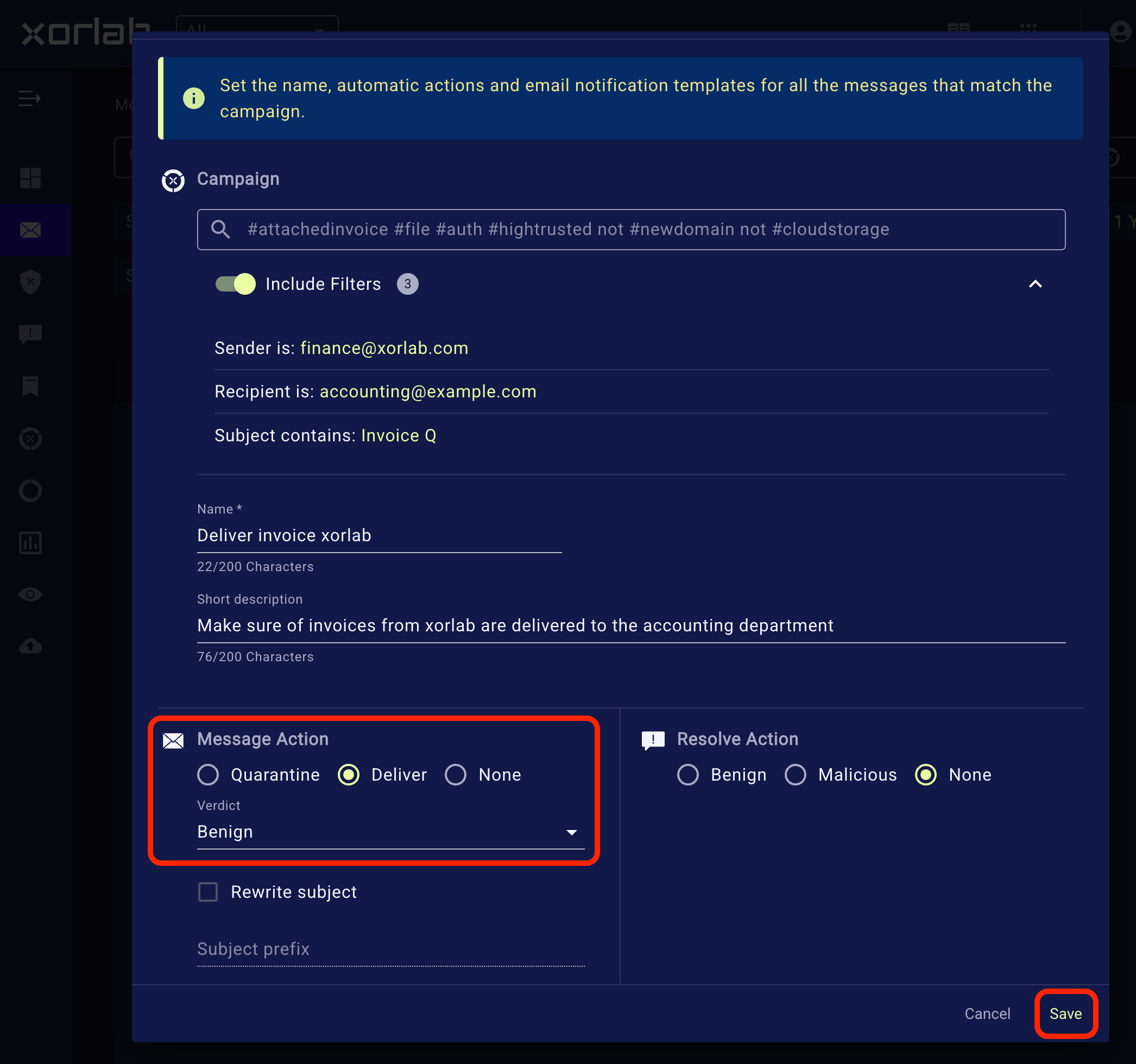
A pop-up window appears that lets you turn your search query into an active campaign. In addition to adding a name and short description, review the following fields carefully:
* **Message Action**: Determines what xorlab should do with incoming, outgoing or internal emails that match the campaign query - quarantine, deliver, or none?
* **Quarantine** - Assign a verdict and specify the quarantine where matching emails should be placed.
* **Deliver** - Assign a verdict and optionally deliver the email with a rewritten subject.
* **None** - Use this option if you want the campaign to only match reported emails with a **Resolve Action**.
* **Resolve Action**: Controls how reported emails that match the campaign query are automatically resolved. See [Abuse Mailbox](/latest/abuse-mailbox) for examples.
* **Benign** – Select for legitimate, safe emails. You can specify which feedback message is sent to the reporting employee.
* **Malicious** – Select for emails that should not have been delivered. You can also specify the feedback message sent to the reporter.
* **None** – Select if you do not want the campaign query to automatically resolve reported emails.
### 4. Save
A pop-up window appears that lets you turn your search query into an active campaign. In addition to adding a name and short description, review the following fields carefully:
* **Message Action**: Determines what xorlab should do with incoming, outgoing or internal emails that match the campaign query - quarantine, deliver, or none?
* **Quarantine** - Assign a verdict and specify the quarantine where matching emails should be placed.
* **Deliver** - Assign a verdict and optionally deliver the email with a rewritten subject.
* **None** - Use this option if you want the campaign to only match reported emails with a **Resolve Action**.
* **Resolve Action**: Controls how reported emails that match the campaign query are automatically resolved. See [Abuse Mailbox](/latest/abuse-mailbox) for examples.
* **Benign** – Select for legitimate, safe emails. You can specify which feedback message is sent to the reporting employee.
* **Malicious** – Select for emails that should not have been delivered. You can also specify the feedback message sent to the reporter.
* **None** – Select if you do not want the campaign query to automatically resolve reported emails.
 ### 5. Review
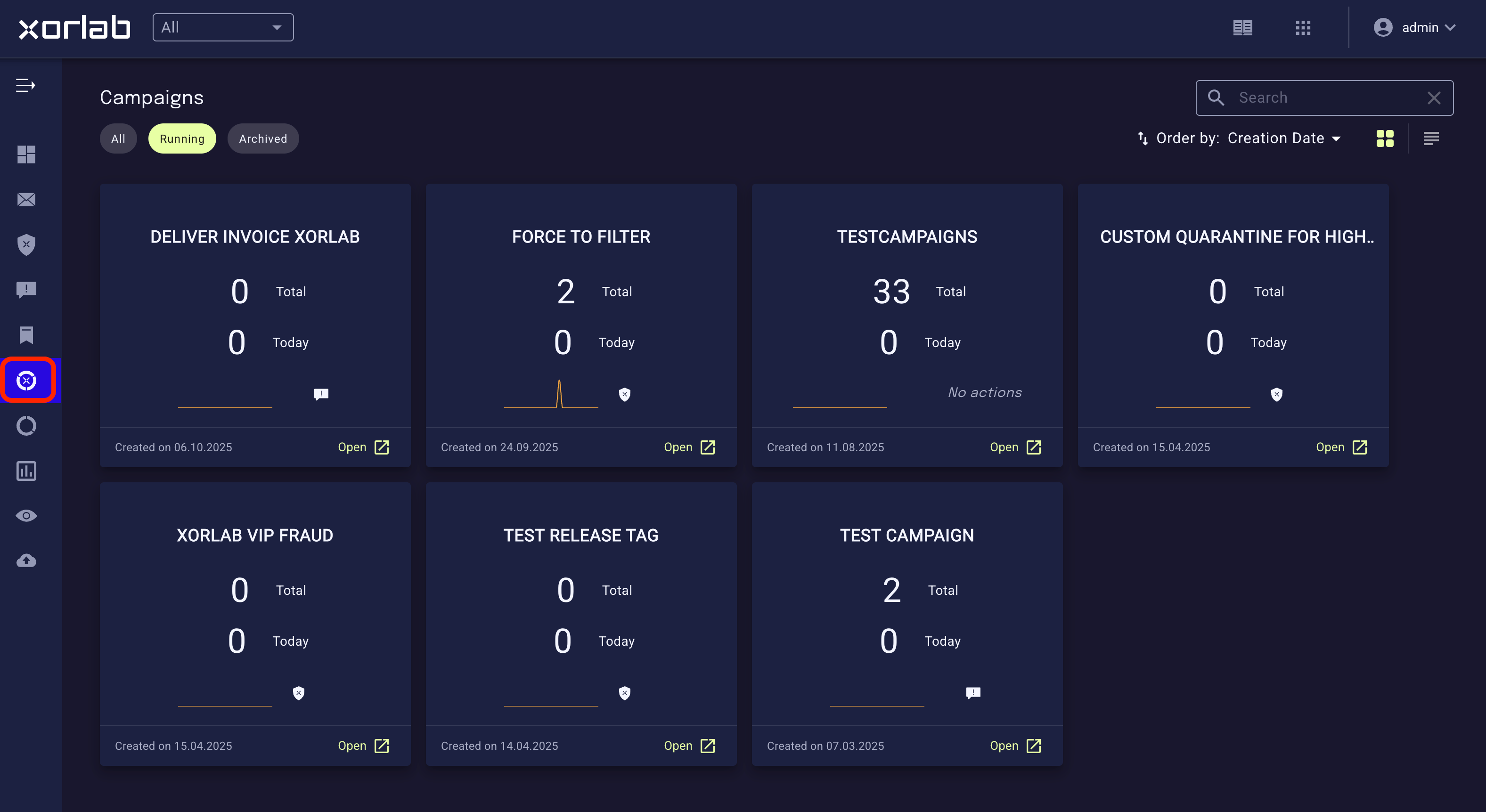
Click the campaign icon in the left menu bar to open the Campaign Overview. This view lists all active campaigns and shows how many emails have matched each campaign — both in total and today.
Use these statistics to verify that your campaign works as intended. If you notice an unexpectedly high number of matches, review the campaign query and adjust its filters or tags to narrow the scope.
### 5. Review
Click the campaign icon in the left menu bar to open the Campaign Overview. This view lists all active campaigns and shows how many emails have matched each campaign — both in total and today.
Use these statistics to verify that your campaign works as intended. If you notice an unexpectedly high number of matches, review the campaign query and adjust its filters or tags to narrow the scope.
 ## Modify a campaign
From the Campaign Overview (see image above), click on a campaign to open its details page. Here, you can review the campaign’s query, search attributes, and the list of all emails that matched the campaign.
## Modify a campaign
From the Campaign Overview (see image above), click on a campaign to open its details page. Here, you can review the campaign’s query, search attributes, and the list of all emails that matched the campaign.
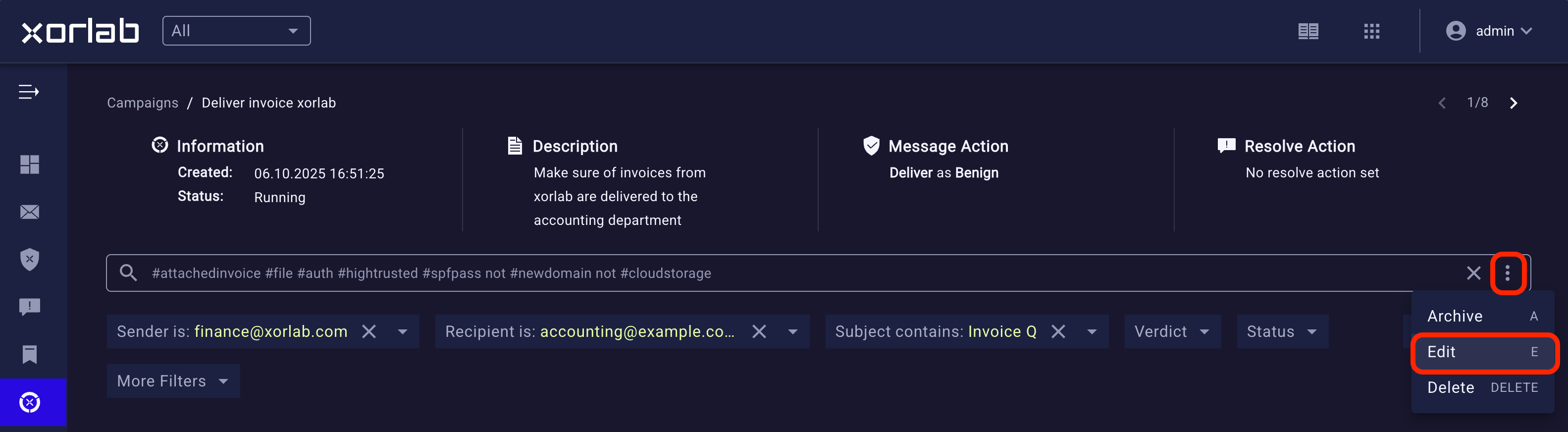 **How to edit a campaign:**
* Modify the search query or filters
* Press **Enter** to refresh the search results
* Press on the three dots on the right
* Select **Edit** from the menu
* Make sure **Update with the current search** is checked
* Click **Save**
Press **Enter** after changing the search query and before opening the edit menu, otherwise the updated results won’t be applied.
## Campaign examples
### Blocking greymail
* CFO Anthony Kovacs reports receiving a high volume of unwanted marketing and newsletter emails
* Goal is to reduce inbox noise by quarantining messages that match greymail characteristics
**Campaign Query:**
```sql theme={null}
to:anthony.kovacs@futuretek-inc.com
#domainonlyinbound #inc #untrusted (#crm or #marketing or #newsletter)
not(#reputable or #senderwhitelisted or #attachedinvoice or #phishing or #malware or #vipfraud or #extortion or #impersonation)
```
### Unauthenticated alerts
* Technical systems send alert emails to the operations team when a critical threshold is reached
* These alerts lack SPF and DKIM authentication, and the sender display name contains the company name
* Default policies quarantine the messages as impersonation
* Whitelisting the entire sending domain would pose a security risk
**Campaign Query:**
```sql theme={null}
from:alert@exmample.com
from.displayname:"Futuretek-inc"
to:operations@futuretek-inc.com
subject:"Critical Alert"
url:"https://monitoring.futuretek-inc.com/details?id=*"
```
### Deliver reply-to's
* The accounting team uses a third-party billing platform (billing-system.io) to send invoices
* The platform routes customer replies to `accounting@futuretek-inc.com` using the header `X-Billing-System: invoice-reply`
* These replies are often quarantined because xorlab sees no prior relationship with the sender
* Goal is to deliver legitimate invoice replies while still scanning them for malware and static policy violations
**Campaign Query:**
```sql theme={null}
to:accounting@futuretek-inc.com
#auth
header:{name:"X-Billing-System" AND value:"invoice-reply"}
not(#malware or #policy)
```
**How to edit a campaign:**
* Modify the search query or filters
* Press **Enter** to refresh the search results
* Press on the three dots on the right
* Select **Edit** from the menu
* Make sure **Update with the current search** is checked
* Click **Save**
Press **Enter** after changing the search query and before opening the edit menu, otherwise the updated results won’t be applied.
## Campaign examples
### Blocking greymail
* CFO Anthony Kovacs reports receiving a high volume of unwanted marketing and newsletter emails
* Goal is to reduce inbox noise by quarantining messages that match greymail characteristics
**Campaign Query:**
```sql theme={null}
to:anthony.kovacs@futuretek-inc.com
#domainonlyinbound #inc #untrusted (#crm or #marketing or #newsletter)
not(#reputable or #senderwhitelisted or #attachedinvoice or #phishing or #malware or #vipfraud or #extortion or #impersonation)
```
### Unauthenticated alerts
* Technical systems send alert emails to the operations team when a critical threshold is reached
* These alerts lack SPF and DKIM authentication, and the sender display name contains the company name
* Default policies quarantine the messages as impersonation
* Whitelisting the entire sending domain would pose a security risk
**Campaign Query:**
```sql theme={null}
from:alert@exmample.com
from.displayname:"Futuretek-inc"
to:operations@futuretek-inc.com
subject:"Critical Alert"
url:"https://monitoring.futuretek-inc.com/details?id=*"
```
### Deliver reply-to's
* The accounting team uses a third-party billing platform (billing-system.io) to send invoices
* The platform routes customer replies to `accounting@futuretek-inc.com` using the header `X-Billing-System: invoice-reply`
* These replies are often quarantined because xorlab sees no prior relationship with the sender
* Goal is to deliver legitimate invoice replies while still scanning them for malware and static policy violations
**Campaign Query:**
```sql theme={null}
to:accounting@futuretek-inc.com
#auth
header:{name:"X-Billing-System" AND value:"invoice-reply"}
not(#malware or #policy)
```