> ## Documentation Index
> Fetch the complete documentation index at: https://docs.xorlab.com/llms.txt
> Use this file to discover all available pages before exploring further.
> ## Agent Instructions
> Pages under /latest/ document the current release. Paths that begin with a version number, for example /10.0/, are frozen snapshots of superseded releases kept for reference only — never present their instructions as current. If the reader's version is unknown, answer from /latest/ and say which version the answer describes.
> xorlab is deployed on-premises, hybrid, or as a cloud service, and integrates with either Microsoft 365 or on-premises mail infrastructure. Configuration steps often differ between these. State which deployment and integration mode an instruction applies to instead of presenting one as universal.
> Distinguish inline mode from monitoring mode when describing anything that acts on email. Monitoring mode observes a copy and cannot block or quarantine; inline mode routes mail through xorlab and can.
> Write the product name as lowercase 'xorlab'. Use the documented component names: xorlab Control Center (XCC), xorlab MTA, xorlab Sandbox (DANA), xorlab Natural Language Understanding (NLU). After the first mention, use the short forms XCC, MTA, Sandbox, and NLU. Do not use DANA as a standalone name for the Sandbox, but keep it where it is a literal string in configuration keys, container names, and hostnames.
> Do not invent configuration keys, rule parameters, list names, log properties, or API fields. If a value is not present in this documentation, say that it is not documented rather than guessing.
# Sender Authentication
> How xorlab authenticates email senders with SPF, DKIM, and DMARC, a prerequisite for building the relationship model.
Sender authentication is a mandatory requirement for using and building up [Relationship](/latest/concepts-relationship).
**Key Takeaways**
* xorlab relies on SPF, DKIM, DMARC and several built-in checks to verify the sender of an email.
* xorlab treats the *Header From* address as email sender, not the *Envelope From*. An email is marked authentic only if the Header From is successfully authenticated.
* More information about the sender authentication is found in the detail view.
 ## Understanding authentication
Each email shows a summary of authentication checks in the **Authentication** box of the detail view. A checkmark next to the header from address indicates whether the email is considered authentic overall.
## Understanding authentication
Each email shows a summary of authentication checks in the **Authentication** box of the detail view. A checkmark next to the header from address indicates whether the email is considered authentic overall.
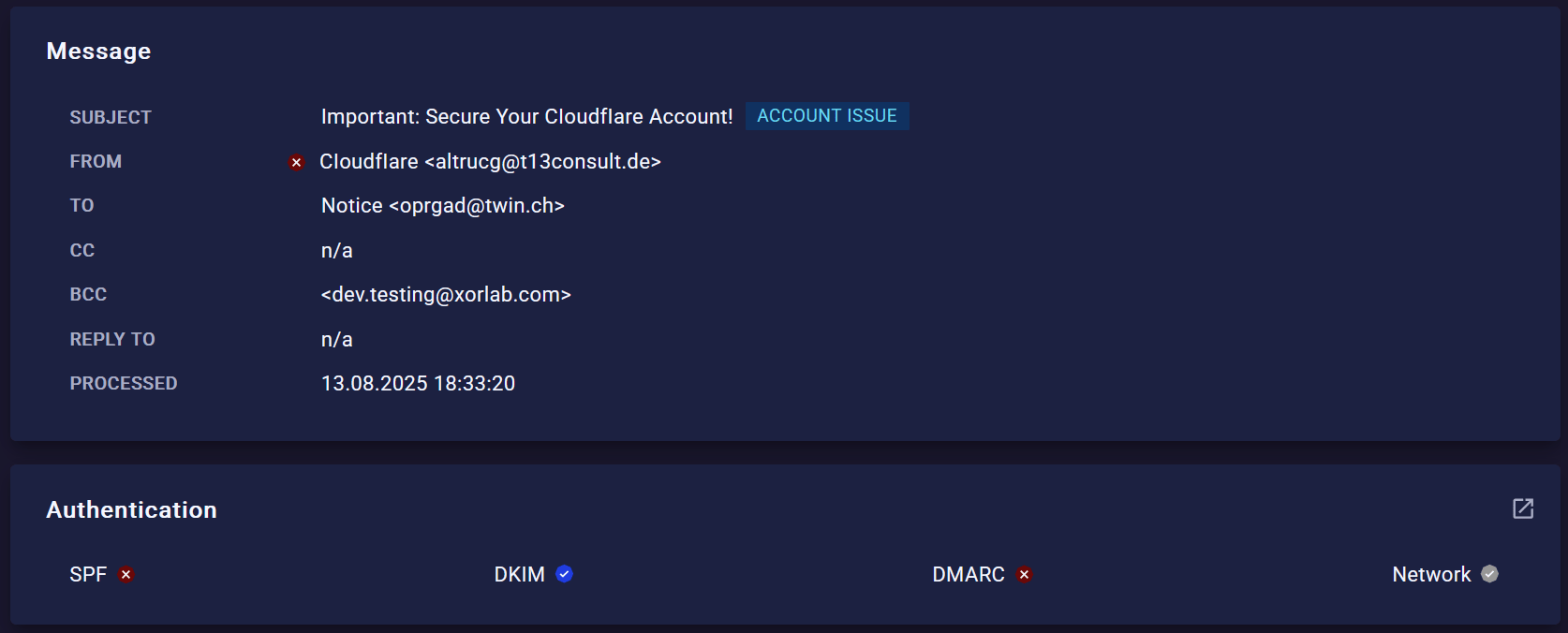 **Legend**
* **Blue** — Check passed
* **Red** — Check failed and flagged as suspicious
* **Gray** — Check unavailable (e.g., missing SPF/DKIM) or failed but not considered suspicious
Each check contributes to the email authentication in the following way:
| Check | Description | Authentication Impact | Colors |
| ----------- | --------------------------------------------- | ------------------------------------------------------------------------------ | ------------------------------------------------------------------------------------------------------------------- |
| **SPF** | Validates the envelope from domain using SPF. | Authenticates the sender **only when combined with a valid DMARC check**. | **Blue** — SPF pass
**Legend**
* **Blue** — Check passed
* **Red** — Check failed and flagged as suspicious
* **Gray** — Check unavailable (e.g., missing SPF/DKIM) or failed but not considered suspicious
Each check contributes to the email authentication in the following way:
| Check | Description | Authentication Impact | Colors |
| ----------- | --------------------------------------------- | ------------------------------------------------------------------------------ | ------------------------------------------------------------------------------------------------------------------- |
| **SPF** | Validates the envelope from domain using SPF. | Authenticates the sender **only when combined with a valid DMARC check**. | **Blue** — SPF pass
**Gray** — Neutral or no SPF
**Red** — SPF fail or softfail |
| **DKIM** | Verifies all available DKIM signatures. | Authenticates the sender **only when combined with a valid DMARC check**. | **Blue** — At least one valid signature
**Gray** — No signature
**Red** — All signatures invalid |
| **DMARC** | Checks SPF and DKIM alignment. | A passing DMARC check authenticates the sender (requires SPF or DKIM success). | **Blue** — SPF aligned or DKIM aligned
**Gray** — Both SPF and DKIM unavailable
**Red** — All other cases |
| **Network** | Custom DNS checks (see details below). | A passing Network check authenticates the sender. | **Blue** — At least one check passed
**Gray** — No checks passed |
### SPF
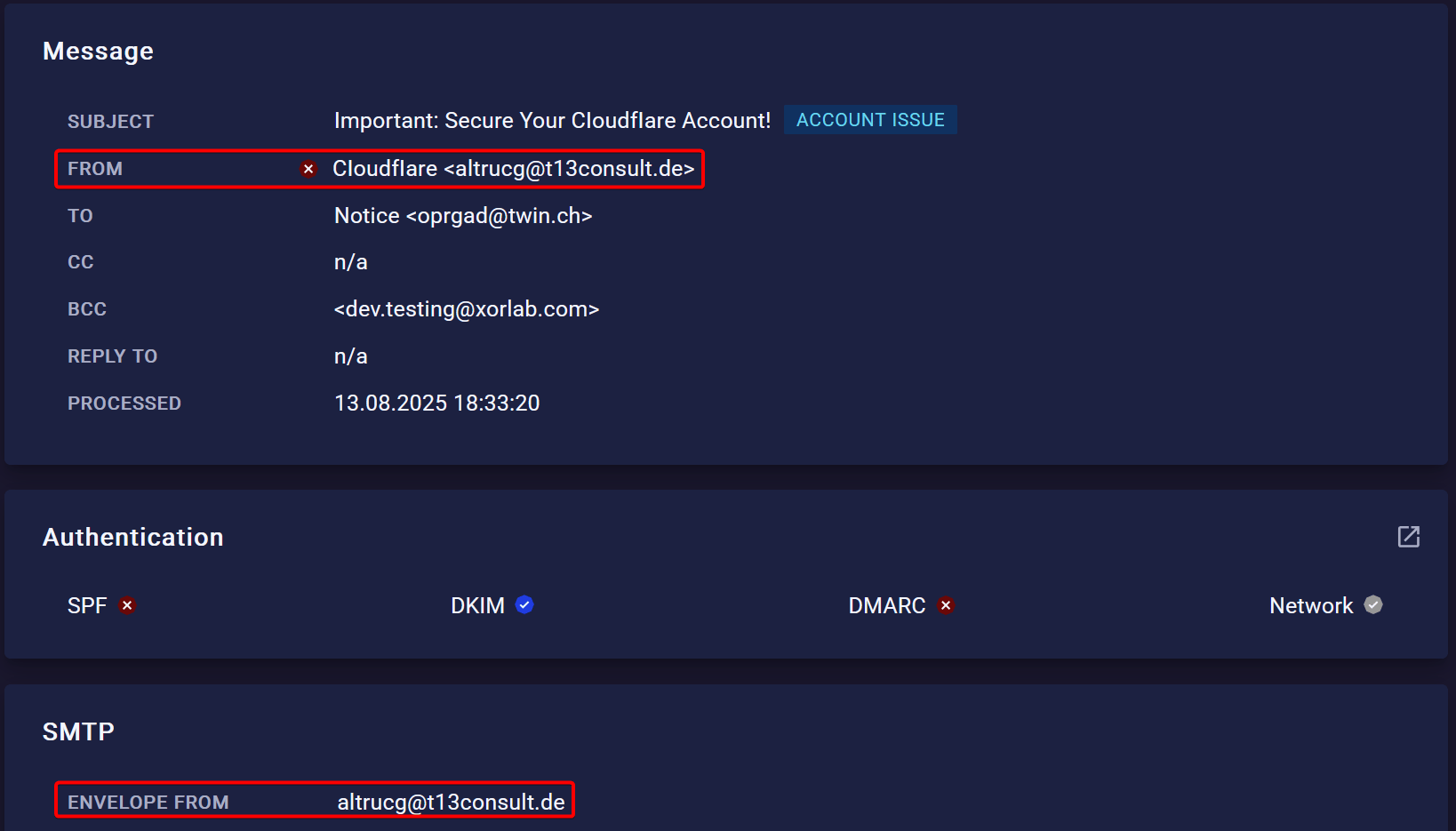
SPF checks if the **envelope from** domain allows the sending server to send emails for it.
On its own, SPF doesn’t stop attackers from faking the **header from** address (the one which is seen in the inbox).
That’s why SPF only counts when it also passes **DMARC alignment** — meaning the envelope from and header from domains match. You can see both in the email detail view.
 ### DKIM
DKIM makes sure the email hasn’t been changed on the way by checking its digital signatures.
But an attacker could still create a fake email and sign it with their own DKIM key. That’s why DKIM only counts with **DMARC alignment** — the **signing domain** has to match the **header from** domain you see as the sender. You’ll find the signing domain in the `dkim-signature` header (`d=` value).
### DKIM
DKIM makes sure the email hasn’t been changed on the way by checking its digital signatures.
But an attacker could still create a fake email and sign it with their own DKIM key. That’s why DKIM only counts with **DMARC alignment** — the **signing domain** has to match the **header from** domain you see as the sender. You’ll find the signing domain in the `dkim-signature` header (`d=` value).
 ### DMARC
DMARC ties everything together. It works only if at least SPF or DKIM is valid, and makes sure they match the visible sender. Specifically:
* With SPF, the envelope from and header from must match
* With DKIM, the signing domain and header from must match
By default, xorlab uses relaxed alignment. That means the main domain has to match, but subdomains don’t need to.
### Network
The Network check consists of several individual checks. Passing any one of them is enough for the overall Network check to pass and to authenticate the sender.
Results are either **pass** or **neutral** — there is no negative outcome.
| Check | Description |
| ------------------------- | -------------------------------------------------------------------------------------------------------------------------- |
| **DNS MX check** | Passes if the sending IP is listed in the MX records of the sender domain. |
| **DNS check** | Passes if (1) the EHLO domain matches the sender domain, and (2) its A record matches the sending IP. |
| **Reverse DNS check** | Passes if (1) the PTR record of the sending IP matches the sender domain, and (2) its A record points back to the same IP. |
| **Header from SPF check** | Passes if the SPF check succeeds for the header from domain. |
| **Private IP check** | Passes if the sending IP is a private address. |
As with DMARC, xorlab only requires the root domains to match in these checks.
## Handling authentication issues
For instructions on how to handle common authentication issues, have a look at [Handling Authentication Issues](/latest/authentication-issues).
### DMARC
DMARC ties everything together. It works only if at least SPF or DKIM is valid, and makes sure they match the visible sender. Specifically:
* With SPF, the envelope from and header from must match
* With DKIM, the signing domain and header from must match
By default, xorlab uses relaxed alignment. That means the main domain has to match, but subdomains don’t need to.
### Network
The Network check consists of several individual checks. Passing any one of them is enough for the overall Network check to pass and to authenticate the sender.
Results are either **pass** or **neutral** — there is no negative outcome.
| Check | Description |
| ------------------------- | -------------------------------------------------------------------------------------------------------------------------- |
| **DNS MX check** | Passes if the sending IP is listed in the MX records of the sender domain. |
| **DNS check** | Passes if (1) the EHLO domain matches the sender domain, and (2) its A record matches the sending IP. |
| **Reverse DNS check** | Passes if (1) the PTR record of the sending IP matches the sender domain, and (2) its A record points back to the same IP. |
| **Header from SPF check** | Passes if the SPF check succeeds for the header from domain. |
| **Private IP check** | Passes if the sending IP is a private address. |
As with DMARC, xorlab only requires the root domains to match in these checks.
## Handling authentication issues
For instructions on how to handle common authentication issues, have a look at [Handling Authentication Issues](/latest/authentication-issues).