> ## Documentation Index
> Fetch the complete documentation index at: https://docs.xorlab.com/llms.txt
> Use this file to discover all available pages before exploring further.
> ## Agent Instructions
> Pages under /latest/ document the current release. Paths that begin with a version number, for example /10.0/, are frozen snapshots of superseded releases kept for reference only — never present their instructions as current. If the reader's version is unknown, answer from /latest/ and say which version the answer describes.
> xorlab is deployed on-premises, hybrid, or as a cloud service, and integrates with either Microsoft 365 or on-premises mail infrastructure. Configuration steps often differ between these. State which deployment and integration mode an instruction applies to instead of presenting one as universal.
> Distinguish inline mode from monitoring mode when describing anything that acts on email. Monitoring mode observes a copy and cannot block or quarantine; inline mode routes mail through xorlab and can.
> Write the product name as lowercase 'xorlab'. Use the documented component names: xorlab Control Center (XCC), xorlab MTA, xorlab Sandbox (DANA), xorlab Natural Language Understanding (NLU). After the first mention, use the short forms XCC, MTA, Sandbox, and NLU. Do not use DANA as a standalone name for the Sandbox, but keep it where it is a literal string in configuration keys, container names, and hostnames.
> Do not invent configuration keys, rule parameters, list names, log properties, or API fields. If a value is not present in this documentation, say that it is not documented rather than guessing.
# M365 Overview
> The complete ordered step list for integrating xorlab with Microsoft 365.
**Prerequisites**
* Complete [Before You Begin](/latest/before-begin-integration)
Your MX records stay with Microsoft: every step below is a connector, a mail flow rule or an app registration inside your own tenant. See [Review What Changes in Your Environment](/latest/integration-impact#microsoft-365) for the full list, including what stays untouched and how to undo it.
| Step | Description |
| :------------------------------------------------------------------------------------------------------- | :------------------------------------------------------------------------------------------------------------------------------------------------------------------------------------------------------------------------------------------------------------------------------------- |
| [Set Up Email Routing in xorlab](/latest/m365-smtp) | **Mandatory**. Configure xorlab to accept and forward emails with your M365 tenant. |
| [Create Entra ID App](/latest/m365-entra-id-app) | **Mandatory**. Create the xorlab app in Entra ID. This is required for the mandatory Entra ID SAML login and is also used by Case Isolation and Retrospective Email Scanning. |
| [Enable SAML Login](/latest/m365-saml-entra-authentication) | **Mandatory**. Allow single sign-on (SSO) via Entra ID. |
| [Import Past M365 Emails](/latest/m365-retrospective-email-scanning) | **Optional**. Import historical emails during onboarding to speed up the learning phase. |
| Enable either M365 [Monitoring](/latest/m365-monitoring-mode) or [Inline](/latest/m365-inline-mode) mode | **Mandatory**. In Monitoring mode, M365 sends just copies of emails to xorlab. In Inline mode, M365 routes emails via xorlab for active protection. See [Before you begin](/latest/before-begin-integration#choose-between-inline-and-monitoring-mode) and below for more information. |
| [Activate Case Isolation](/latest/m365-case-isolation) | **Optional**. Allow removing emails from mailboxes after they have been delivered. |
| [Move M365 Quarantine to xorlab](/latest/m365-move-quarantine) | **Optional**. Make sure that users only need to use the xorlab quarantine. This instructs M365 to send malicious emails to xorlab instead of quarantining them itself. |
| [Integrate M365 Reported Emails](/latest/m365-reporting-integration) | **Optional**. Integrate the Abuse Mailbox with xorlab such that reported emails are handled by xorlab. |
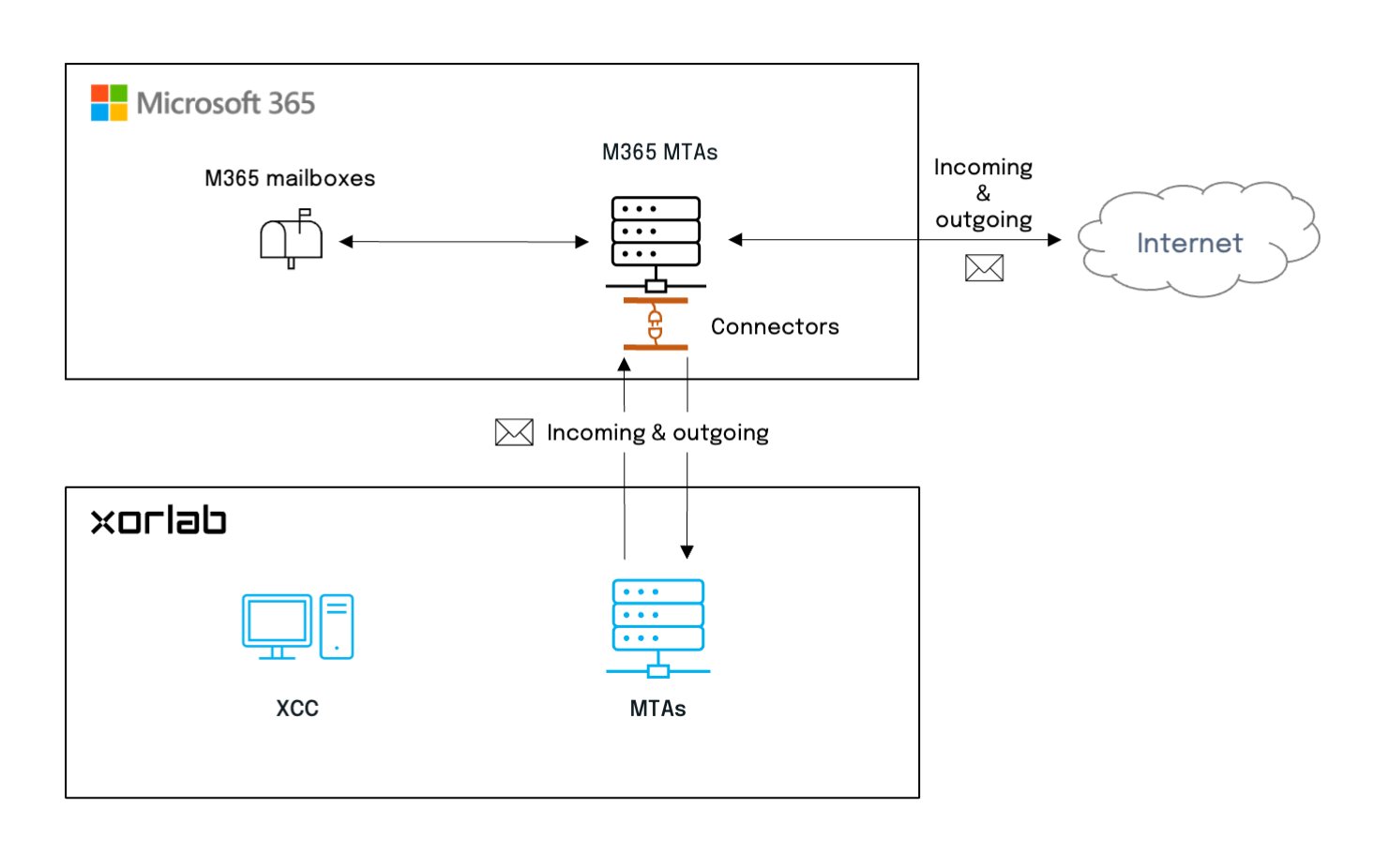
## Inline mode diagrams
In Inline mode, xorlab filters all emails and sends the benign ones back to M365 for final delivery.
 [Open the M365 Inline mode guide](/latest/m365-inline-mode)
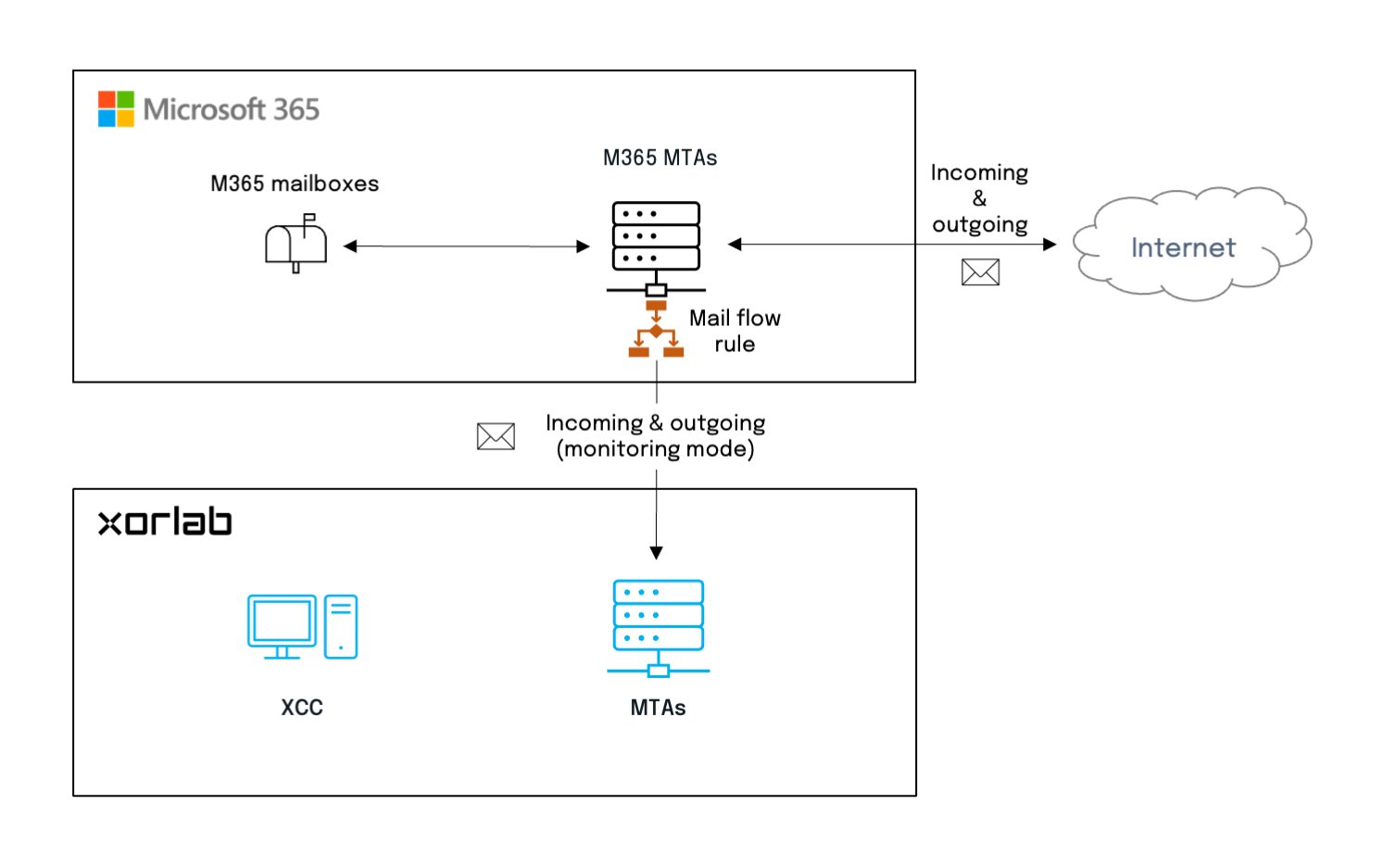
## Monitoring mode diagrams
In Monitoring mode, xorlab receives only a copy of every email and discards it after processing.
[Open the M365 Inline mode guide](/latest/m365-inline-mode)
## Monitoring mode diagrams
In Monitoring mode, xorlab receives only a copy of every email and discards it after processing.
 [Open the M365 Monitoring mode guide](/latest/m365-monitoring-mode)
## Multi-Tenancy
If you integrate more than one M365 tenant with the same xorlab instance, follow [Add a Tenant](/latest/multi-tenancy-new-tenant) instead of the table above. It uses the same guides, but adds the per-tenant configuration around them:
* Configure the domains and routing of the tenant with the [M365 topology](/latest/multi-tenancy-domain-and-routing#m365-topology).
* Set up SAML per tenant, see [Enable Tenant Login](/latest/multi-tenancy-authentication).
* Assign reported emails to the right tenant, see [Assign Reported Emails to Tenants](/latest/multi-tenancy-reported-emails).
[Open the M365 Monitoring mode guide](/latest/m365-monitoring-mode)
## Multi-Tenancy
If you integrate more than one M365 tenant with the same xorlab instance, follow [Add a Tenant](/latest/multi-tenancy-new-tenant) instead of the table above. It uses the same guides, but adds the per-tenant configuration around them:
* Configure the domains and routing of the tenant with the [M365 topology](/latest/multi-tenancy-domain-and-routing#m365-topology).
* Set up SAML per tenant, see [Enable Tenant Login](/latest/multi-tenancy-authentication).
* Assign reported emails to the right tenant, see [Assign Reported Emails to Tenants](/latest/multi-tenancy-reported-emails).