> ## Documentation Index
> Fetch the complete documentation index at: https://docs.xorlab.com/llms.txt
> Use this file to discover all available pages before exploring further.
> ## Agent Instructions
> Pages under /latest/ document the current release. Paths that begin with a version number, for example /10.0/, are frozen snapshots of superseded releases kept for reference only — never present their instructions as current. If the reader's version is unknown, answer from /latest/ and say which version the answer describes.
> xorlab is deployed on-premises, hybrid, or as a cloud service, and integrates with either Microsoft 365 or on-premises mail infrastructure. Configuration steps often differ between these. State which deployment and integration mode an instruction applies to instead of presenting one as universal.
> Distinguish inline mode from monitoring mode when describing anything that acts on email. Monitoring mode observes a copy and cannot block or quarantine; inline mode routes mail through xorlab and can.
> Write the product name as lowercase 'xorlab'. Use the documented component names: xorlab Control Center (XCC), xorlab MTA, xorlab Sandbox (DANA), xorlab Natural Language Understanding (NLU). After the first mention, use the short forms XCC, MTA, Sandbox, and NLU. Do not use DANA as a standalone name for the Sandbox, but keep it where it is a literal string in configuration keys, container names, and hostnames.
> Do not invent configuration keys, rule parameters, list names, log properties, or API fields. If a value is not present in this documentation, say that it is not documented rather than guessing.
# Move M365 Quarantine to xorlab
> Move the Microsoft 365 quarantine to xorlab so end users have a single quarantine, including the known limitations.
**Prerequisites**
* Complete [Before You Begin](/latest/before-begin-integration) and [Set Up Email Routing in xorlab](/latest/m365-smtp)
* Have either [M365 Monitoring Mode](/latest/m365-monitoring-mode) or [M365 Inline Mode](/latest/m365-inline-mode) enabled
* Have access to the [Microsoft Defender portal](https://security.microsoft.com) with permission to edit anti-spam policies
**Limitation**
Although you can force M365 to pass quarantined emails to xorlab, the ones recognized as malware or high-confidence phishing cannot be moved out of M365 quarantine.
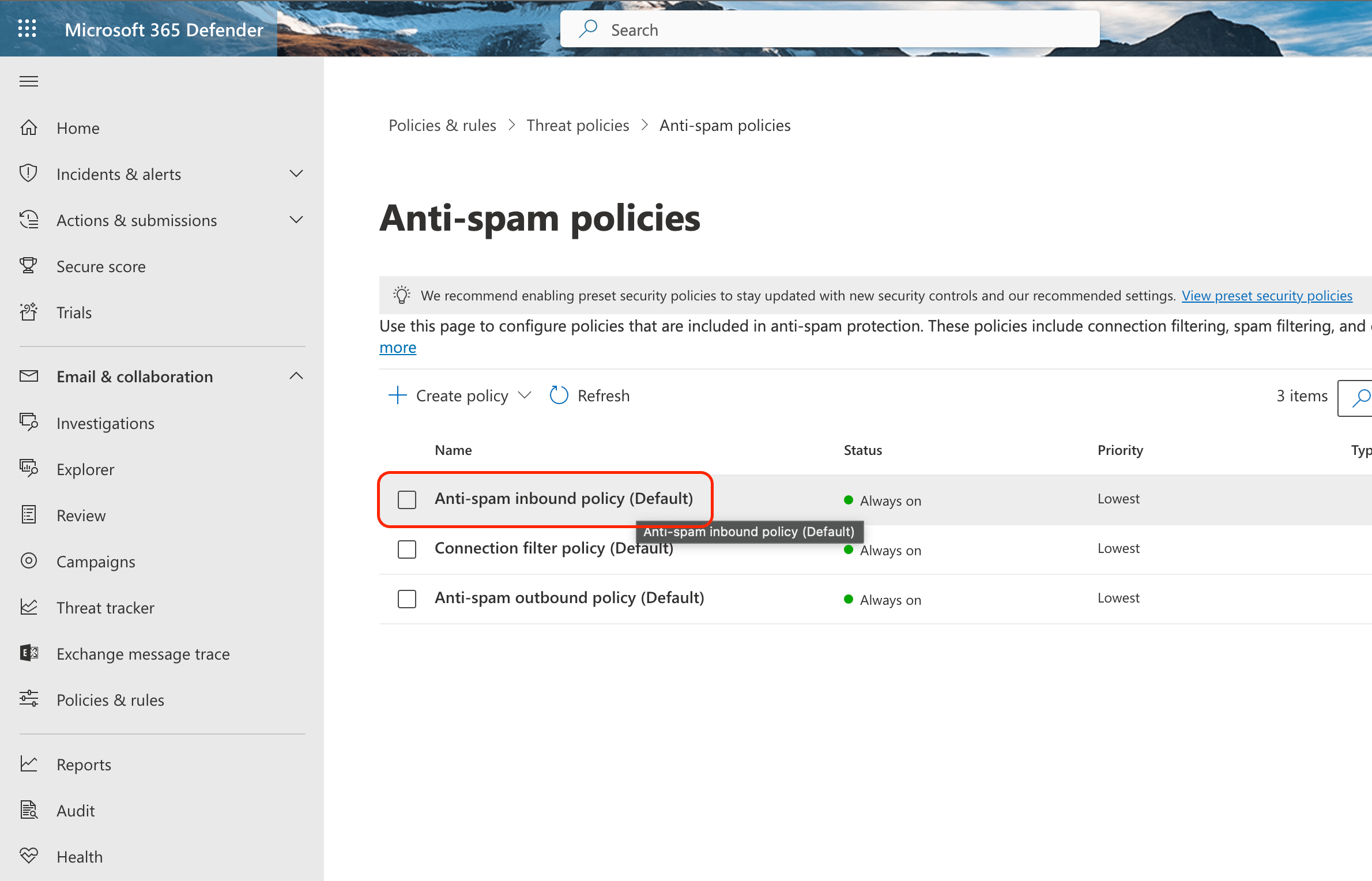
1. Go to [the Anti-spam settings page](https://security.microsoft.com/antispam) → open **Anti-spam Inbound policy (Default)**:
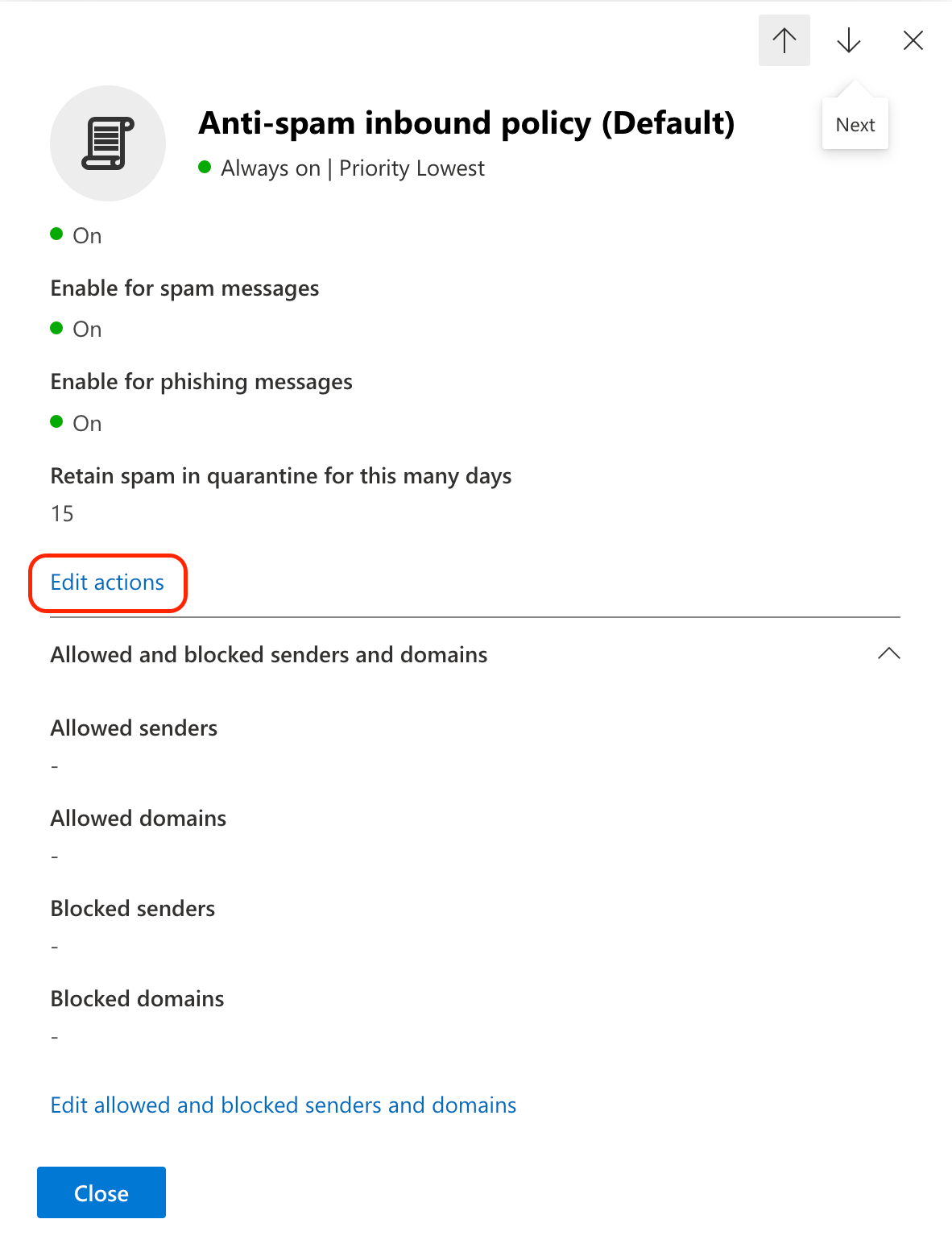
 2. Scroll down the pane until you see the **Edit actions** link:
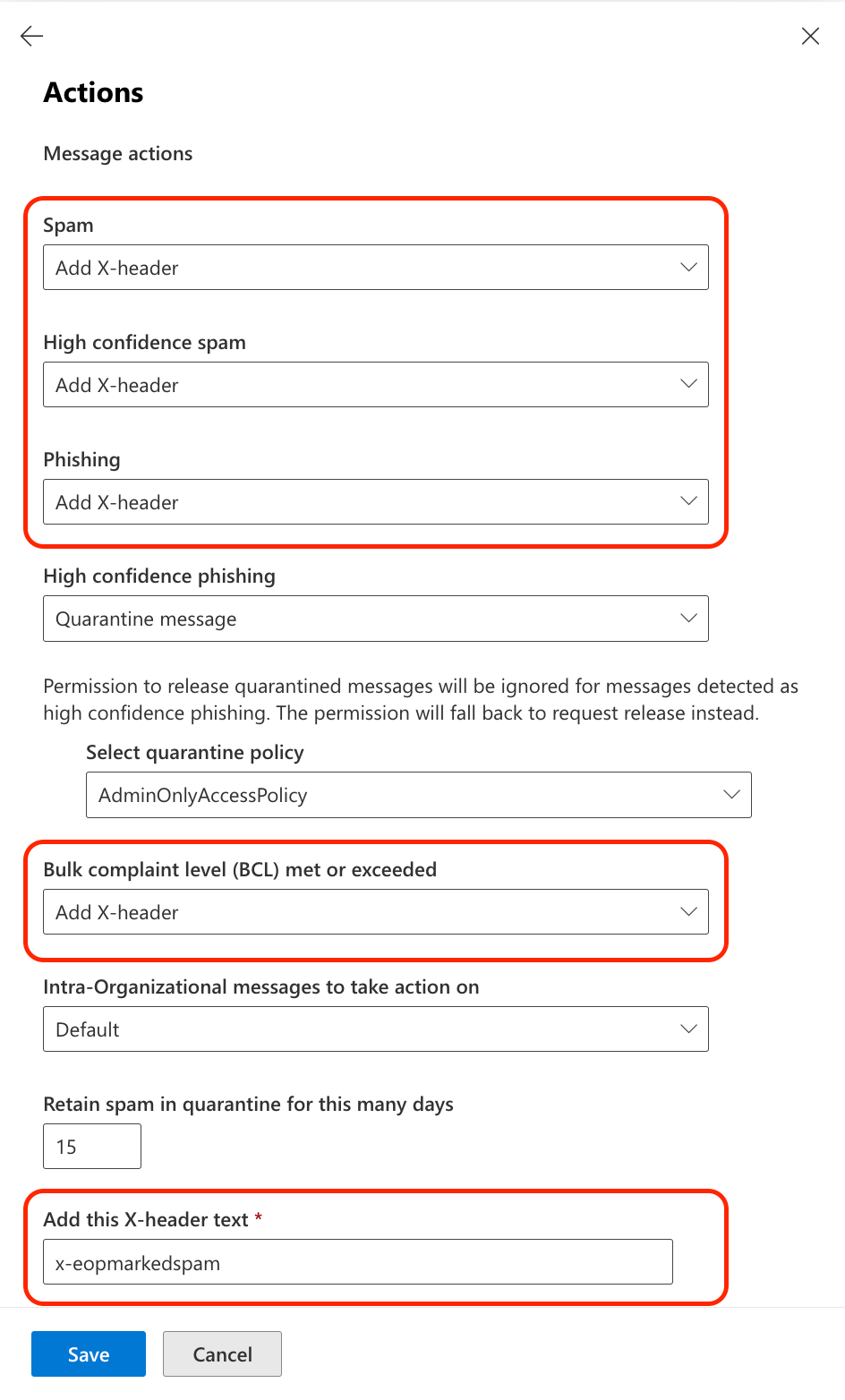
 3. Select **Add X-header** from the drop-down list for:
* **Spam**
* **High-confidence spam**
* **Phishing**
* **Bulk complaint level (BCL) met or exceeded**
In the **Add this X-header text**, enter `x-eopmarkedspam` (this value is required by xorlab):
3. Select **Add X-header** from the drop-down list for:
* **Spam**
* **High-confidence spam**
* **Phishing**
* **Bulk complaint level (BCL) met or exceeded**
In the **Add this X-header text**, enter `x-eopmarkedspam` (this value is required by xorlab):
 4. Click **Save**.
By default, xorlab recognizes the EOP header and assigns the `#eopmarkedspam` tag to the email. This tag increases the likelihood that the email will be classified as spam. To reduce false positives, these emails are not automatically quarantined. If desired, you can create a campaign that automatically quarantines all emails tagged with `#eopmarkedspam`.
## Next steps
* [Integrate M365 Reported Emails](/latest/m365-reporting-integration)
4. Click **Save**.
By default, xorlab recognizes the EOP header and assigns the `#eopmarkedspam` tag to the email. This tag increases the likelihood that the email will be classified as spam. To reduce false positives, these emails are not automatically quarantined. If desired, you can create a campaign that automatically quarantines all emails tagged with `#eopmarkedspam`.
## Next steps
* [Integrate M365 Reported Emails](/latest/m365-reporting-integration)