Message Filter
The first step is to create a message filter that sends a BCC copy of all incoming and outgoing emails to xorlab. The following snippet shows such a message filter, assuming the ESA has different receive listeners for incoming and outgoing emails:monitor@mx.xyz.activeguard.cloud, for example. See the DNS registration section for details on how to set and configure your DNS records.
Note that this rule adds the original envelope FROM to the BCC email, which is required by xorlab.
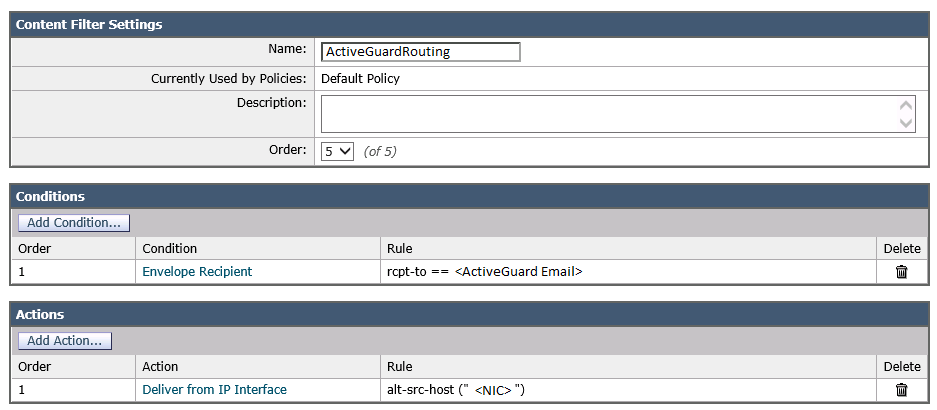
If the BCC emails should be sent through a specific network interface, add an additional content filter like this (where <NIC> corresponds to the desired network interface):
Bounce Profile
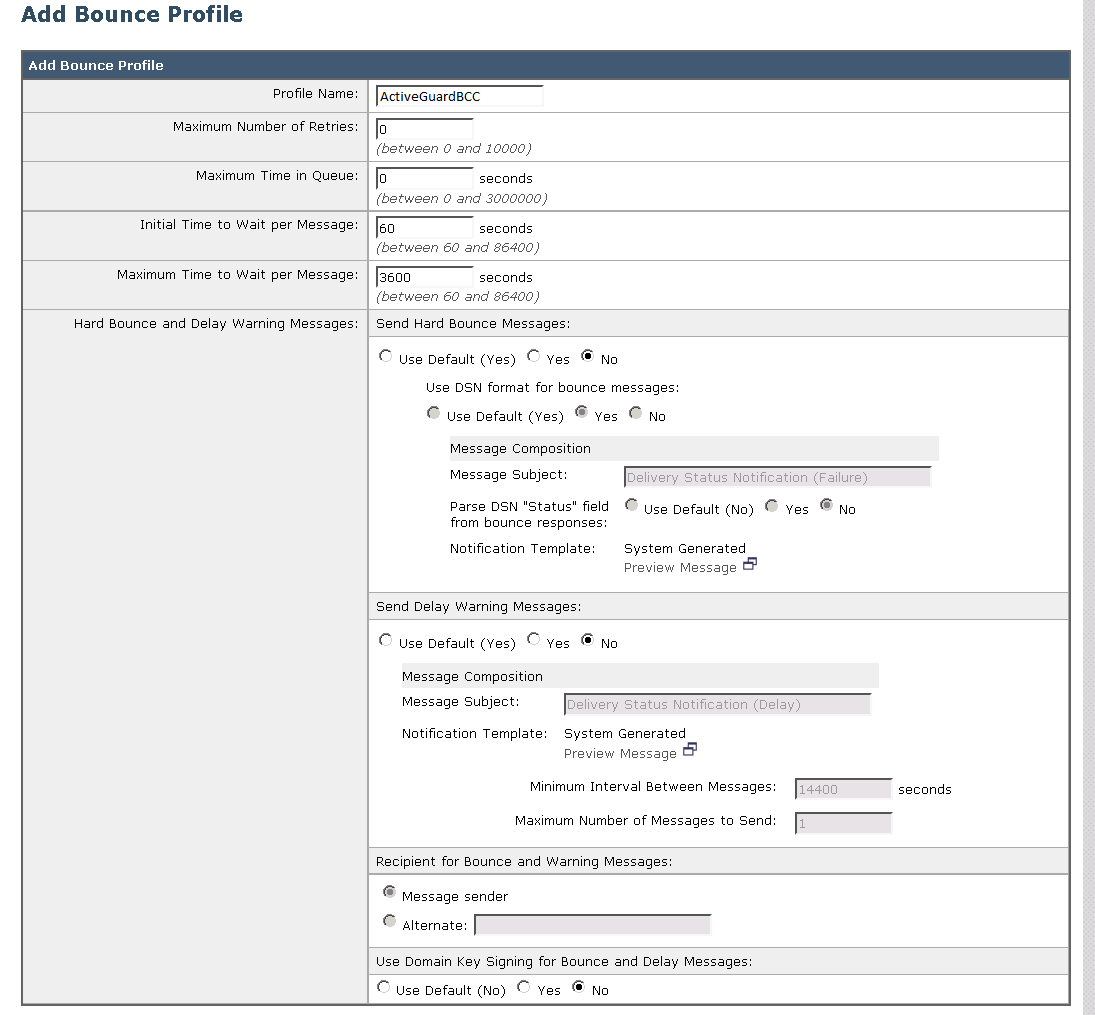
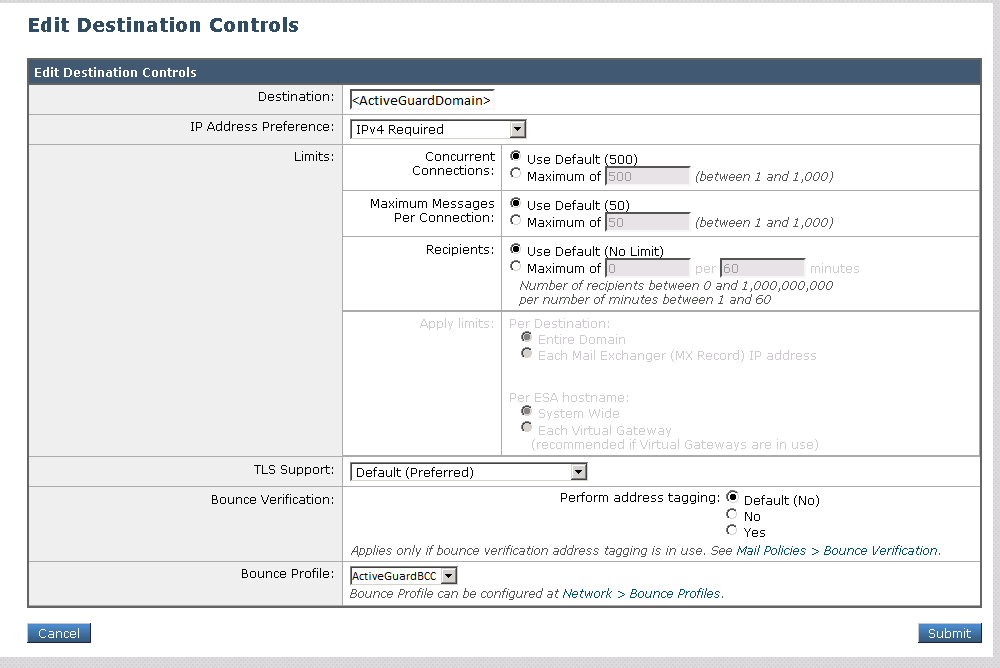
Now, we need to create a bounce profile so that no bounce or warning messages are sent to the sender if a BCC email could not be delivered to xorlab: