> ## Documentation Index
> Fetch the complete documentation index at: https://docs.xorlab.com/llms.txt
> Use this file to discover all available pages before exploring further.
> ## Agent Instructions
> Pages under /latest/ document the current release. Paths that begin with a version number, for example /10.0/, are frozen snapshots of superseded releases kept for reference only — never present their instructions as current. If the reader's version is unknown, answer from /latest/ and say which version the answer describes.
> xorlab is deployed on-premises, hybrid, or as a cloud service, and integrates with either Microsoft 365 or on-premises mail infrastructure. Configuration steps often differ between these. State which deployment and integration mode an instruction applies to instead of presenting one as universal.
> Distinguish inline mode from monitoring mode when describing anything that acts on email. Monitoring mode observes a copy and cannot block or quarantine; inline mode routes mail through xorlab and can.
> Write the product name as lowercase 'xorlab'. Use the documented component names: xorlab Control Center (XCC), xorlab MTA, xorlab Sandbox (DANA), xorlab Natural Language Understanding (NLU). After the first mention, use the short forms XCC, MTA, Sandbox, and NLU. Do not use DANA as a standalone name for the Sandbox, but keep it where it is a literal string in configuration keys, container names, and hostnames.
> Do not invent configuration keys, rule parameters, list names, log properties, or API fields. If a value is not present in this documentation, say that it is not documented rather than guessing.
# Enable Attachment Airlock
> Hold emails with encrypted attachments in the Self-Service Quarantine until the user supplies a password, then re-analyze them.
Only attachments that cannot be decrypted through other means are affected.
**Prerequisites**
* Complete [Set Up the SSQ](/latest/ssq-setup)
Follow the steps below to activate this feature:
1. In [Expert Editor](/latest/expert-editor), navigate to `activeguard/core/rule_sets/90_local/params/local.properties`.
2. Edit the file by inserting the following lines:
```text theme={null}
# Enable Attachment Airlock
ATTACHMENT_AIRLOCK_decision_state=ACTIVE
```
This parameter activates the Attachment Airlock feature. If, for any reason, you wish to deactivate this feature in the future, simply change the parameter from `ACTIVE` to `DISABLED`.
3. Click **Publish**. The rule-set configuration becomes active within about one minute.
## Password Compatibility
Attachment Airlock expects passwords to be UTF-8 encoded. If a file is encrypted with a password containing special characters (e.g., ç, ü, ñ) using older tools or systems that use legacy encodings like CP437 or ISO-8859-1, unlocking may fail due to encoding mismatches.
## Using Attachment Airlock
With Attachment Airlock enabled, users can unlock password-protected attachments in a secure environment and have them analyzed by xorlab. When an email with a password-protected attachment is sent to an xorlab user, and the password protection can’t be automatically cracked by xorlab, the user receives the following notification email:
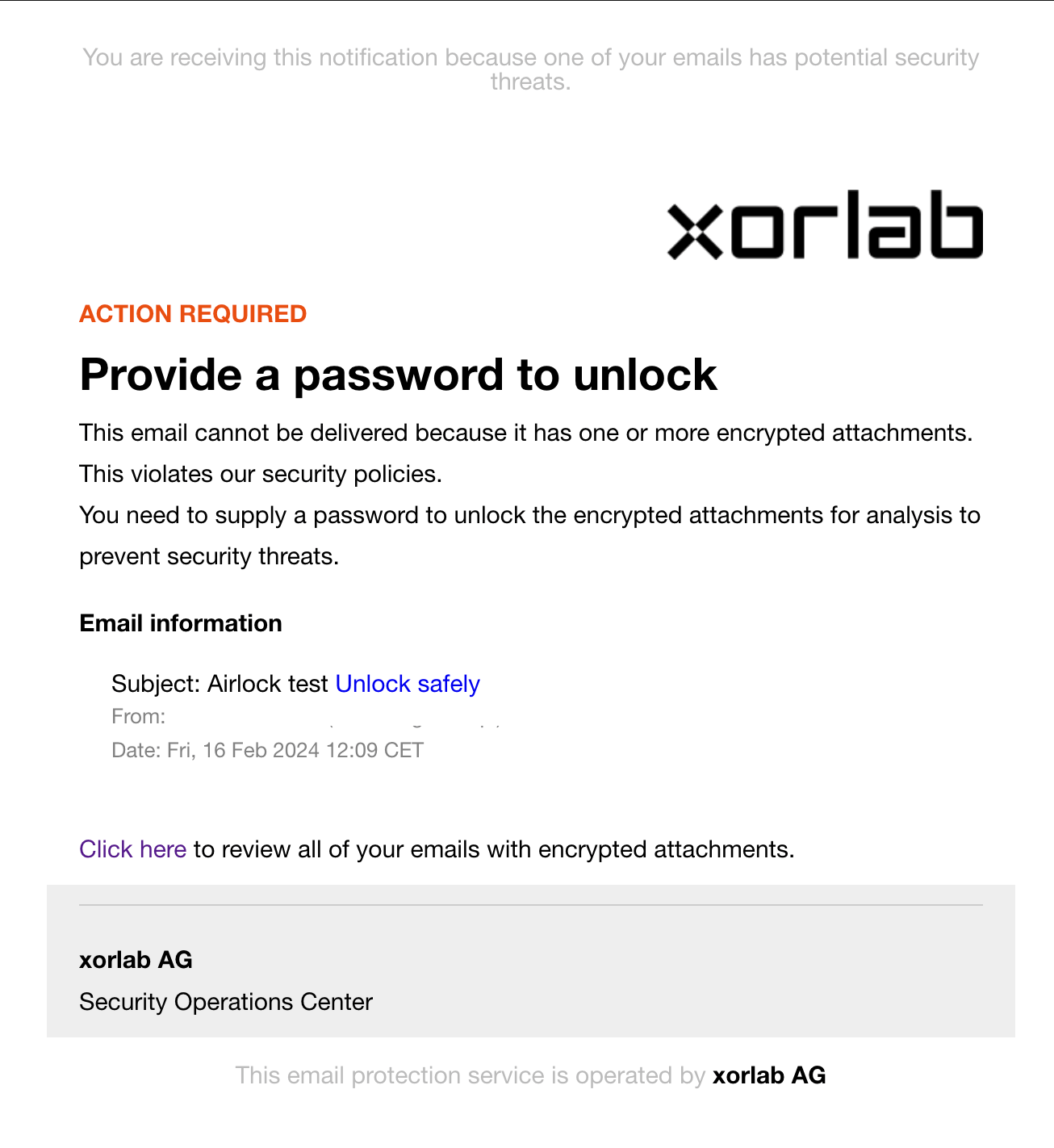 By clicking the **Unlock safely** link, you are redirected to the [SSQ portal](/latest/ssq-overview) with the preview of the quarantined message (if the main SSQ page is opened instead, just click the **Attachments** tab and click the message):
The **Attachments** tab in the SSQ shows the contents of the `Airlock` quarantine — the quarantine you configure under that name in `guarded_tenants.yml`, see [List of Quarantines](/latest/ssq-list-of-quarantines).
By clicking the **Unlock safely** link, you are redirected to the [SSQ portal](/latest/ssq-overview) with the preview of the quarantined message (if the main SSQ page is opened instead, just click the **Attachments** tab and click the message):
The **Attachments** tab in the SSQ shows the contents of the `Airlock` quarantine — the quarantine you configure under that name in `guarded_tenants.yml`, see [List of Quarantines](/latest/ssq-list-of-quarantines).
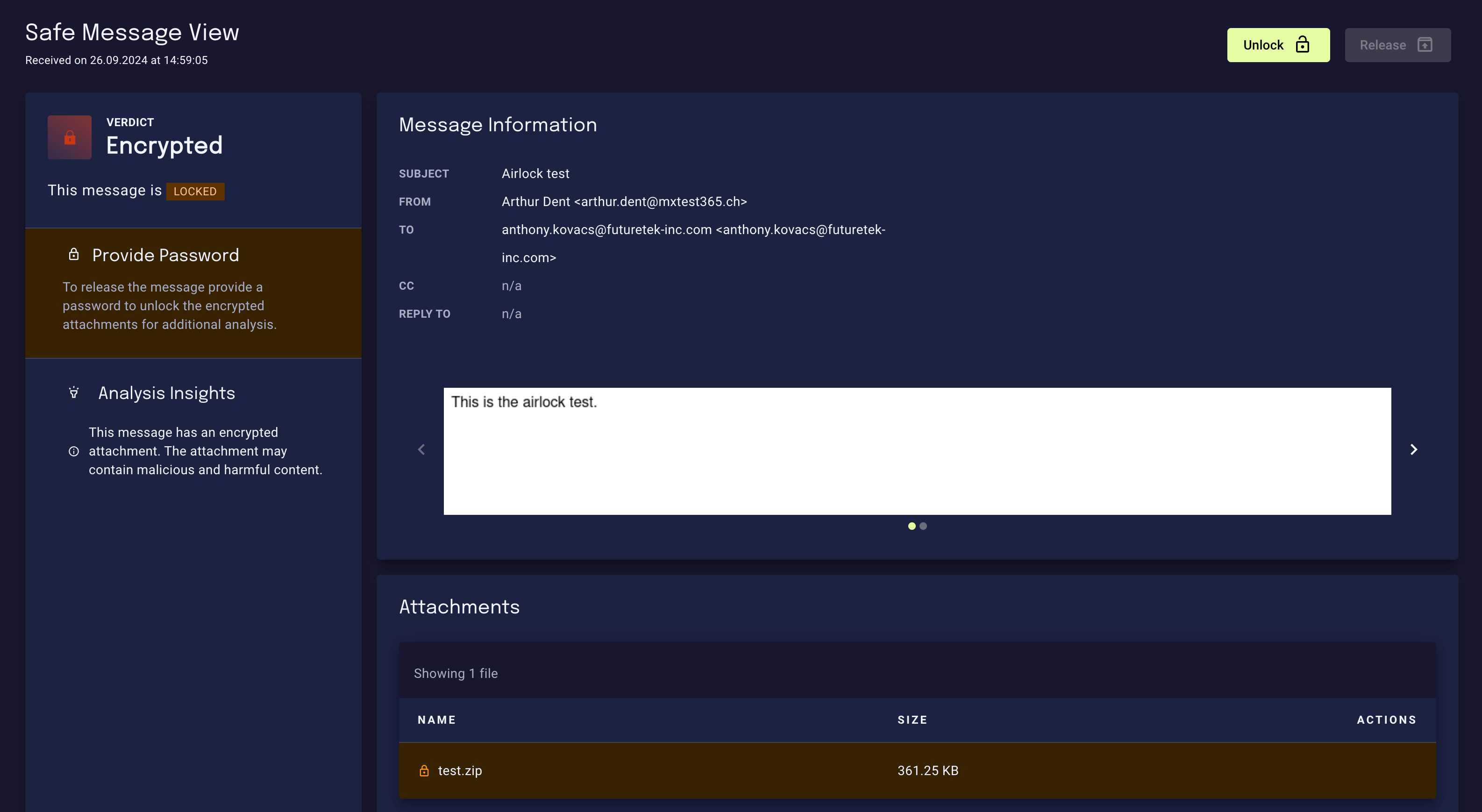 To unlock the message, click **Unlock** and enter the password for the attachment:
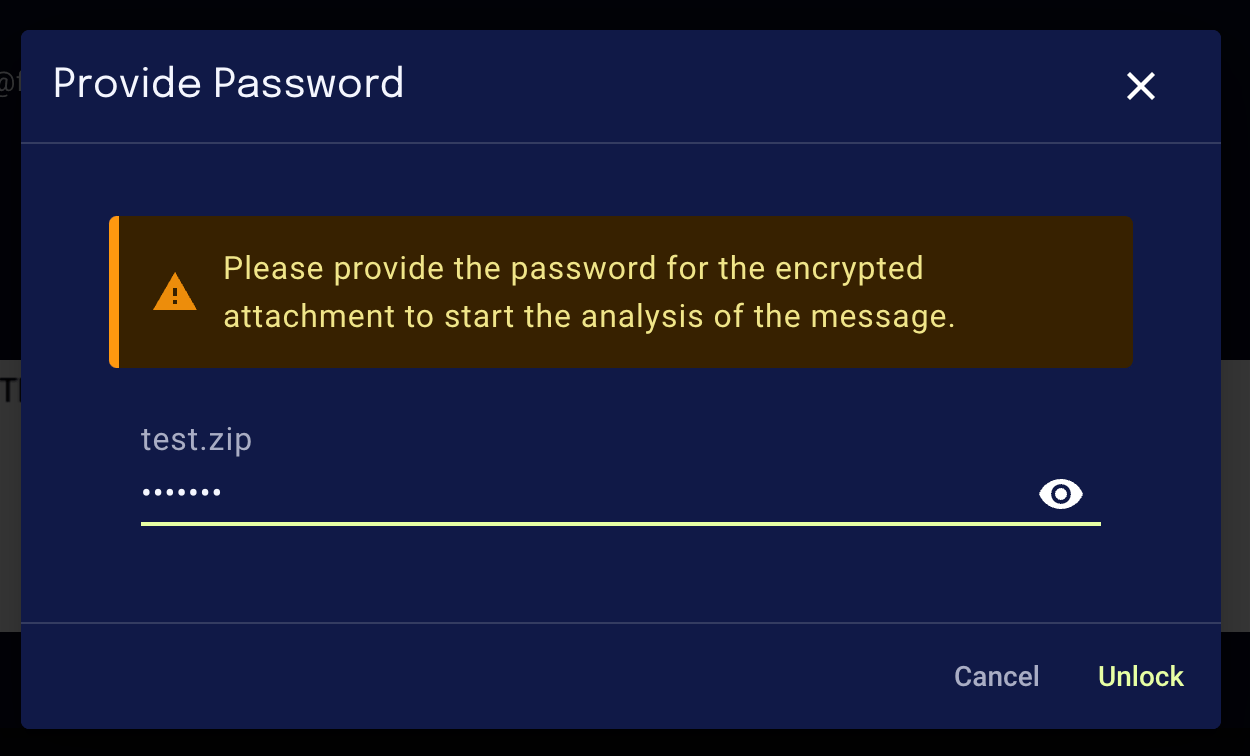 With the provided password, xorlab starts analyzing the attachment and informs you about it:
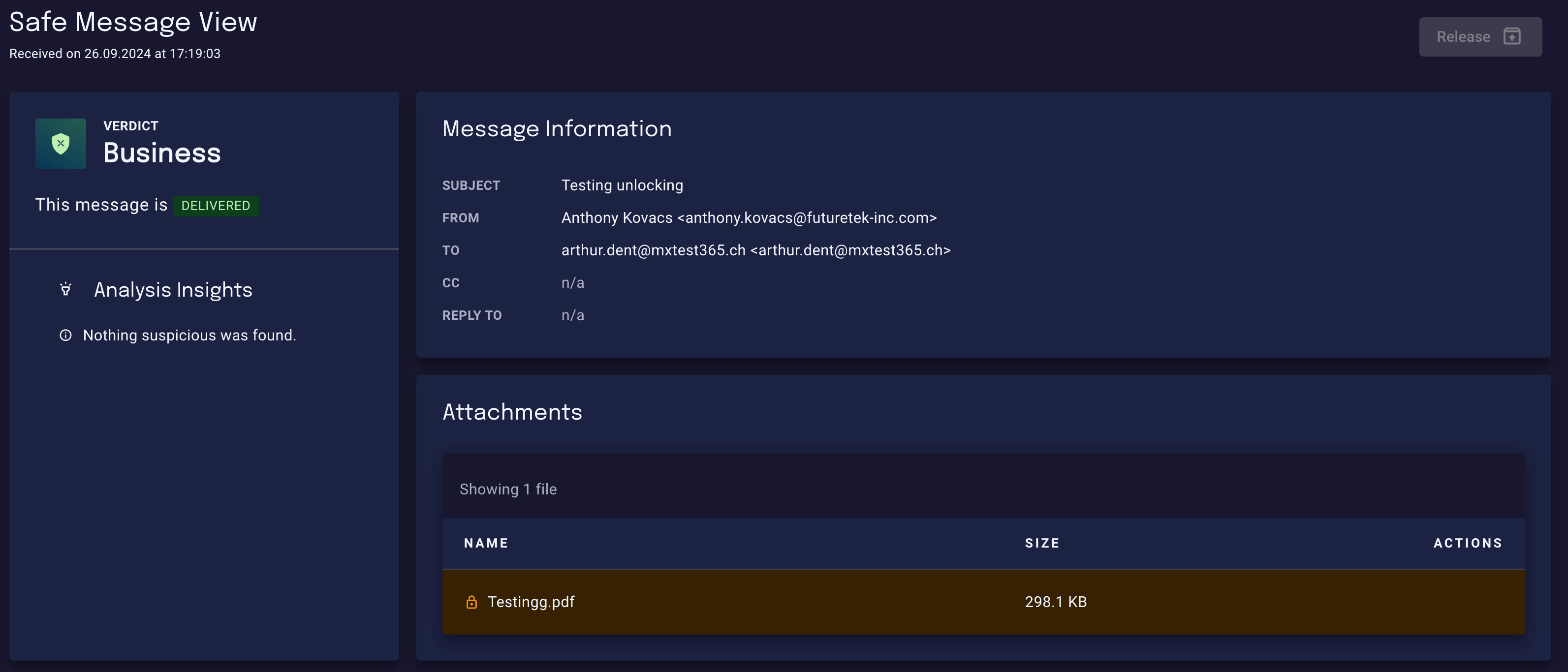
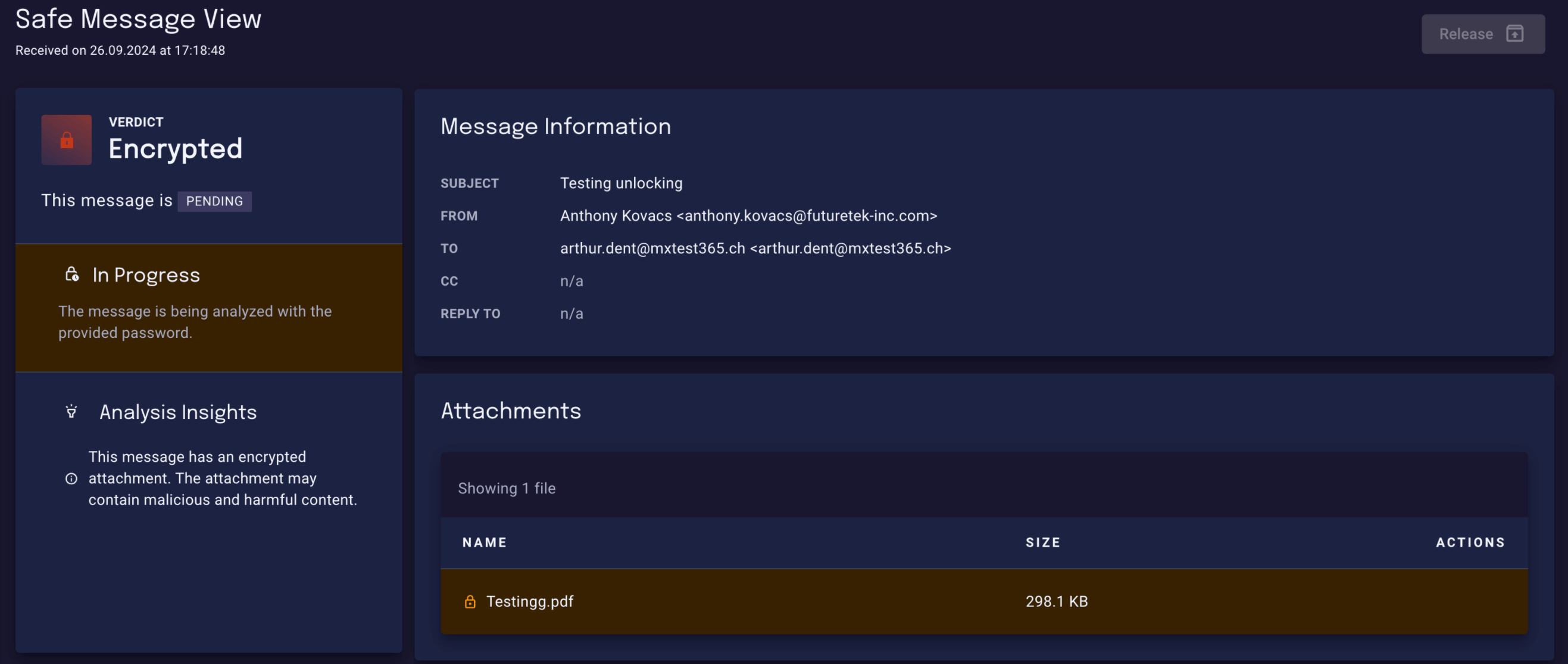 After a successful analysis, if the attachment is safe, the message is unlocked and delivered to your mailbox: