> ## Documentation Index
> Fetch the complete documentation index at: https://docs.xorlab.com/llms.txt
> Use this file to discover all available pages before exploring further.
> ## Agent Instructions
> Pages under /latest/ document the current release. Paths that begin with a version number, for example /10.0/, are frozen snapshots of superseded releases kept for reference only — never present their instructions as current. If the reader's version is unknown, answer from /latest/ and say which version the answer describes.
> xorlab is deployed on-premises, hybrid, or as a cloud service, and integrates with either Microsoft 365 or on-premises mail infrastructure. Configuration steps often differ between these. State which deployment and integration mode an instruction applies to instead of presenting one as universal.
> Distinguish inline mode from monitoring mode when describing anything that acts on email. Monitoring mode observes a copy and cannot block or quarantine; inline mode routes mail through xorlab and can.
> Write the product name as lowercase 'xorlab'. Use the documented component names: xorlab Control Center (XCC), xorlab MTA, xorlab Sandbox (DANA), xorlab Natural Language Understanding (NLU). After the first mention, use the short forms XCC, MTA, Sandbox, and NLU. Do not use DANA as a standalone name for the Sandbox, but keep it where it is a literal string in configuration keys, container names, and hostnames.
> Do not invent configuration keys, rule parameters, list names, log properties, or API fields. If a value is not present in this documentation, say that it is not documented rather than guessing.
# Understanding an Email Verdict
> Trace a classification back to the signals that produced it, using the detail view and the analysis breakdown.
## Get a high-level understanding
To get a first understanding on how and why an email was classified in a certain way, open it in the detail view and follow the steps below.
### Verdict and confidence
On top left, you find the classification and action:
* Verdict: **Spam**
* Confidence: **High**
* Action: **Quarantine**
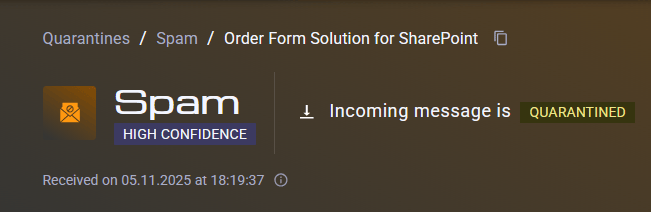 The [Verdict](/latest/verdicts) and Confidence combination defines the action.
For example, a high-confidence phishing email is put into quarantine, while a low-confidence phishing email is delivered with a subject rewrite. You can find your configured actions under **Admin → Actions**, see [Actions](/latest/detection-actions).
If an email is delivered even though it is classified as malicious, it is usually because it has a `low` or `medium` Confidence that is set to the Deliver action.
### Sender and relationship
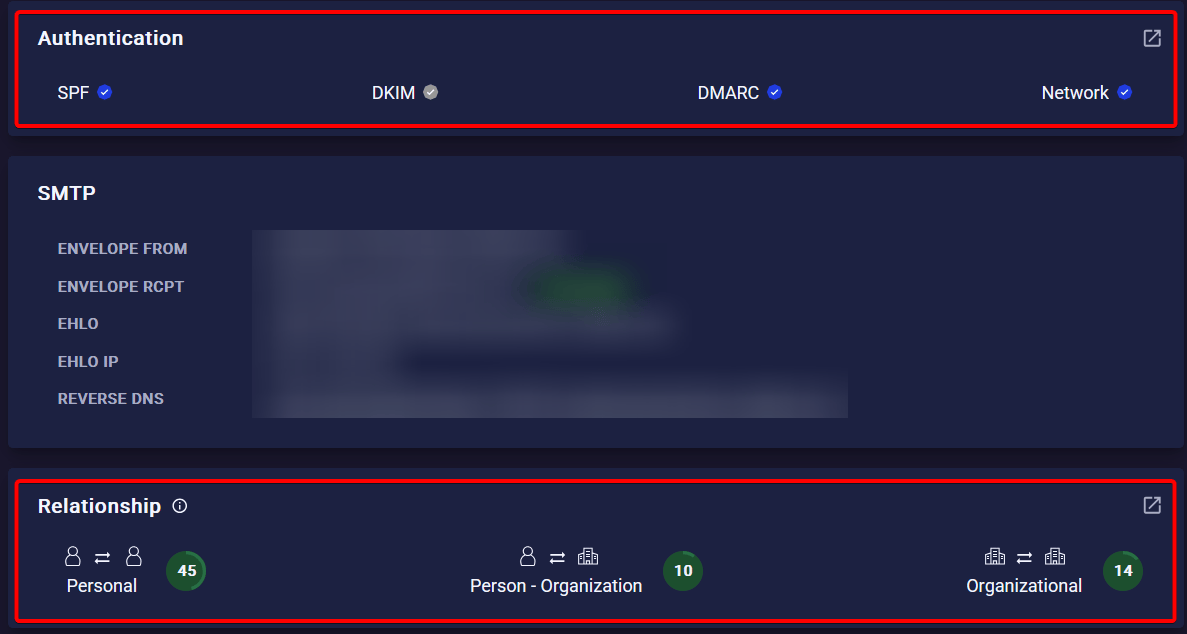
Scroll down and check in the [Authentication Box](/latest/concepts-sender-auth) if the sender is authenticated:
* No authentication leads more often to a Quarantine action, because the relationship data can not be used.
* However successful authentication by itself is not a positive indicator, as many malicious emails have it.
Below Authentication, have a look at the [Relationship Box](/latest/concepts-relationship):
* Emails with no relationship are filtered more aggressively.
* On the other hand, existing relationship can be a reason for a false negative.
* Hover over the individual values to see if there was one-sided communication.
The [Verdict](/latest/verdicts) and Confidence combination defines the action.
For example, a high-confidence phishing email is put into quarantine, while a low-confidence phishing email is delivered with a subject rewrite. You can find your configured actions under **Admin → Actions**, see [Actions](/latest/detection-actions).
If an email is delivered even though it is classified as malicious, it is usually because it has a `low` or `medium` Confidence that is set to the Deliver action.
### Sender and relationship
Scroll down and check in the [Authentication Box](/latest/concepts-sender-auth) if the sender is authenticated:
* No authentication leads more often to a Quarantine action, because the relationship data can not be used.
* However successful authentication by itself is not a positive indicator, as many malicious emails have it.
Below Authentication, have a look at the [Relationship Box](/latest/concepts-relationship):
* Emails with no relationship are filtered more aggressively.
* On the other hand, existing relationship can be a reason for a false negative.
* Hover over the individual values to see if there was one-sided communication.
 ### Indicators
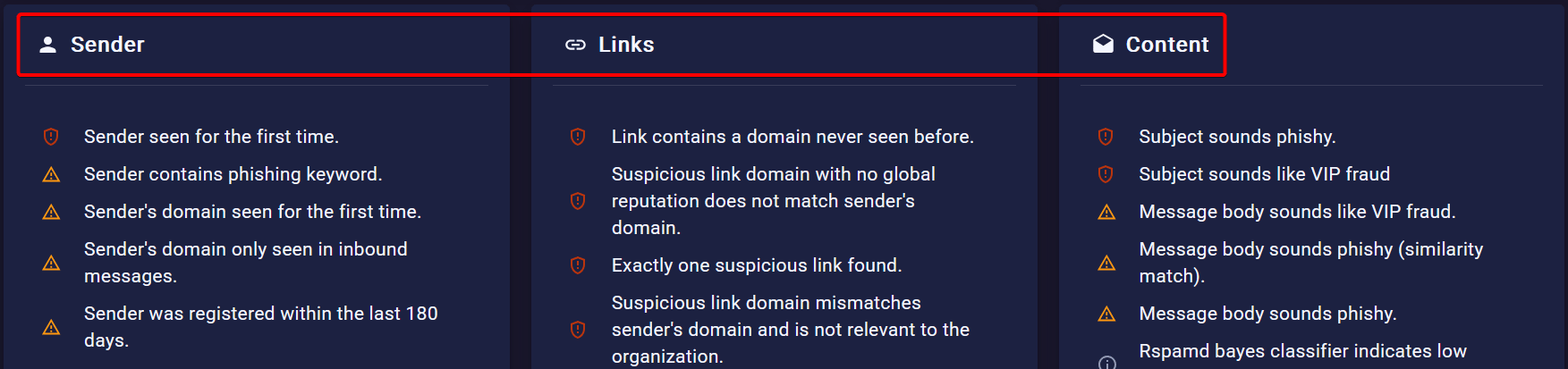
On the bottom, the list of indicators shows you the most important reasons why the email was blocked.
* 🔴 - Counts strongly for a malicious verdict
* 🟠 - Counts slightly for a malicious verdict
* 🟢 - Benign indicator, some are just informational (like SPF/DKIM tags) and some count for a benign verdict (like having a relationship)
#### Phishing and Spam
For Pishing and Spam verdicts, the **Sender**, **Links** and **Content** boxes contain the responsible indicators:
### Indicators
On the bottom, the list of indicators shows you the most important reasons why the email was blocked.
* 🔴 - Counts strongly for a malicious verdict
* 🟠 - Counts slightly for a malicious verdict
* 🟢 - Benign indicator, some are just informational (like SPF/DKIM tags) and some count for a benign verdict (like having a relationship)
#### Phishing and Spam
For Pishing and Spam verdicts, the **Sender**, **Links** and **Content** boxes contain the responsible indicators:
 #### Malware
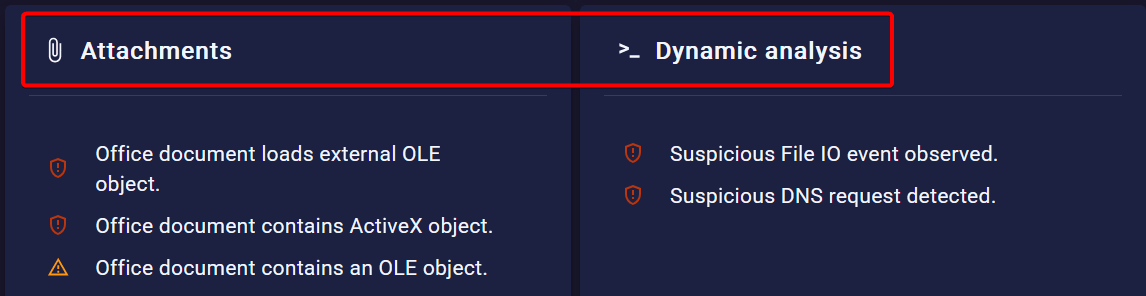
For Malware verdicts (dynamic and static), the **Attachment** and **Dynamic Analysis** boxes give more insights on why it was classified as Malware:
#### Malware
For Malware verdicts (dynamic and static), the **Attachment** and **Dynamic Analysis** boxes give more insights on why it was classified as Malware:
 ## Get an in-depth understanding
Here we explain how you can go even further and understand in-depth why a verdict was set. This can be helpful in cases like false positives to find out why an email was blocked. For this we need to have a look at the xorlab rules.
> The verdict and confidence is always set by rules, and rules rely on indicators.
All applied rules are visible in the **CLASSIFIERS & RULES** tab. The most important facts about rule application:
* Rules are applied sequentially according to a priority. In the **CLASSIFIERS & RULES** tab, you see the last applied rule on top.
* Every rule can set a decision: `UNDECIDED`, `DELIVER` and `QUARANTINE`. As soon as the first rule sets either `DELIVER` or `QUARANTINE`, no further rules are applied and the action is carried out.
* The rules implement the actions that you configured in the **Actions** configuration screen.
To interpret the rules, you need to know the most important rule types:
`TAG_*`: TAG\_spf\_pass
They set the tags and indicators that you see for each email. They are always set to `UNDECIDED`.
`_*`: MALWARE\_office\_activex
They propose a verdict and confidence for the email. They are always set to `UNDECIDED`.
For one verdict, multiple verdict rules can apply. If they have different confidences, the highest one will be taken.
Multiple different verdicts can be proposed for a single email.
`ADAPT_*`: ADAPT\_phishing\_ml\_verdict
They avoid false positives by applying various heuristics.
They can lower the confidence or remove proposed verdicts completely.
Can sometimes be the reason for a false negative.
`*_decision`: MALWARE\_dynamic\_decision
They apply the final action `DELIVER` or `QUARANTINE` for the email.
They decide which of the proposed verdicts is set as final verdict based on the [Verdict Precedence](/latest/verdicts).
The order is Tag → Verdict → Adapt (Optional) → Decision. Here is an example:
## Get an in-depth understanding
Here we explain how you can go even further and understand in-depth why a verdict was set. This can be helpful in cases like false positives to find out why an email was blocked. For this we need to have a look at the xorlab rules.
> The verdict and confidence is always set by rules, and rules rely on indicators.
All applied rules are visible in the **CLASSIFIERS & RULES** tab. The most important facts about rule application:
* Rules are applied sequentially according to a priority. In the **CLASSIFIERS & RULES** tab, you see the last applied rule on top.
* Every rule can set a decision: `UNDECIDED`, `DELIVER` and `QUARANTINE`. As soon as the first rule sets either `DELIVER` or `QUARANTINE`, no further rules are applied and the action is carried out.
* The rules implement the actions that you configured in the **Actions** configuration screen.
To interpret the rules, you need to know the most important rule types:
`TAG_*`: TAG\_spf\_pass
They set the tags and indicators that you see for each email. They are always set to `UNDECIDED`.
`_*`: MALWARE\_office\_activex
They propose a verdict and confidence for the email. They are always set to `UNDECIDED`.
For one verdict, multiple verdict rules can apply. If they have different confidences, the highest one will be taken.
Multiple different verdicts can be proposed for a single email.
`ADAPT_*`: ADAPT\_phishing\_ml\_verdict
They avoid false positives by applying various heuristics.
They can lower the confidence or remove proposed verdicts completely.
Can sometimes be the reason for a false negative.
`*_decision`: MALWARE\_dynamic\_decision
They apply the final action `DELIVER` or `QUARANTINE` for the email.
They decide which of the proposed verdicts is set as final verdict based on the [Verdict Precedence](/latest/verdicts).
The order is Tag → Verdict → Adapt (Optional) → Decision. Here is an example:
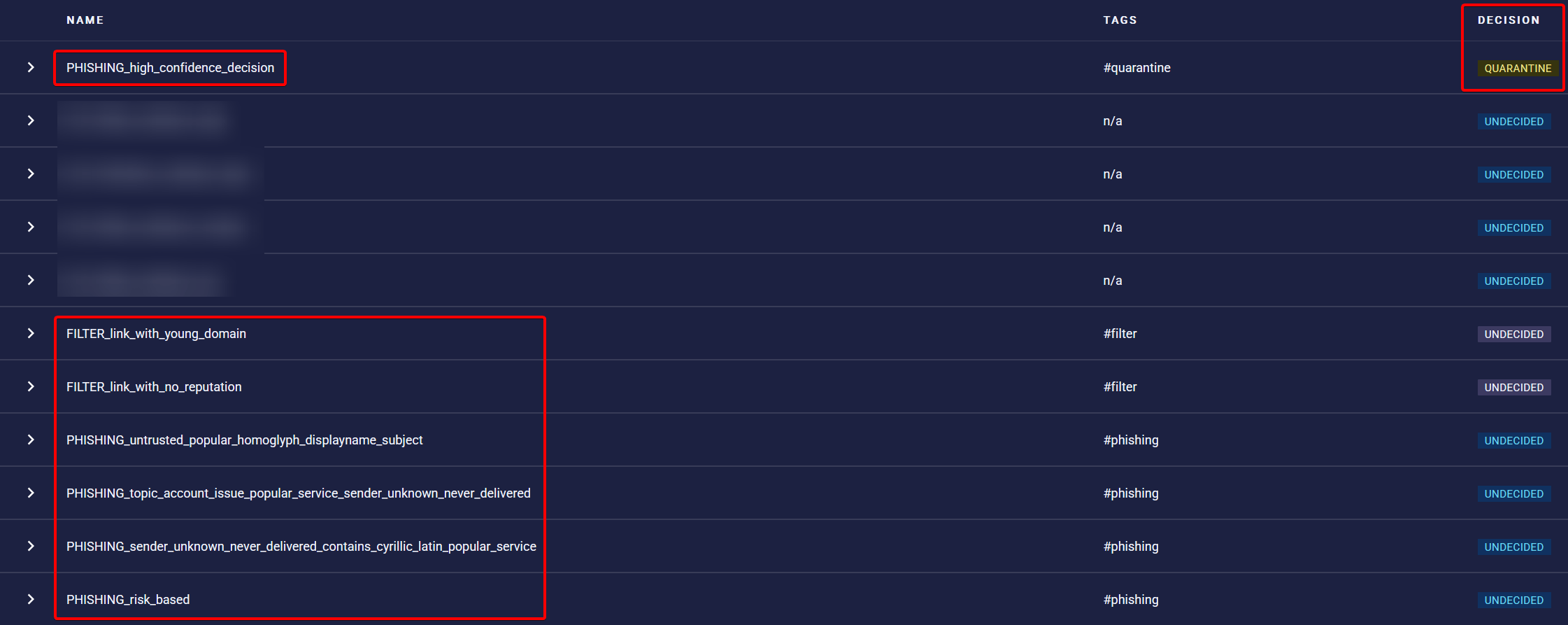 On top you can see the **Decision** rule carrying out the high-confidence phishing action. Below are several **Verdict** rules from the verdicts *Phishing* and *Filter*.
* The final verdict is Phishing as it has precedence over Filter.
* One Phishing verdict is rule is enough to classify the email as Phishing. In this case even multiple applied.
Now we need to dig into the verdict rules to understand why they were applied.
### Understanding verdict rules
In most cases the name of the verdict rule gives already enough information why it triggered. Some examples:
* `PHISHING_risk_based`: The overall risk of the email was above a certain threshold.
* `MALWARE_office_dangerous_vbascript`: Suspicious VBA Script was found in an office attachment.
* `SPAM_score_high`: The email has a high spam score.
* `SPAM_sa_freemail_forged_replyto`: The Reply-To header is set to a freemail address but the email was not sent from a freemailer.
To go further, you can expand a rule to see which conditions were fulfilled that this rule triggered:
On top you can see the **Decision** rule carrying out the high-confidence phishing action. Below are several **Verdict** rules from the verdicts *Phishing* and *Filter*.
* The final verdict is Phishing as it has precedence over Filter.
* One Phishing verdict is rule is enough to classify the email as Phishing. In this case even multiple applied.
Now we need to dig into the verdict rules to understand why they were applied.
### Understanding verdict rules
In most cases the name of the verdict rule gives already enough information why it triggered. Some examples:
* `PHISHING_risk_based`: The overall risk of the email was above a certain threshold.
* `MALWARE_office_dangerous_vbascript`: Suspicious VBA Script was found in an office attachment.
* `SPAM_score_high`: The email has a high spam score.
* `SPAM_sa_freemail_forged_replyto`: The Reply-To header is set to a freemail address but the email was not sent from a freemailer.
To go further, you can expand a rule to see which conditions were fulfilled that this rule triggered:
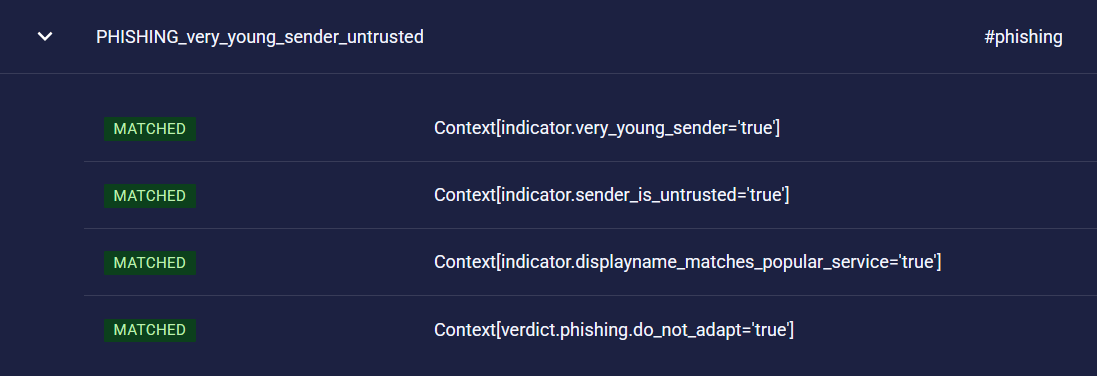 This Phishing verdict rule required four indicators to be present:
| Indicator | Description |
| ---------------------------------------------------- | -------------------------------------------------------------------------- |
| `indicator.very_young_sender=true` | The sender domain has been recently registered |
| `indicator.sender_is_untrusted=true` | The sender is untrusted, see [Relationship](/latest/concepts-relationship) |
| `indicator.displayname_matches_popular_service=true` | The displayname of the sender matches a popular service |
| `verdict.phishing.do_not_adapt=true` | This rule should not be *adapted* via an Adapt rule |
The web interface shows only indicators that matched and were relevant. It is possible that a rule also checks other indicators via an OR condition, which are not shown.
### Passive rules
xorlab has some built-in passive rules that are indicated via a **gray** UNDECIDED decision. Rules are usually set as passive due to the following reasons:
* Some rules do not work in every environment
* For evaluation purposes - to see how well a rule performs
This Phishing verdict rule required four indicators to be present:
| Indicator | Description |
| ---------------------------------------------------- | -------------------------------------------------------------------------- |
| `indicator.very_young_sender=true` | The sender domain has been recently registered |
| `indicator.sender_is_untrusted=true` | The sender is untrusted, see [Relationship](/latest/concepts-relationship) |
| `indicator.displayname_matches_popular_service=true` | The displayname of the sender matches a popular service |
| `verdict.phishing.do_not_adapt=true` | This rule should not be *adapted* via an Adapt rule |
The web interface shows only indicators that matched and were relevant. It is possible that a rule also checks other indicators via an OR condition, which are not shown.
### Passive rules
xorlab has some built-in passive rules that are indicated via a **gray** UNDECIDED decision. Rules are usually set as passive due to the following reasons:
* Some rules do not work in every environment
* For evaluation purposes - to see how well a rule performs
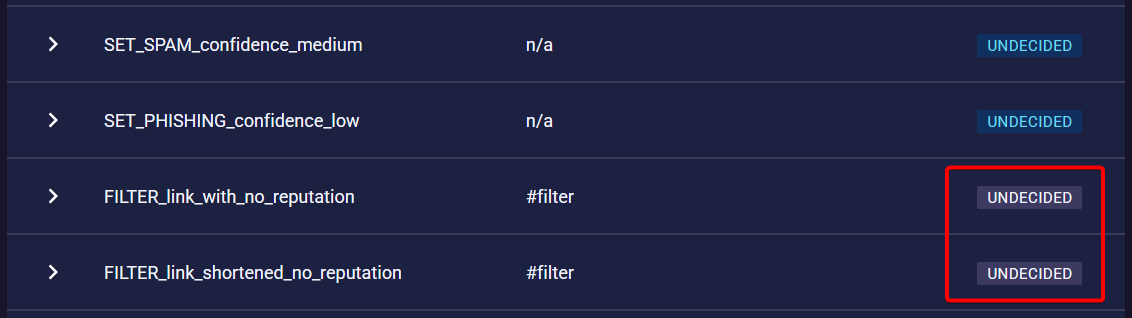 You can generally ignore them as they do not influence the decision. To check at which emails a passive rule was applied, you can use `passiveRule:` in the search.