

suspicious@<your domain name>, e.g., suspicious@example.com. This email address is configurable (as described in xorlab Security Platform Email Addresses) and depends on your domain name.
Depending on the outcome of the analysis and the type of email reported, you will receive a report with more information about the reported email.
Reporting using a built-in web Outlook button
If you integrated the XSP reporting service with M365, and you open or preview a message in the web version of Outlook, you will see at least one button allowing you to report this message: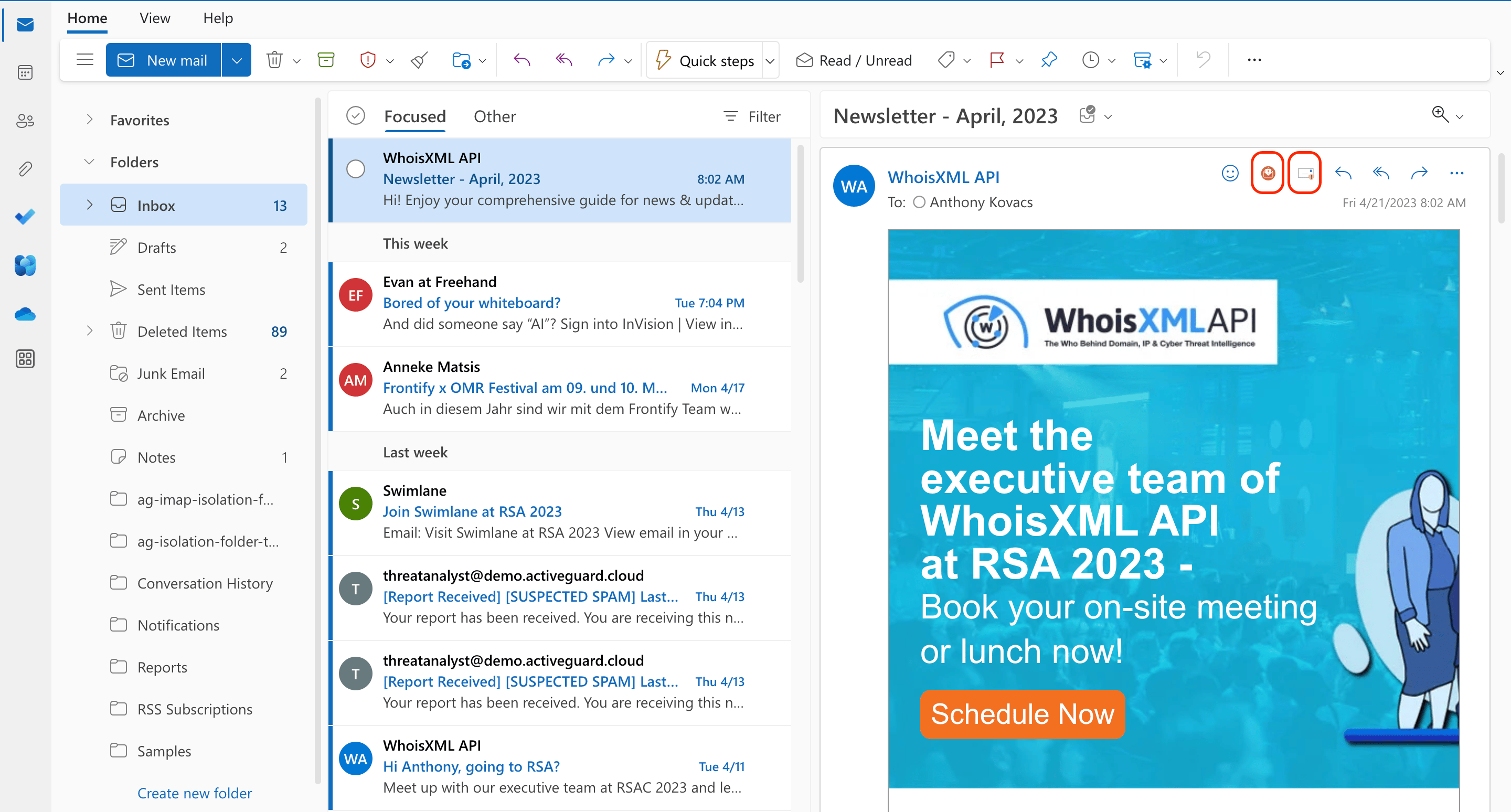
Default Outlook button
If you are using M365, you can click the default Report Message button. You will then see a context menu. Select Junk or Phishing—it doesn’t matter which option you choose: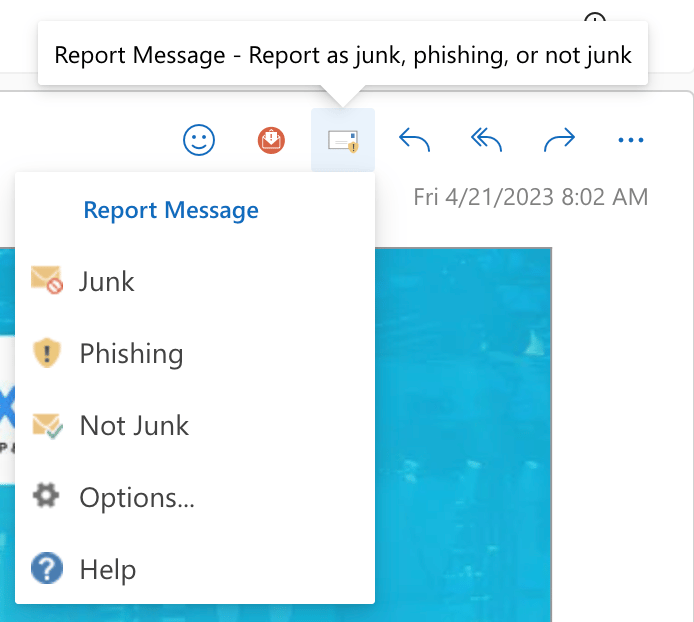
Third-party button
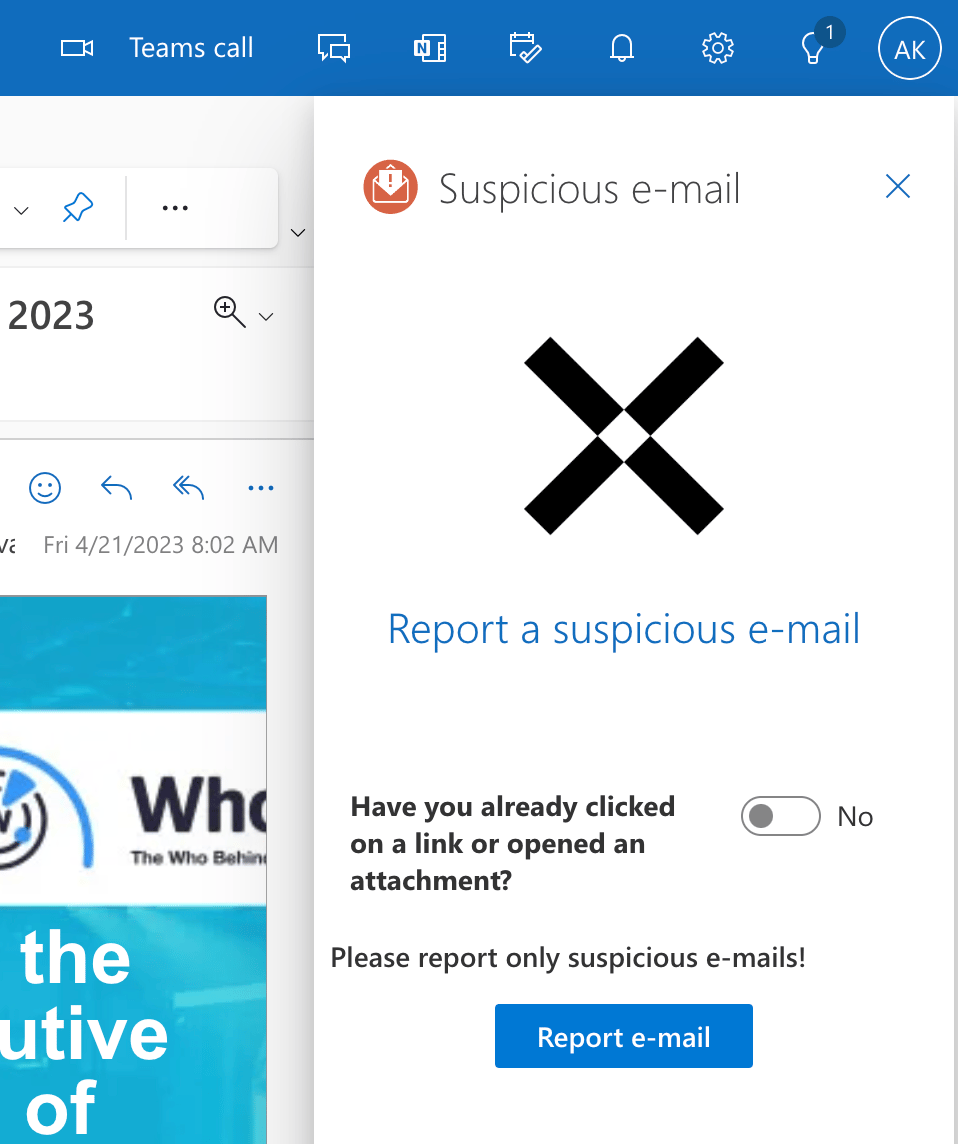
In some deployments, you will also see a special third-party button to report a message: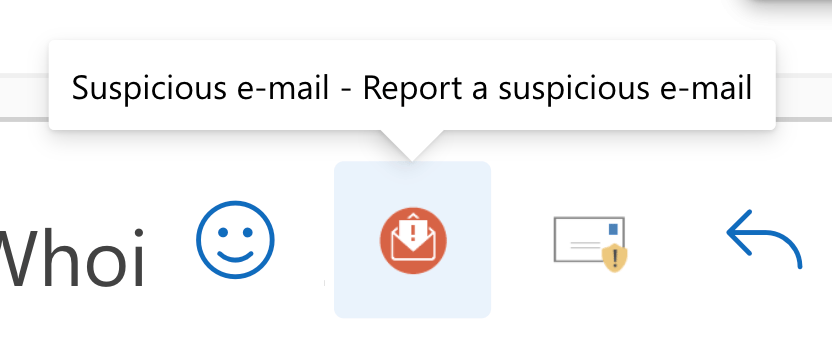
How to forward an email as an attachment
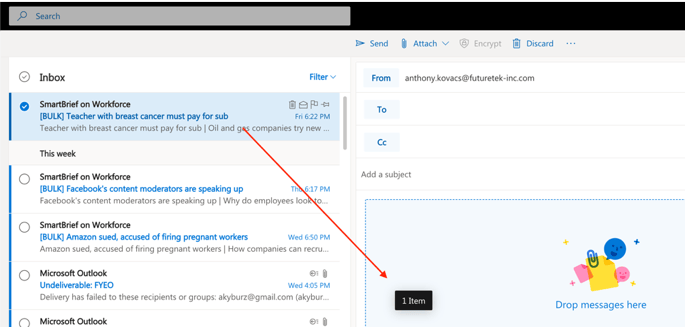
Outlook for Microsoft 365 (in the browser)
- Select New Message.
-
In the Inbox pane, drag the email you want to send as an attachment to the new message.
-
Enter the reporting email address—e.g.,
suspicious@example.com—to the To text field. The subject and body text fields can be left empty. - Click Send.
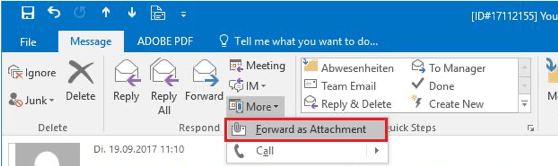
Outlook for Windows 2013-2019
- Open the email that you want to send as an attachment.
-
Click More and select Forward as Attachment.
-
Enter the reporting email address—e.g.,
suspicious@example.com—to the To text field. The subject and body text fields can be left empty. - Click Send.
Outlook for Windows 2010
- Right click the email you want to send as an attachment.
- Select Forward as Attachment.
- Enter the reporting email address—e.g.,
suspicious@example.com—to the To text field. The subject and body text fields can be left empty. - Click Send.
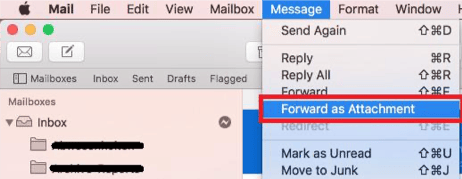
Apple Mail
- Open the email that you want to send as an attachment.
-
Click Message and select Forward as Attachment.
-
Enter the reporting email address—e.g.,
suspicious@example.com—to the To text field. The subject and body text fields can be left empty. - Click Send.