

suspicious@<templateDomain> address, where the templateDomain property (not a variable) is configured in the activeguard/core/active_guard.yml file (see step #7 in Basic settings).
This reporting address can be changed to any address of your choice—please see Reporting address.
Configuring the Report Message button
Before you start configuring the Report Message button in any app, you have to check the following settings in theactiveguard/core/active_guard.yml file which affect feedback from xorlab Security Platform:
no_auto_feedback.properties—make sure it is not active (more details in Profiles)authorizedEmailReportRecipientsunderemailReporting—it lists all domains that are allowed to receive notifications regarding reported emails (a reporter using an email address not listed here will not receive any feedback from XSP).
Microsoft 365
In order to use the MS Outlook Report Message button with reporting service in xorlab Security Platform, you need to perform three actions: set up an Exchange Online mailbox for reported emails, opt for sending the reported messages there, and finally create a rule that redirects emails sent to this mailbox to a reporting account in XSP.-
Add an Exchange Online mailbox for reported emails, if you don’t have it already. For example, name it
Reportingand assign the address ofreporting@example.com. - Go to the Microsoft 365 Defender portal and in the left pane scroll all the way down to select Settings. Click Email & collaboration, then User reported settings. Or you can go directly to the User submissions page.
-
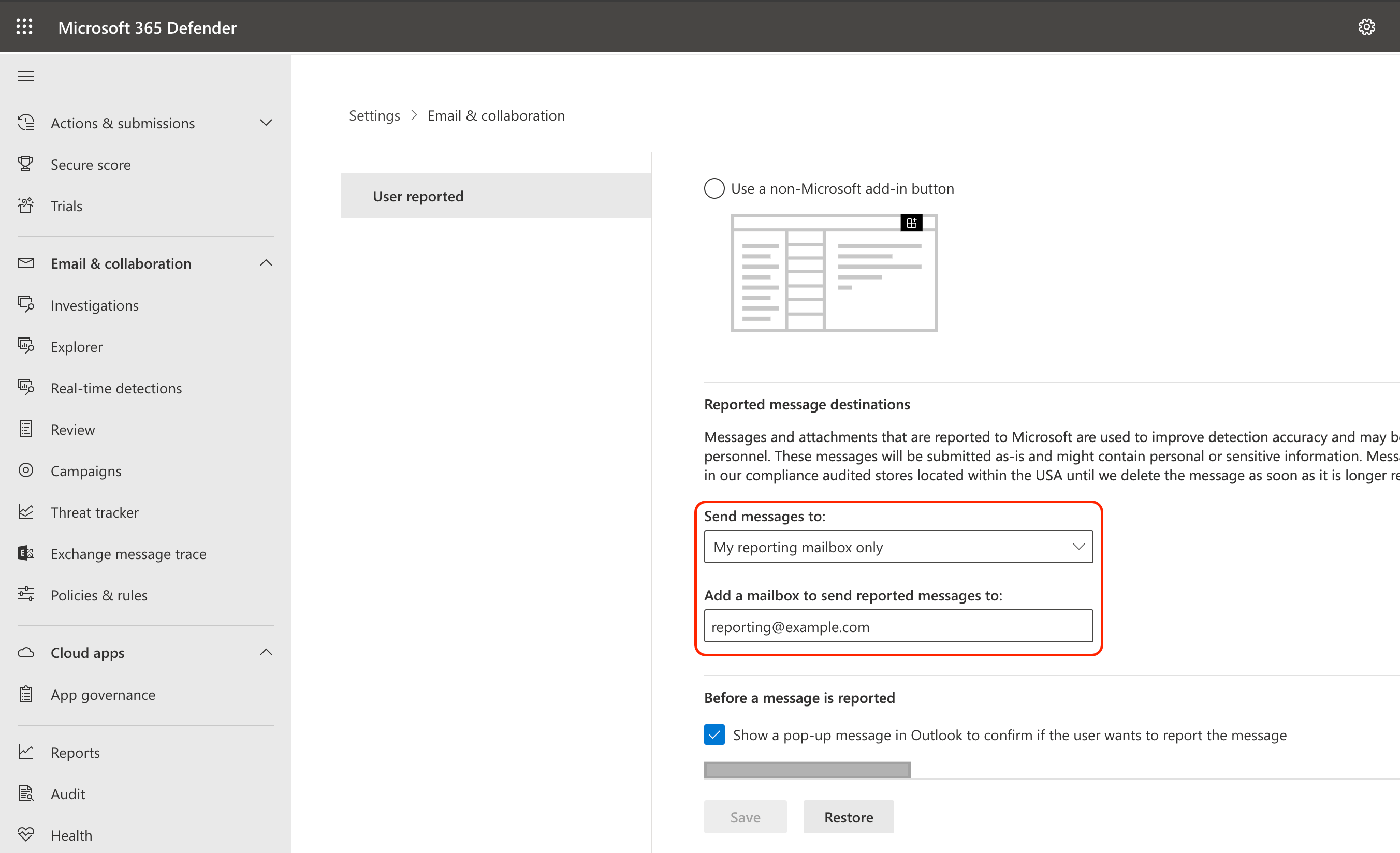
On the User reported settings page, make sure that the first switch is on. Depending on your preferences, select an Outlook report button configuration (you can leave the first default option selected), scroll down to the Reported message destinations section, and from the drop-down list under Send reported messages to: select the second option My reporting mailbox only. Then, in the input box under Add an exchange online mailbox to send reported messages to: enter your reporting mailbox address you have just set in step #1:
- Click Save.
-
Follow the steps described in the Mail flow rule section and create a new rule, e.g.,
MSReportingButtonIntegration, on the Rules page using these settings for rule conditions:- Apply this rule if → The recipient → is this person and select your Exchange Online reporting mailbox from the list, e.g.,
Reportingyou created in step #1. - Do the following → Redirect the message to → enter the xorlab Security Platform reporting mailbox address, e.g.,
suspicious@mx.xyz.activeguard.cloud, wherexyzis your customer ID for your XSP instances.
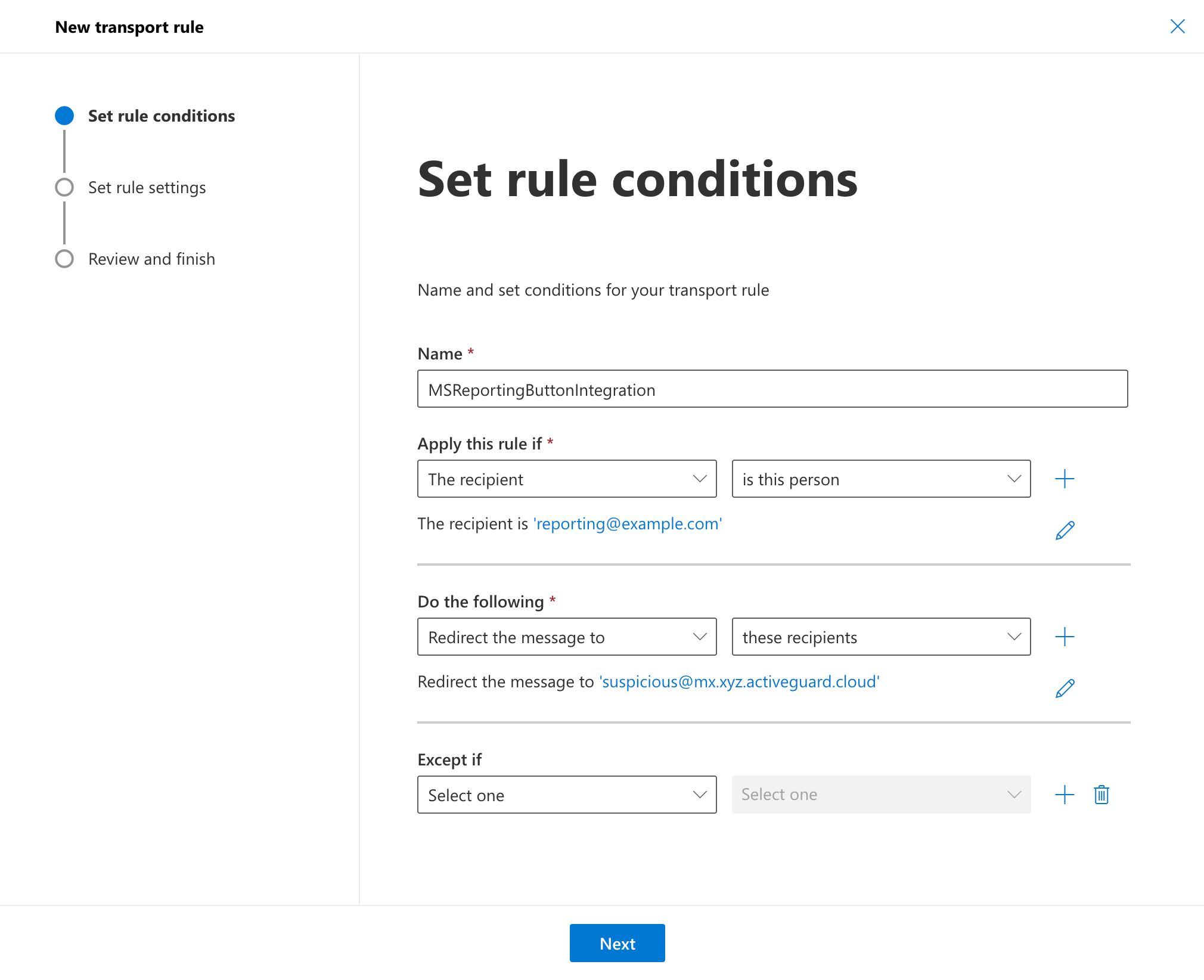
- Apply this rule if → The recipient → is this person and select your Exchange Online reporting mailbox from the list, e.g.,
- Click Next twice, review the settings for your rule on the last page and if they are OK, click Finish, then Done when the transport rule is created. Remember to enable this rule on the Rules page.