-
In Expert Editor, navigate to
activeguard/core/rule_sets/90_local/params/local.properties. -
Edit the file by inserting the following lines:
This parameter activates the Attachment Airlock feature. If, for any reason, you wish to deactivate this feature in the future, simply change the parameter from
ACTIVEtoDISABLED. - Click Publish. The rule-set configuration becomes active within about one minute.
Password Compatibility
Attachment Airlock expects passwords to be UTF-8 encoded. If a file is encrypted with a password containing special characters (e.g., ç, ü, ñ) using older tools or systems that use legacy encodings like CP437 or ISO-8859-1, unlocking may fail due to encoding mismatches.Using Attachment Airlock
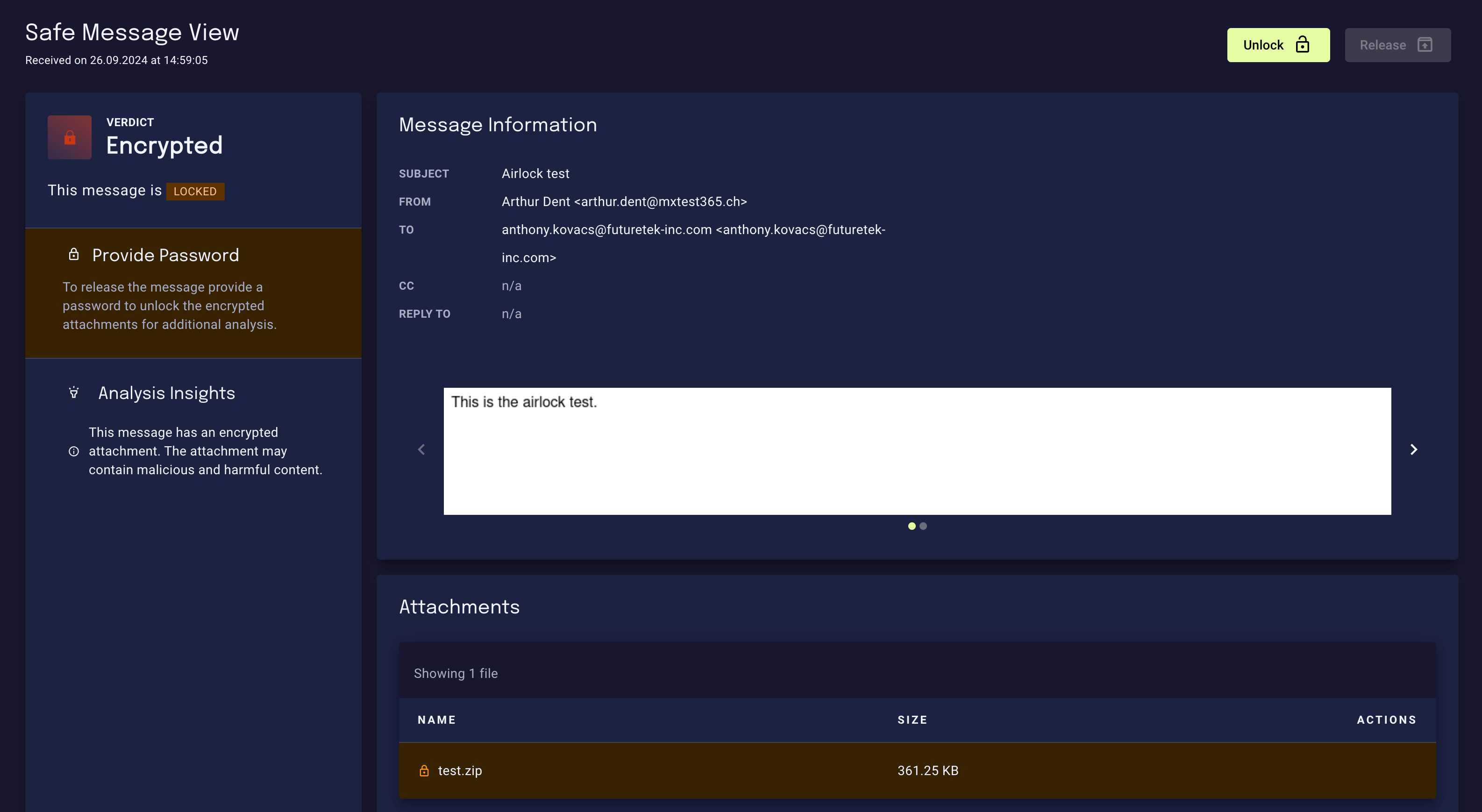
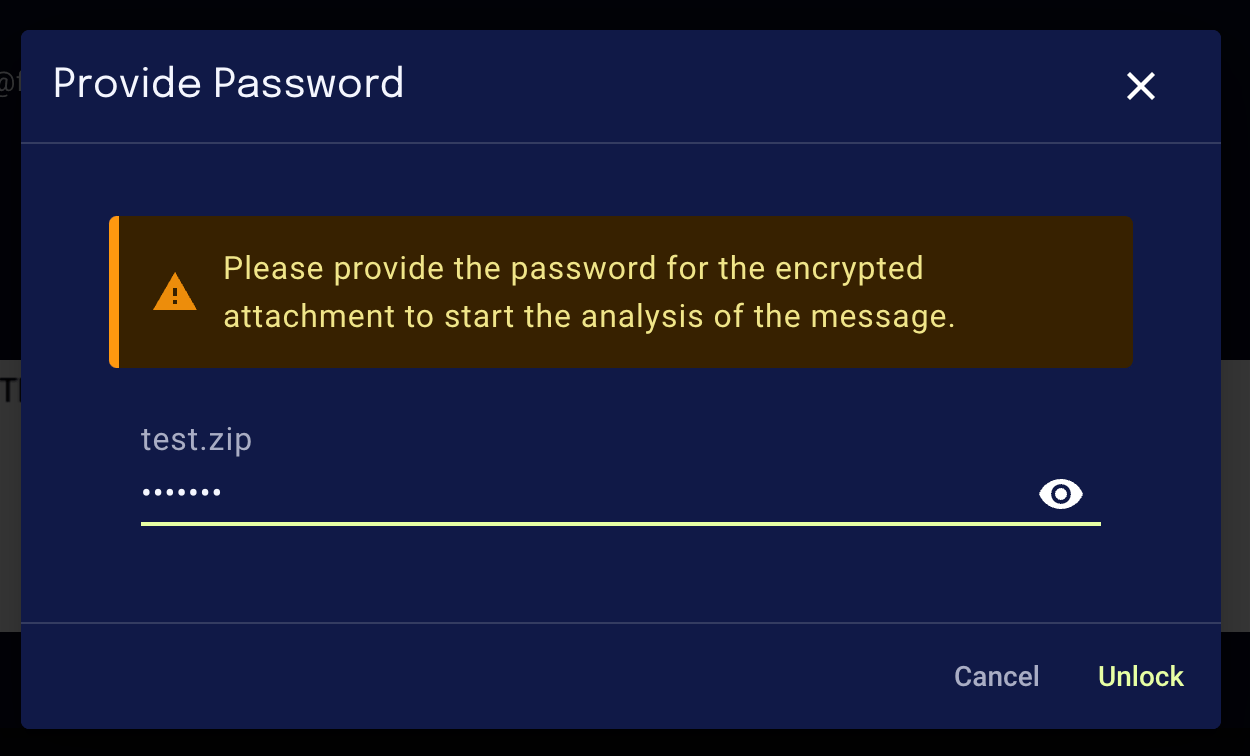
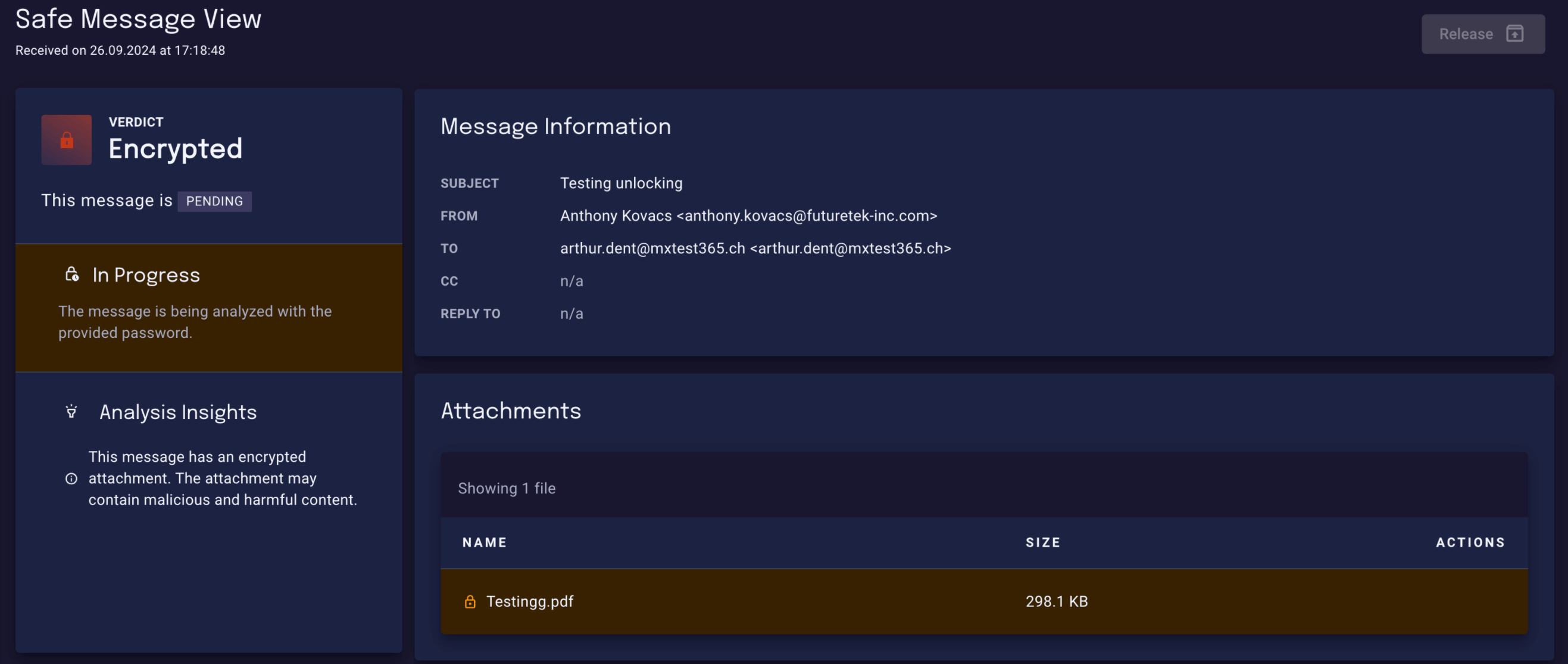
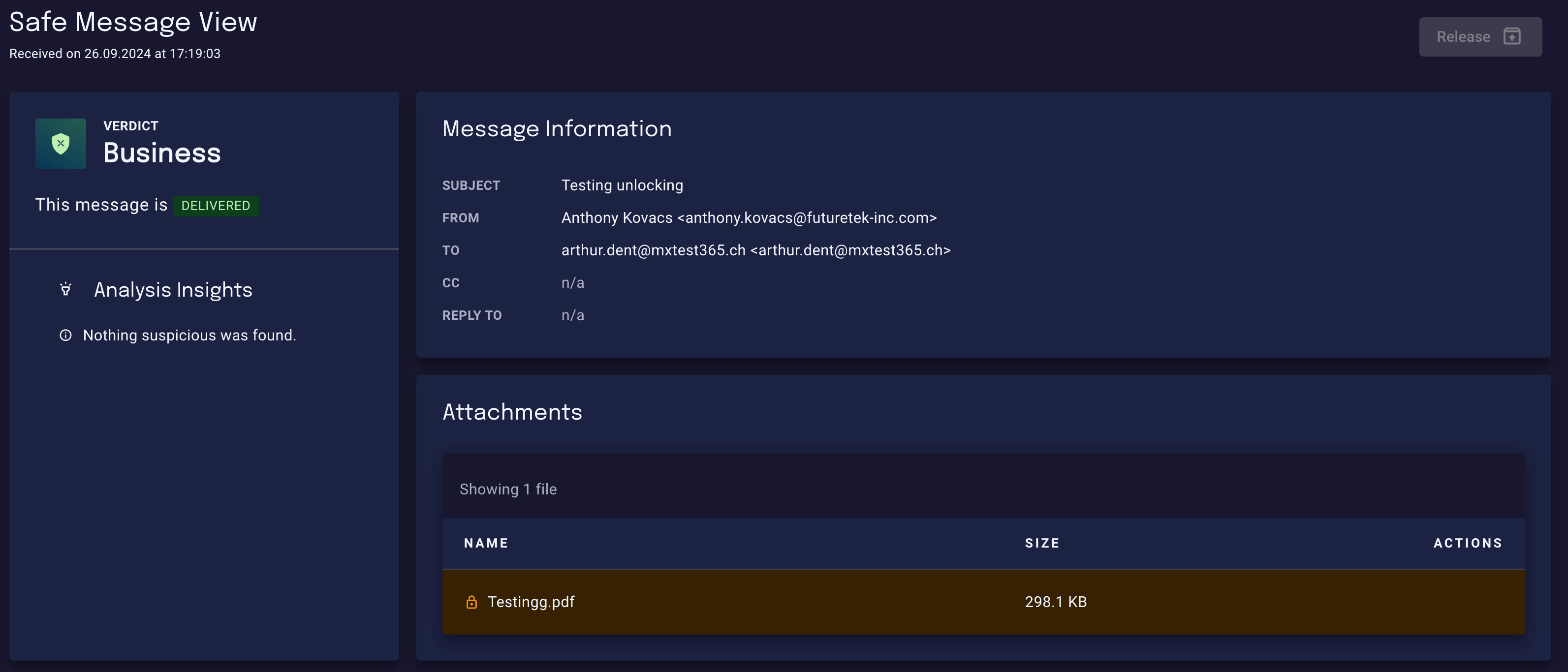
With Attachment Airlock enabled, users can unlock password-protected attachments in a secure environment and have them analyzed by xorlab. When an email with a password-protected attachment is sent to an xorlab user, and the password protection can’t be automatically cracked by xorlab, the user receives the following notification email: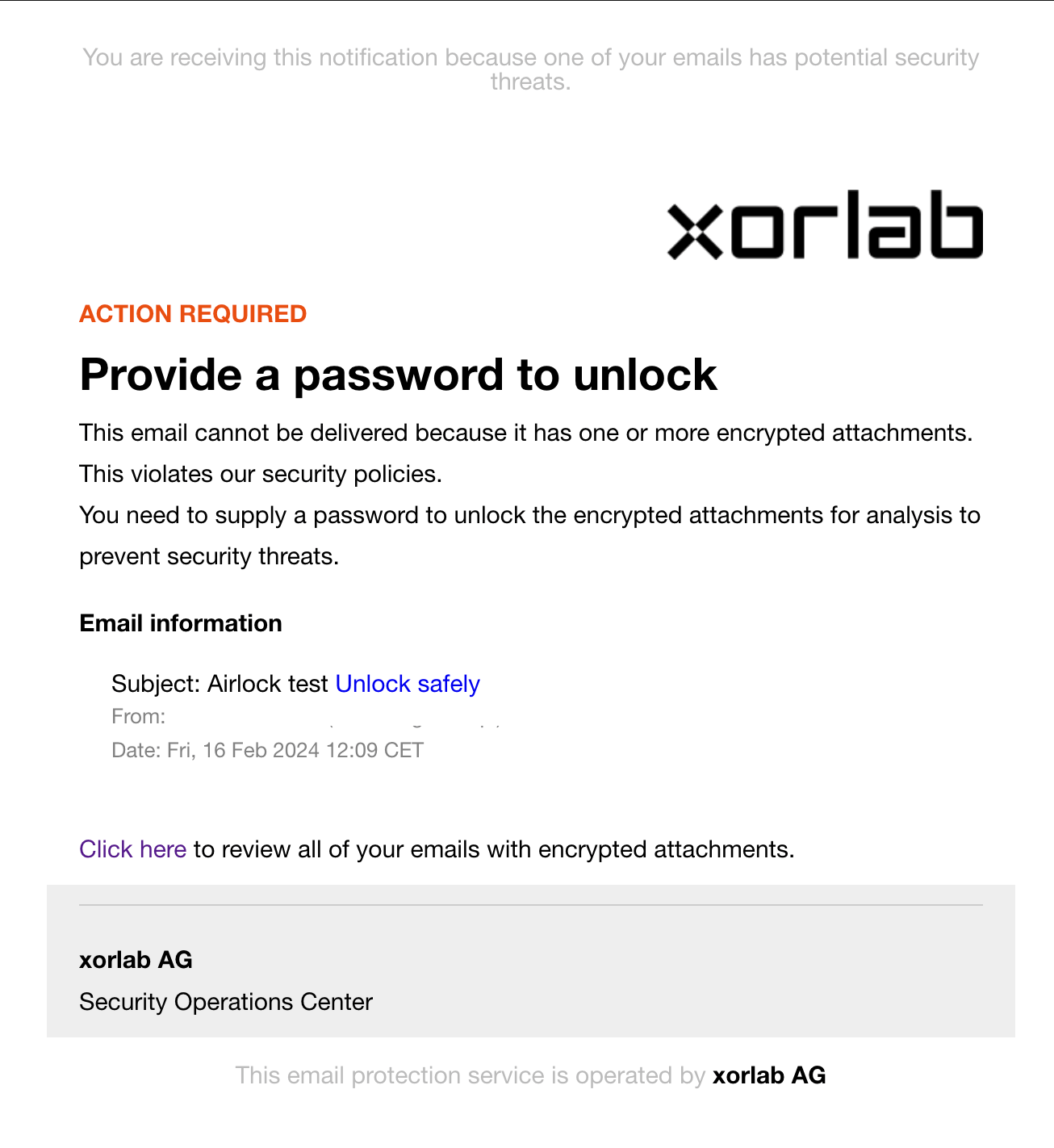
The Attachments tab in the SSQ shows the contents of the
Airlock quarantine — the quarantine you configure under that name in guarded_tenants.yml, see List of Quarantines.