

- Email quarantining
- Subject rewrites
- Attachment removals
- Quarantine notifications
- Feedback and acknowledgments for reported emails
- Auto-handling of reported emails
- Simple and standardized: Go through the different provided profiles described below and configure the ones that fit your use case. Profiles are standardized, tested, and should cover most scenarios.
- Advanced: Manually configure certain rule parameters. This can be used to fine-tune or override specific actions of xorlab Security Platform. Just go to the Actions panel in XCC or edit a config file.
- Expert: Write custom rules. Rules provide high flexibility and can be tailored to cover most requirements. The xorlab Security Platform rule language allows combining indicators and actions in virtually every possible way. However, xorlab does not yet provide documentation for this. If you require custom rules, please contact support@xorlab.com.
Profiles
The active profiles are configured in theactiveguard/core/active_guard.yml file:
local.properties overwrite parameters from the default.properties, but the configuration that a user sets in UI (ui.properties) has the highest precedence and will be used by xorlab Security Platform. You can specify as many profiles as you want.
The ui.properties profile should always be the last one and is empty by default. It allows you to override any parameters from the predefined profiles with settings configured in UI in the Actions panel in XCC.
The following table lists the available profiles:
The older profile
fp_sensitive.properties is not listed here anymore as it will be deprecated in a future release. It can still be used, but new deployments should instead use fp_low.properties.
The duration of the learning phase is documented in
Detection Defaults → Learning phase, and the delivered
dynamic analysis values in Dynamic Analysis. Password required.
Common profile configurations
You can learn how to use the profiles by studying the following profile configurations and their purposes.Standard
Standard inbound email security with feedback and acknowledgments:Standard with no feedback
Standard inbound email security with deactivated feedback and acknowledgments:Learning phase with passive defense (evaluation mode)
Disable all actions on emails. Can be used as an evaluation mode as well as during learning phase if no actions should be taken:Learning phase with active defense
Learning phase with active inbound email security:Monitoring mode
Used only when xorlab Security Platform runs in the monitoring mode (“BCC mode”):Actions panel
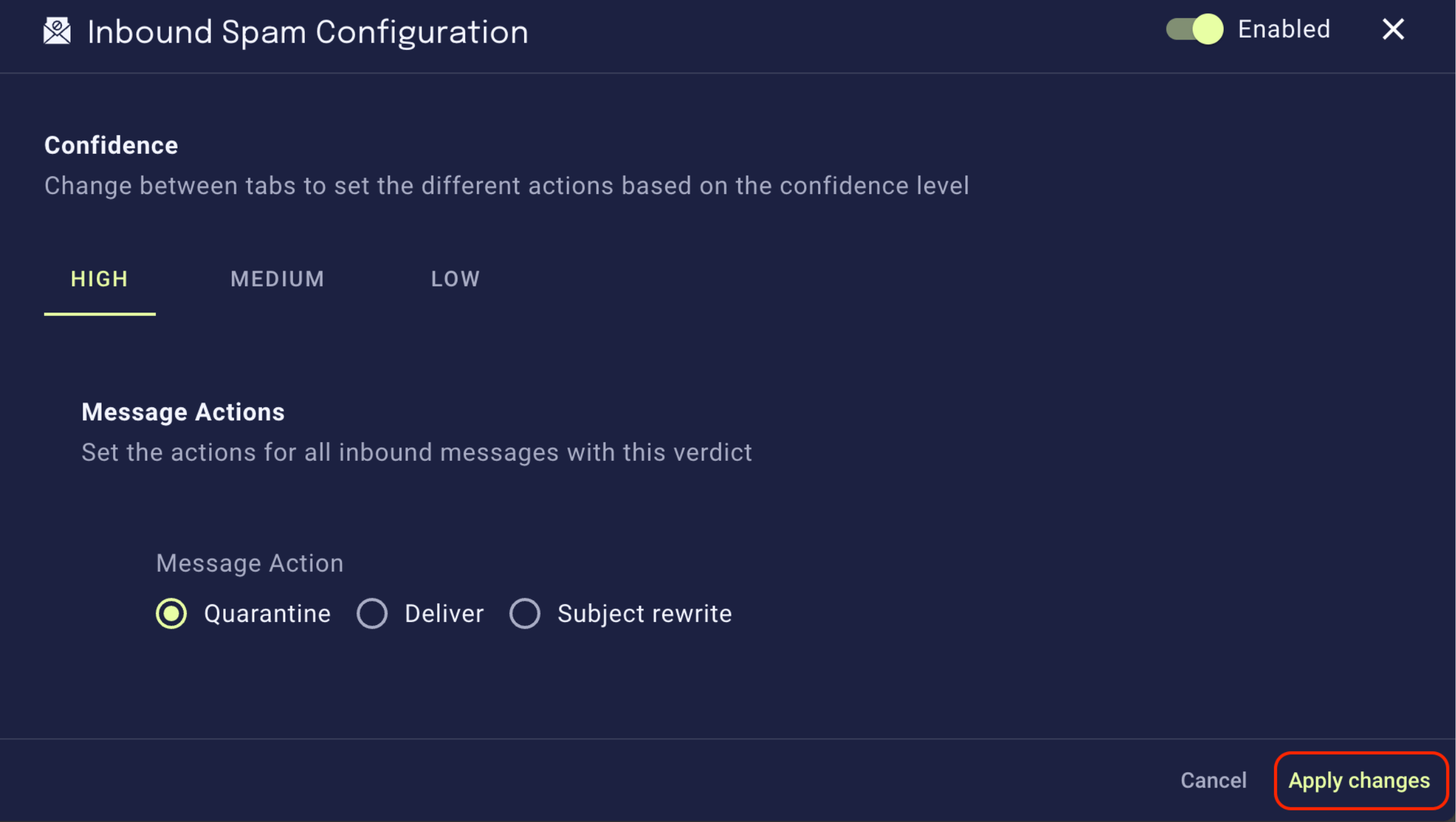
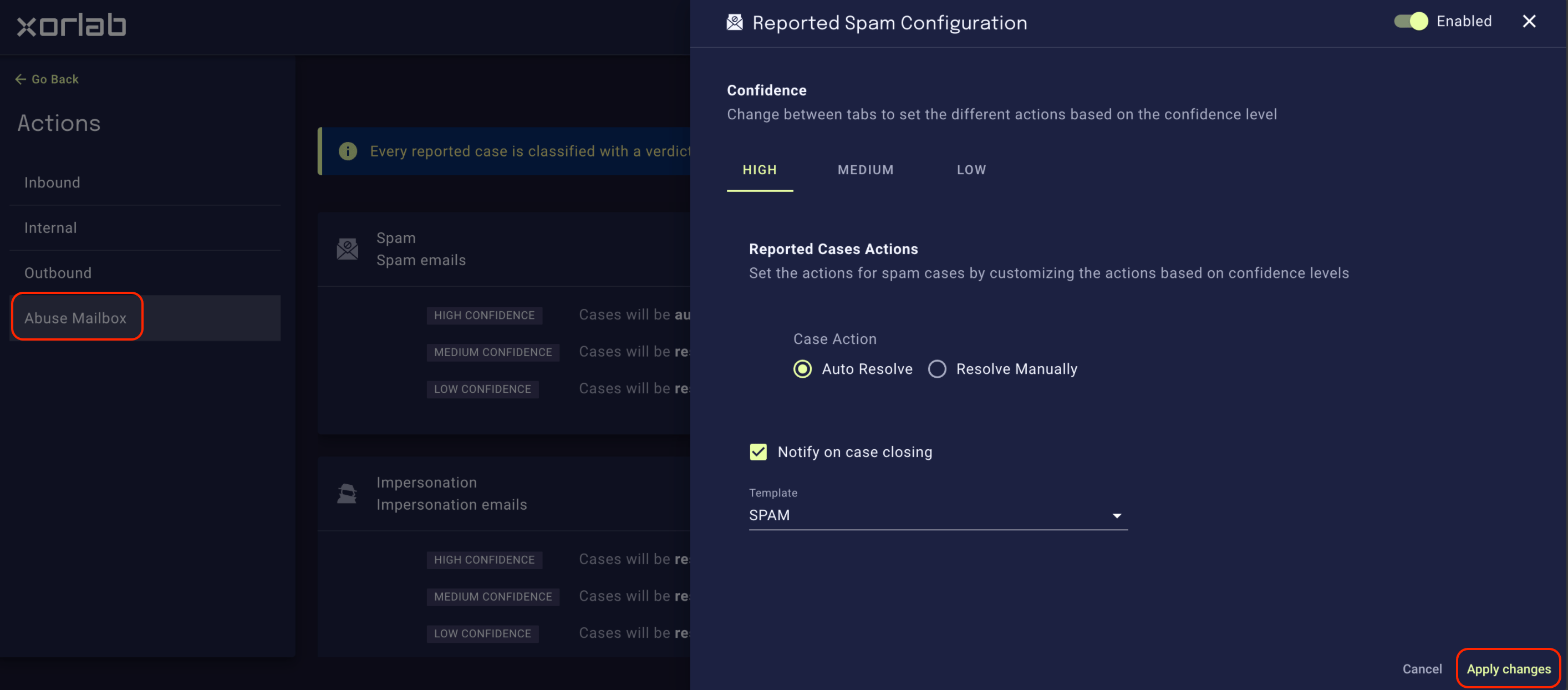
Rule parameters can be configured to fine-tune the system in addition to the predefined profiles. You can either use the Actions panel available in the Admin tools of XCC or manually enter the parameters in a config file. In fact, all parameters configured here end up as entries in theui.properties profile that has the highest precedence. See the Actions panel in action:
- Changing the action of a verdict (e.g., subject rewrite instead of quarantining)
- Changing the subject rewrite text
- Disabling specific rules
- Enabling or disabling certain feedback emails for reported emails
-
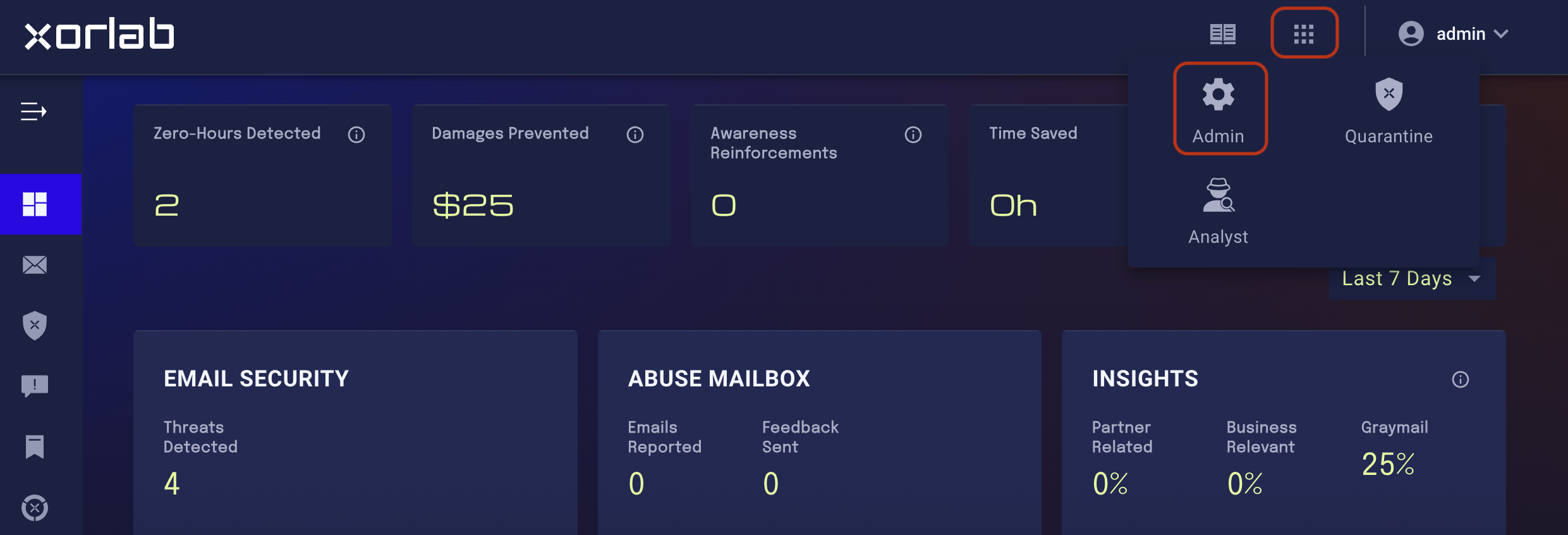
On the main screen, click the tiles icon next to your account name and click the Admin icon in the displayed menu:
-
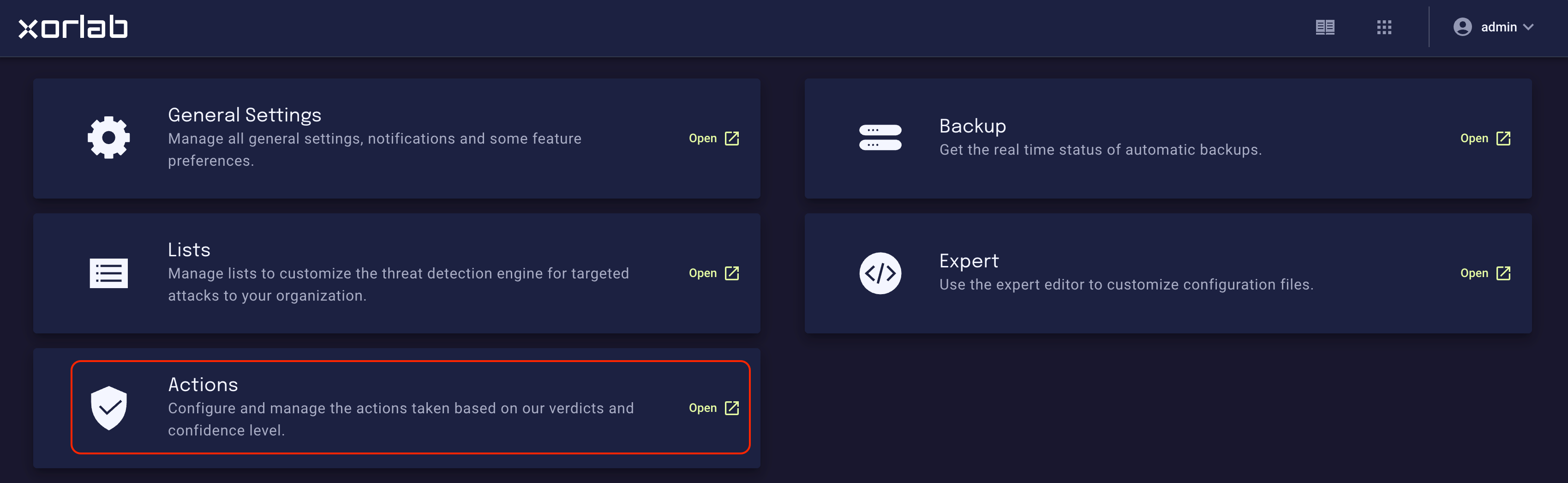
On the resulting Admin page, click the Actions tile:
-
This opens the Actions panel where you can adjust rule parameters:
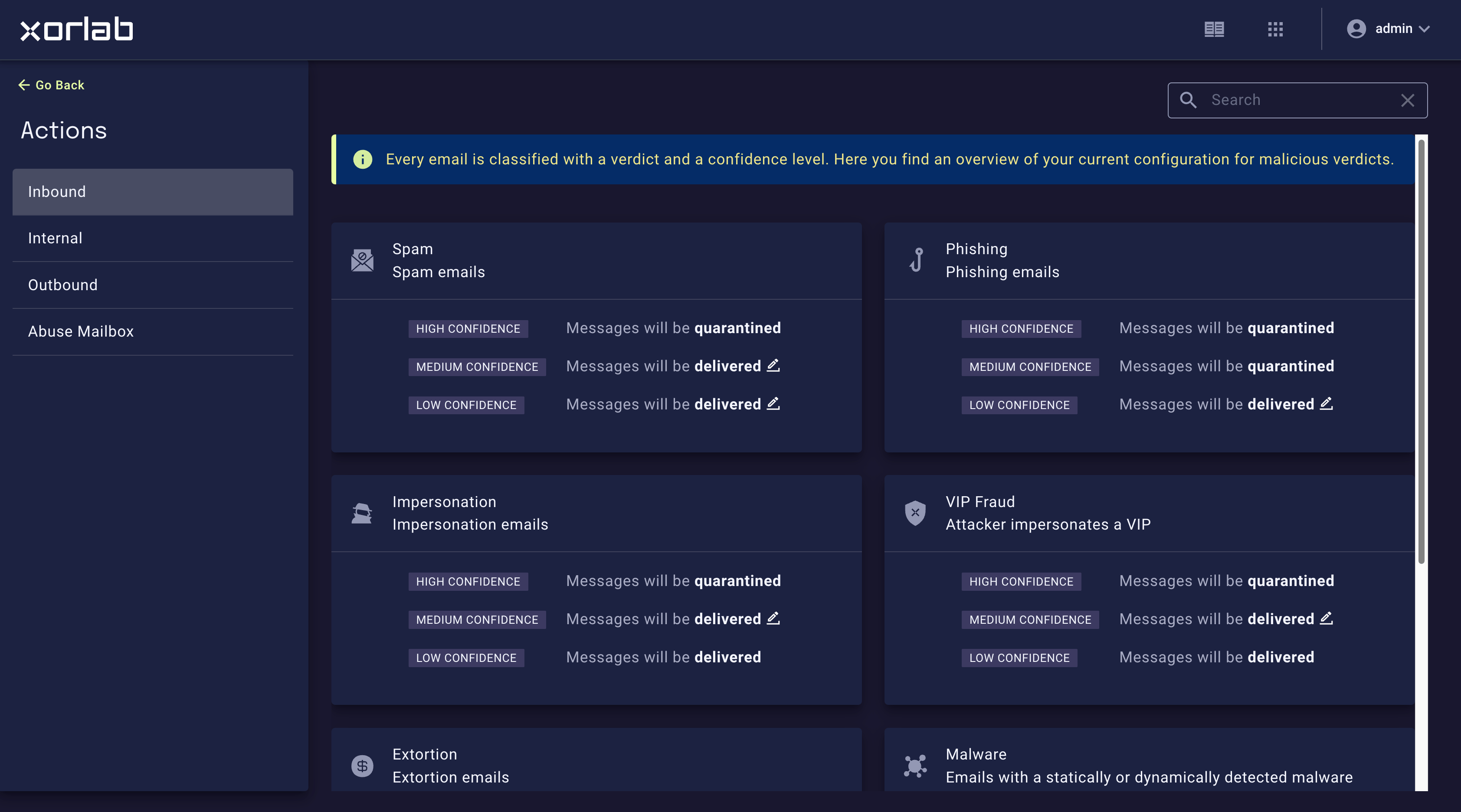
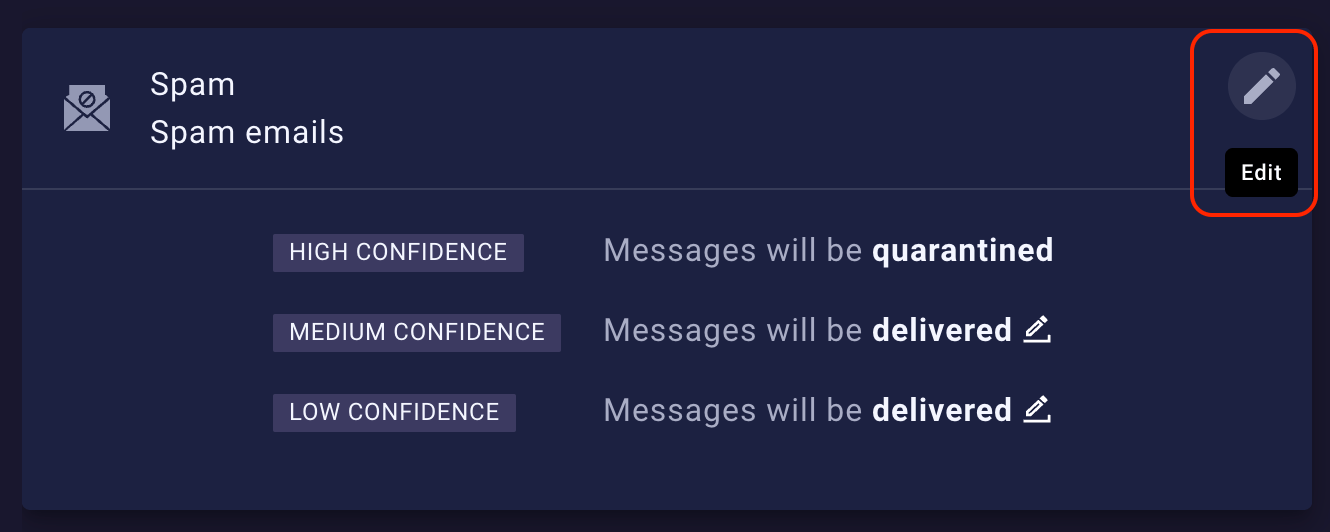
- Inbound Threat Protection: Spam, Phishing, Impersonation, VIP Fraud, Extortion, Malware, BEC, Blacklist
- Internal Threat Protection: Phishing, Extortion
- Outbound Data Loss Protection: Data Loss
- Case Reporting: Spam, Phishing, Impersonation, VIP Fraud, Extortion, Malware, BEC, Blacklist
Rule parameters
If you don’t want to use the Actions panel described above and you prefer entering the rule parameters manually, you can do that in theactiveguard/core/rule_sets/90_local/params/local.properties profile which is empty by default.
Below you can find common rule parameters available for inbound email security as well as for the handling of reported emails.
Inbound email security
For a description of the concepts and defaults, please refer to Inbound Email Security.Parameters
All available parameters are listed below:Low-confidence rulesThe following low-confidence rules are disabled or passive by default, so configuring their parameters will only have an effect if you set their
_low_confidence_decision_state to ACTIVE:VIP_FRAUDIMPERSONATION
Parameter suffixes
Available suffixes to the parameters for inbound email defense:
Those rule parameters can be adjusted per verdict and confidence. For example, the following configuration activates quarantining for high-confidence phishing, but delivers medium-confidence phishing with a subject rewrite:
Attachment removal and replacement
Based on your policy, xorlab Security Platform can remove attachments or replace them with a text file. By default, this happens only for incoming emails. You can activate this mechanism for:- Malware, exploit and filter (policy) verdicts—in this case, XSP will replace/remove all attachments that lead to a malware, exploit, or filter verdict.
- File indicators—in this case attachments will be replaced/removed independently of the verdict but based on indicators like, for example, the file type or file content.
- Open the
activeguard/core/rule_sets/90_local/params/local.propertiesfile in Expert Editor and add the following two lines (you can adjust the second line if you want to change the name of the replacement file): - You can apply attachment replacement to incoming and outgoing traffic (incoming is by default). In the
activeguard/core/rule_sets/90_local/params/local.properties, you can select for what flow it is applicable. Please add the value below and change to what flow it should apply with the following commands:ALL,INCOMINGandOUTGOING. - To activate attachment removal/replacement for malware, exploit or filter verdict, add the following lines. Every line corresponds to a verdict and you can decide for each if you want to do an attachment removal (
remove), an attachment replacement (replace), or nothing (keep, default). - To activate attachment removal/replacement for certain file indicators, you can configure one or more of the following lines:
Attachment removal based on blacklists only works if the quarantine action for blacklist matches is disabled. If you need help adjusting this setting, please contact support@xorlab.com
- For every use case above, you can specify the text in the replacement file with the following properties:
Adding analysis results to email headers
In the beginning of your xorlab Security Platform journey, it’s useful to have some information on analysis results while debugging email handling. If you want to have these results directly in emails that you’re inspecting, open Expert Editor, go to theactiveguard/core/active_guard.yml file, scroll down to the pipelineTypeConfig group and under emails, set analysisResultInMimeHeader to EnabledInbound:
x-xor-verdict-confidence header is only included when the verdict is either Phishing, Spam, VIP Fraud, Impersonation, or Policy. More info on the values each verdict might have can be found in Verdict confidences.
Reported email handling
For a description of the concepts and defaults, please refer to Abuse Mailbox Automation.Parameters
The available parameters for all verdicts are listed below:Low-confidence rulesThe following low-confidence rules are disabled or passive by default, so configuring their parameters will only have an effect if you set their
_low_confidence_decision_state to ACTIVE:REPORTED_FILTERREPORTED_IMPERSONATIONREPORTED_VIP_FRAUD
Parameter suffixes
The parameters for the handling of reported emails allow you to specify when a case should be handled automatically and with which feedback email:ActionYou can specify the action (i.e., keep the case open or resolve it automatically) per verdict and confidence.
REPORTED_BENIGN_early_decision_action=DROP). This should ensure that no malicious email is accidentally auto-handled as benign. Therefore, reported emails may be marked as benign, but not auto-handled.
The most important requirements for auto-handling benign emails are:
- All links must have a local reputation above 0.
- Email must be internal or the sender must have at least medium trust.
- No suspicious files attached (e.g., no HTML files).
- No high spam or risk score.
- No cloud storage links.
Acknowledgment emails
By default, acknowledgments are sent automatically to every reporter whenever a case is kept open. To disable acknowledgment emails:-
On the main screen, click the tiles icon next to your account name and click the Admin icon in the displayed menu:
-
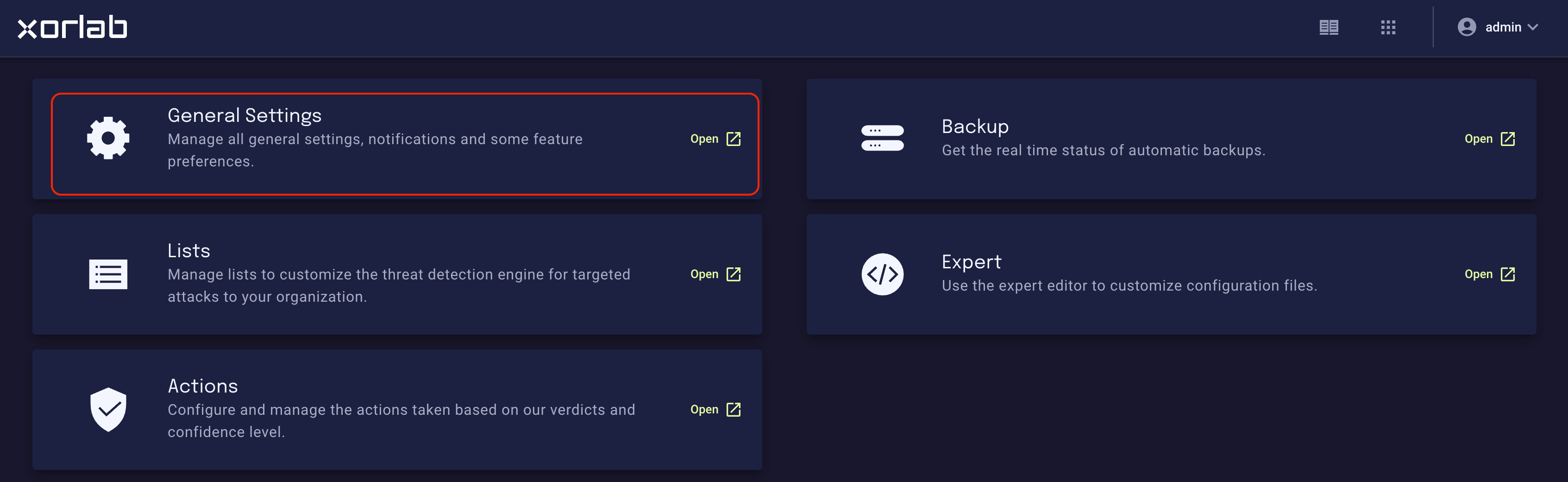
On the resulting Admin page, click the General Settings tile:
-
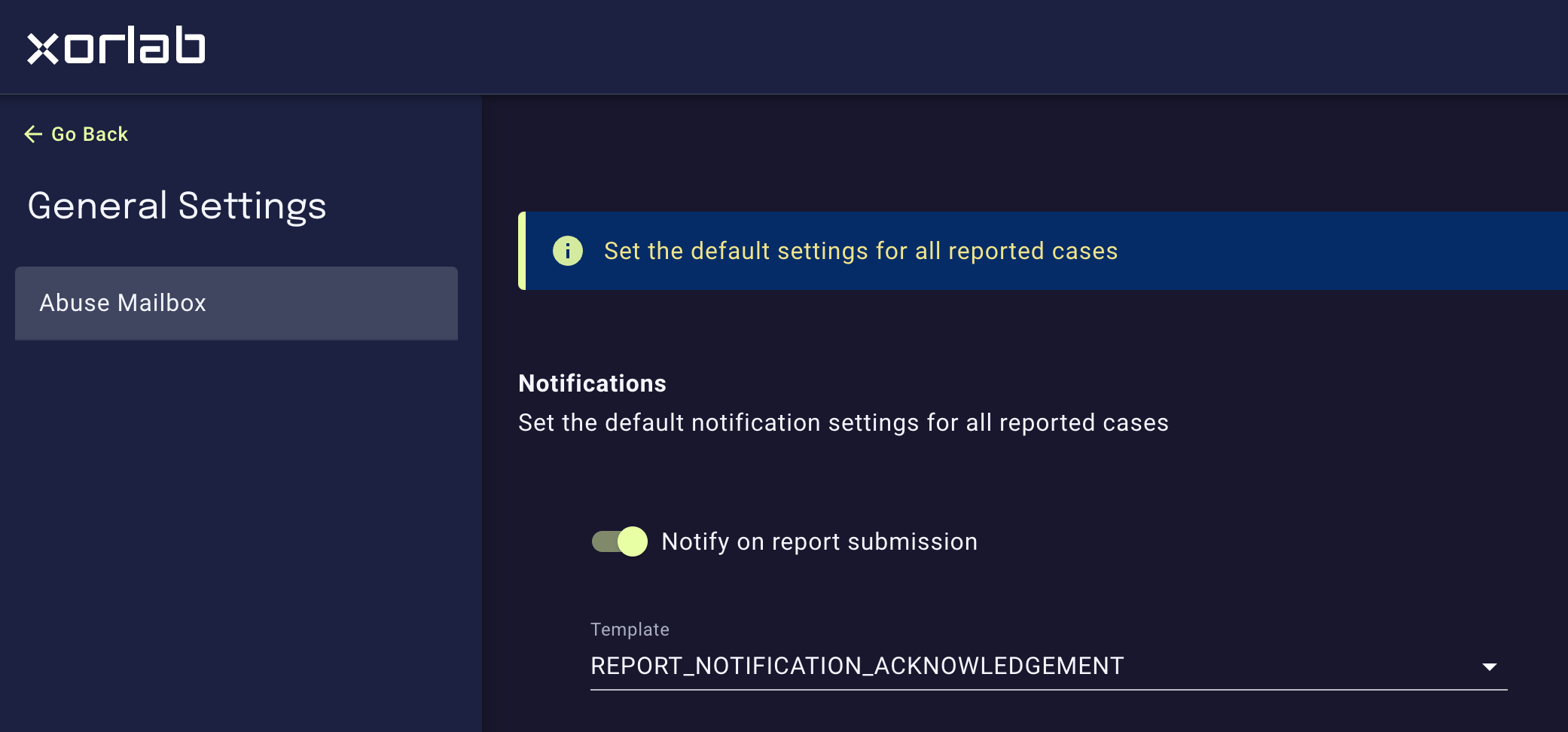
This opens General Settings panel where you can switch the Notify on report submission setting off.
activeguard/core/rule_sets/90_local/params/local.properties profile:
ACKNOWLEDGE_RECEIPT is the default):