

The SSQ portal is a part of xorlab Control Center (XCC) and is accessed with the same URL. SSQ users will only have access to the SSQ portal.
Prerequisites
SSQ Role
Every internal user that should access the SSQ to manage their quarantined emails must have thexcc_quarantine_user role (see Users, Roles, and Permissions). Please refer to Authentication for your specific authentication method (for example, LDAP or SAML) to make sure that this role is given to your SSQ users.
Token based authentication
Token-based authentication can be used for SSQ users as an alternative to SAML or LDAP authentication to access their self-service quarantine. The Notification E-Mail which the user receives contains a link, with a generated token which allows users to access their SSQ. More information about Token based authentication can be found here Auto-Login AuthenticationAccessible email addresses
If users have multiple emails to be accessed, you need to assign a list of accessible email addresses in SSQ to every SSQ user. In most cases, this list is provided as a part of the authentication process through your LDAP server (e.g., Active Directory) or through your identity provider (IdP) for SAML. Therefore, make sure that your LDAP server or IdP can provide the list of email addresses for every user. Then, please refer to Authentication to configureattributeMapping for the emails attribute, which should contain the list of email addresses.
Testing SSQ with password file authentication
If you only wish to test the SSQ with a local user, you can refer to the local password file configuration to define a local user with thexcc_quarantine_user and a static list of accessible email addresses.
Configuration
When all the requirements are met, users can log in to SSQ and start using it. There is no activation required. In the following sections, we will cover the available global SSQ settings which you can adjust if you want to change the already sensible default behavior. Besides the global SSQ settings, the individual SSQ users can customize the portal language or the notifications in their SSQ user settings menu.Appearance, language, and notifications
When users access the SSQ for the first time, the interface language is automatically set based on the language of their browser—provided it’s English, German, French, or Italian. If the browser is set to a different language, the SSQ interface defaults to English. SSQ users can change the interface language, notification language and frequency of the notifications on their own:- Click the user account in the upper right corner.
- In the drop-down user menu, click
SETTINGS. - On the Settings page that appears, a user can choose the theme for the portal (dark or light) on the Appearance tile, set Quarantine notifications (note that this option has to be enabled by the admin), select the Language of the portal and the language of the notification emails. Currently supported languages for notification emails are German, English, Italian, and French.
SSQ quarantines
You can configure which of your quarantines are a part of the SSQ. For every quarantine, you can specify if:- Quarantined emails are shown to the user in the SSQ (
canView). - Quarantined emails can be released in the SSQ by the user (
canRelease). - Quarantined emails can be unlocked via entering a password, only for Airlock quarantine (
canUnlock). - Quarantined emails can be requested for release by the user (
canRequestRelease).
shared/guarded_tenants.yml
Notifications
xorlab supports immediate, daily and weekly user email notifications for quarantined SSQ emails. By default, notifications are globally disabled and the corresponding user setting is hidden. If you would like to enable notifications, setenabled: true (see below). Afterwards, every user can enable or disable notifications through their individual SSQ.
Notifications are only sent for emails in quarantines that are at least viewable (
canView: true). Otherwise, no notification is sent.shared/guarded_tenants.yml
guarded_tenants.yml file apply only until the first time that a user logs in for that specific mailibox. Afterwards, this mailbox has its own configuration and if you change guarded_tenants.yml, it will not affect the mailbox anymore. Therefore, if you want to change the config for all mailboxes after they have already been used in SSQ, you have to perform an SQL query on XCC. In the example below, all users who had notifications individually disabled will have their notification frequency set to IMMEDIATELY:
SSQ daily/weekly user digest
It is possible to receive periodical SSQ digests instead of immediate notifications about quarantined single messages. You can set the digest to be sent daily or weekly. And you can also change the defaultUSER_QUARANTINE_DIGEST template. A sample digest can look like the one below:
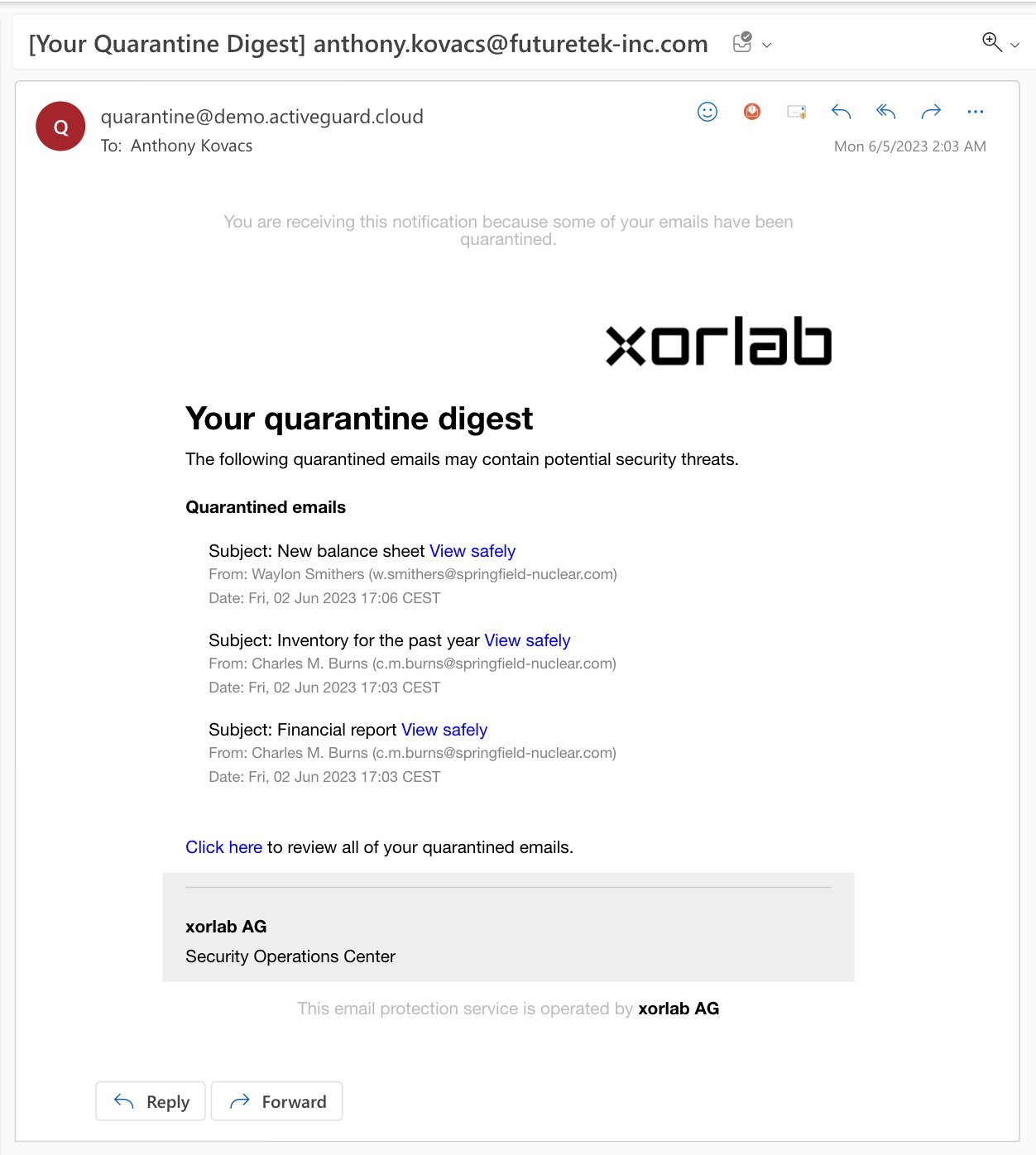
-
Open the
guarded_tenants.ymlfile and make sure the notifications are enabled in as described in Notifications. -
Set your preferred notification
frequencytoDAILYorWEEKLY. -
Under the
quarantinesection, add the followingdigestblock:
shared/guarded_tenants.yml
-
In
mentionedEntries, set the maximum number of recently quarantined messages mentioned in the daily/weekly digest email. -
For the
dailyCronandweeklyCronparameters, you can use online tools such as crontab guru to create your cron schedule. - Click the PUBLISH button to activate changes.
Integrate shared mailboxes
Token based authentication
There is no further configuration required for Token based authentication with shared mailboxes, since the shared mailbox receives the login token via email.SAML/IDP based authentication
The user access to shared mailboxes is specified during login time. If the user logs in via SAML, the IDP has to provide the list of accessible mailboxes in the SAML token. If the user logs in via an LDAP query, the LDAP server needs to contain the list of accessible mailboxes. To integrate shared mailboxes, you need to:- Configure your IDP or LDAP server to contain the per-user accessible mailboxes. We currently only provide instructions if you use AzureAD as IDP: Shared mailboxes.
- Configure the mapping for the
emailsattribute in the xorlabauth.ymlconfiguration file (see SAML or LDAP)
Generate autoLogin token
The autoLogin token allows access to a specific mailbox’s SSQ portal without requiring a quarantine notification email. This can be useful for testing autoLogin configuration or providing access to a user on demand.Prerequisites
Before using this endpoint, ensure the following requirements are met:- You need the xcc_user_impersonate permission which is granted to the admin role by default
- The mailbox needs to have autoLoginLink enabled via guarded_tenants.yml (can hot-reload)
- Security warning: The resulting token will give anyone access to that mailbox