

LimitationAlthough you can force M365 to pass quarantined emails to xorlab, the ones recognized as malware or high-confidence phishing cannot be moved out of M365 quarantine.
-
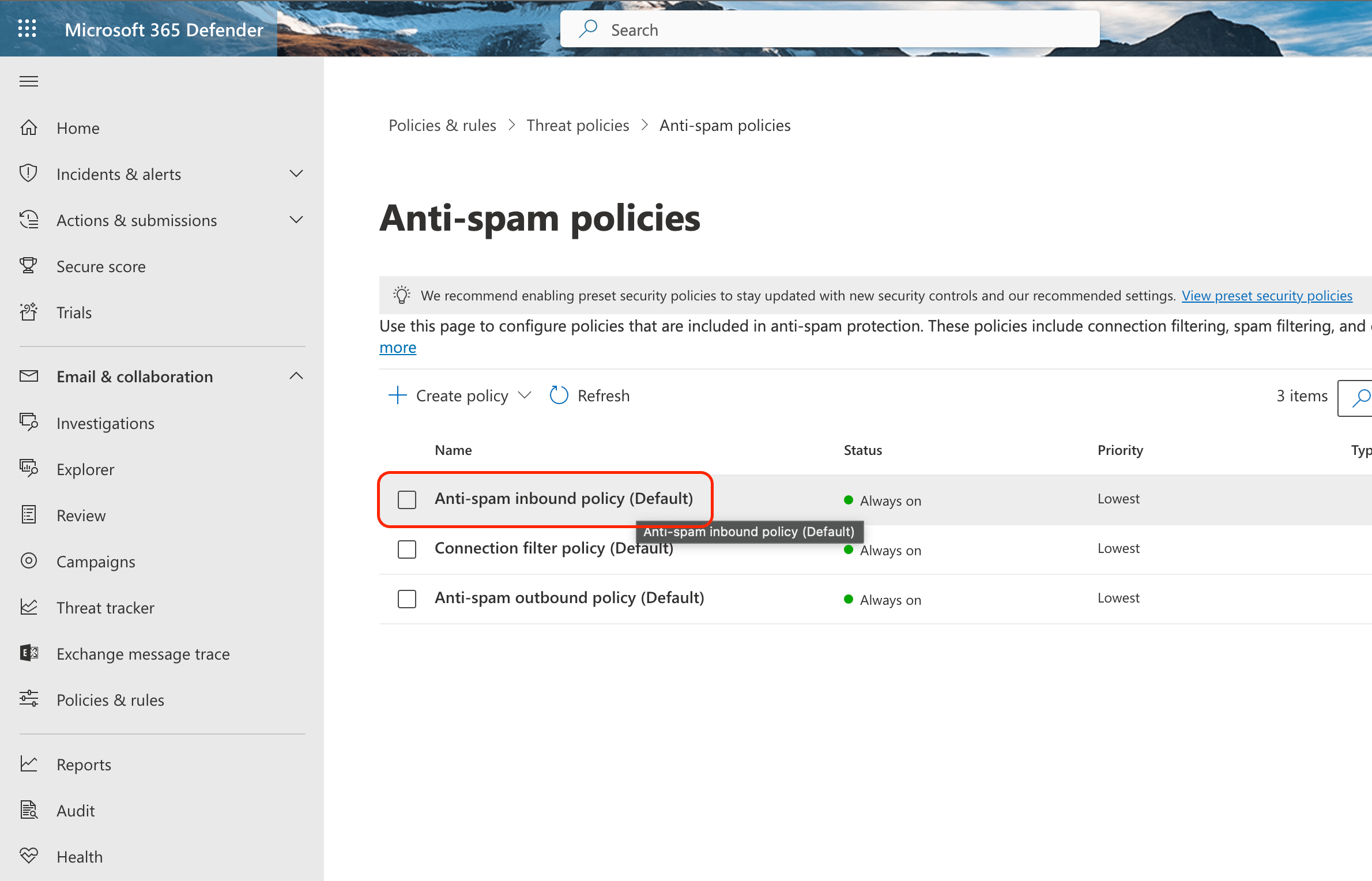
Go to the Anti-spam settings page → open Anti-spam Inbound policy (Default):
-
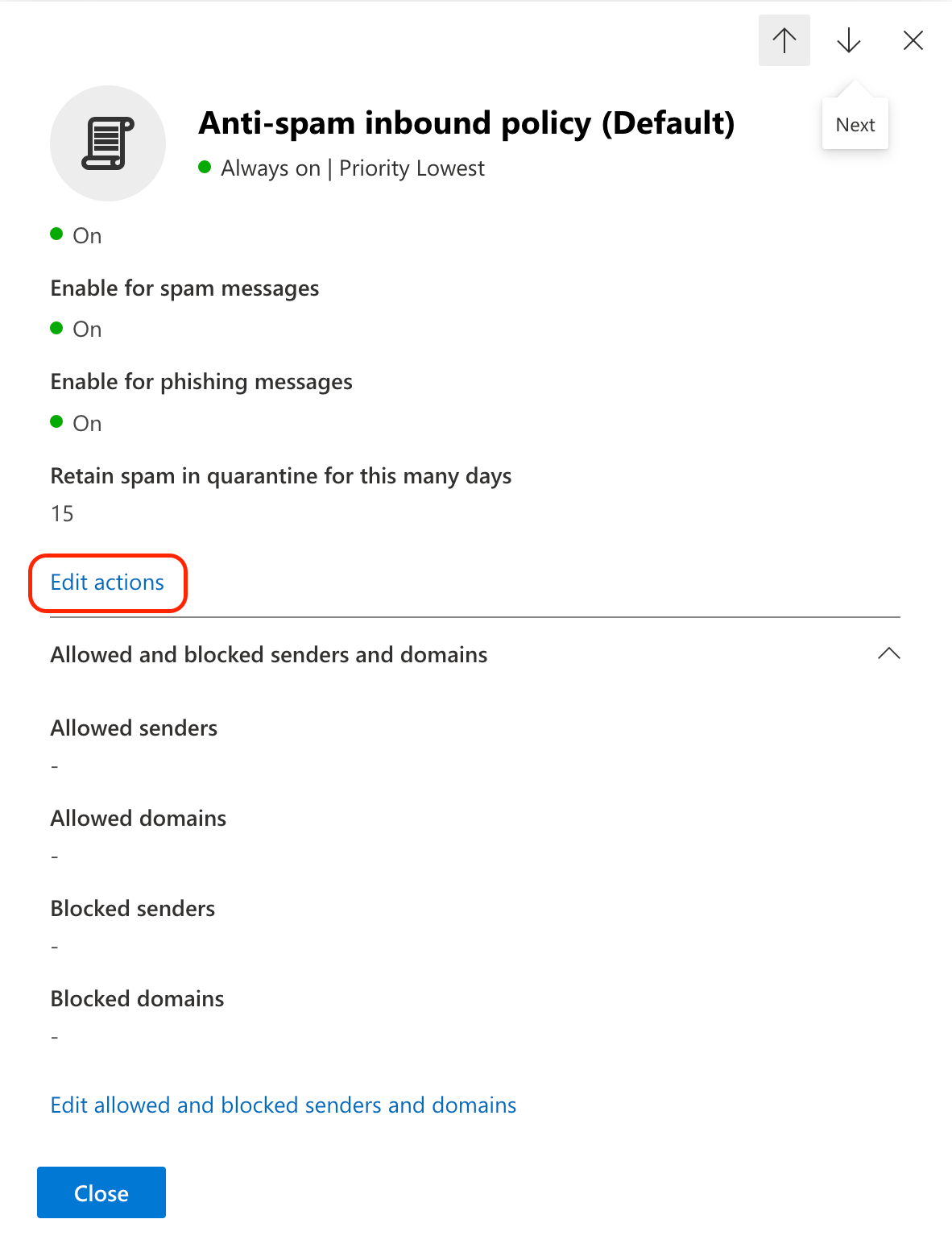
Scroll down the pane until you see the Edit actions link:
-
Select Add X-header from the drop-down list for:
- Spam
- High-confidence spam
- Phishing
- Bulk complaint level (BCL) met or exceeded
x-eopmarkedspam(this value is required by xorlab):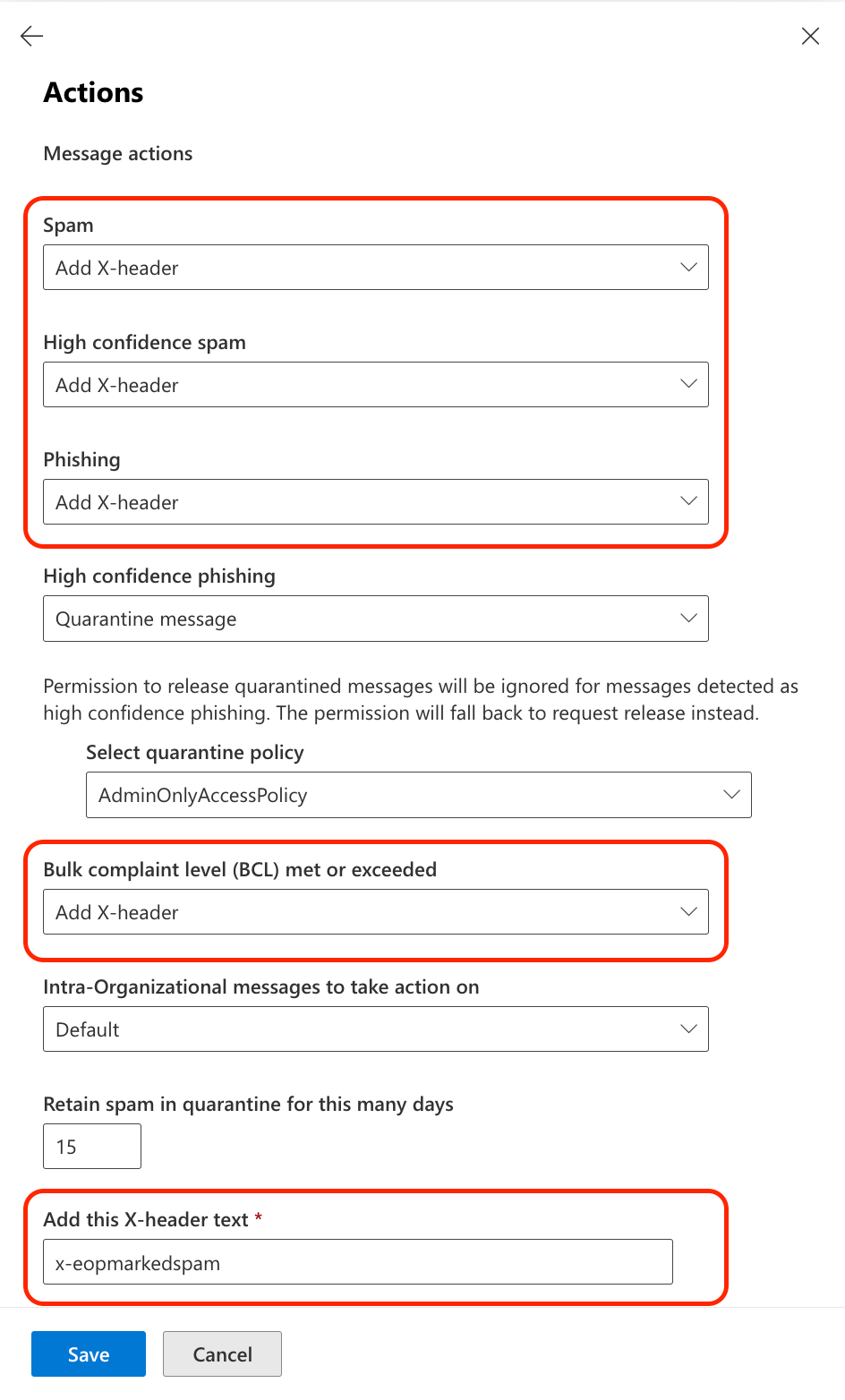
- Click Save.
#eopmarkedspam tag to the email. This tag increases the likelihood that the email will be classified as spam. To reduce false positives, these emails are not automatically quarantined. If desired, you can create a campaign that automatically quarantines all emails tagged with #eopmarkedspam.