

How to change config files in case the web interface is not reachable
When you made changes to config files in XCC Expert Editor and XCC no longer starts due to some errors in the files, you need to access those files from the command line, fix errors, save the files and restart XCC. The procedure is as follows:- Make an SSH connection to your XCC instance.
-
Stop the XCC backend container:
cd /etc/xorlab/xcc && docker compose down -
Enter the commands listed below:
sudo su -s /bin/bash xcc_backendthencd /var/lib/xorlab/xcc/config/work/ag_local/ - You are now in the folder containing config files presented in Expert Editor. Find and adjust (with vim) the required file.
-
Enter the commands listed below:
git add <changed file>thengit commit -m "<comment the change>" - Press Ctrl+D to close the current shell (exit).
-
Start the container again:
docker compose up -d
How to find MTA logs using the command line
If you want to check the MTA logs, you can do this using SSH connection and the following commands in terminal:- Go to the right location:
cd /var/log/xorlab/activeguard/core/for the email processing logs orcd /var/log/xorlab/activeguard/mta/for SMTP logs. - Make all files visible:
ll - Select the log file of the date relevant to your investigation and open it with
less(for.logfiles) orzless(for.zipfiles).
How to connect to MTA GUI
You can connect with your MTA GUI using the following URL:your.domain.name:8443. Keep in mind that the URL might differ if you change the setup.
How to find a GGRID of an email
You can use a unique identifier (GGRID) of an email used by xorlab to make your search easier in the core logs:- Go to XCC in your browser.
- Select the email you are looking for so that it opens on the Message Detail page.
-
In the address bar of your browser you will see the GGRID of this email. It can be used to find the specific email in the core logs, for example using the
grep <ggrid> activeguard.logcommand.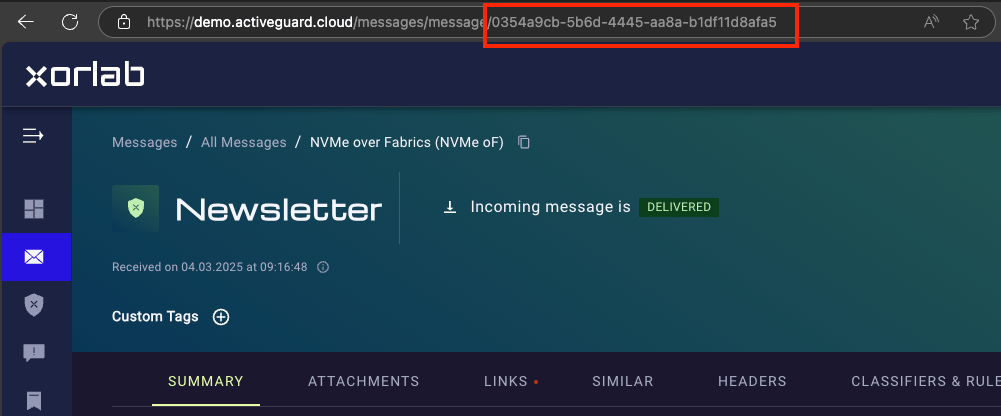
An email didn’t appear in a user’s inbox
If a message got lost on the way to a user’s inbox, you can search for some information:-
We recommend to start checking the main XCC web interface if the email can be retrieved. You could search for the sender or even refine your query to find the exact email—please see Search.
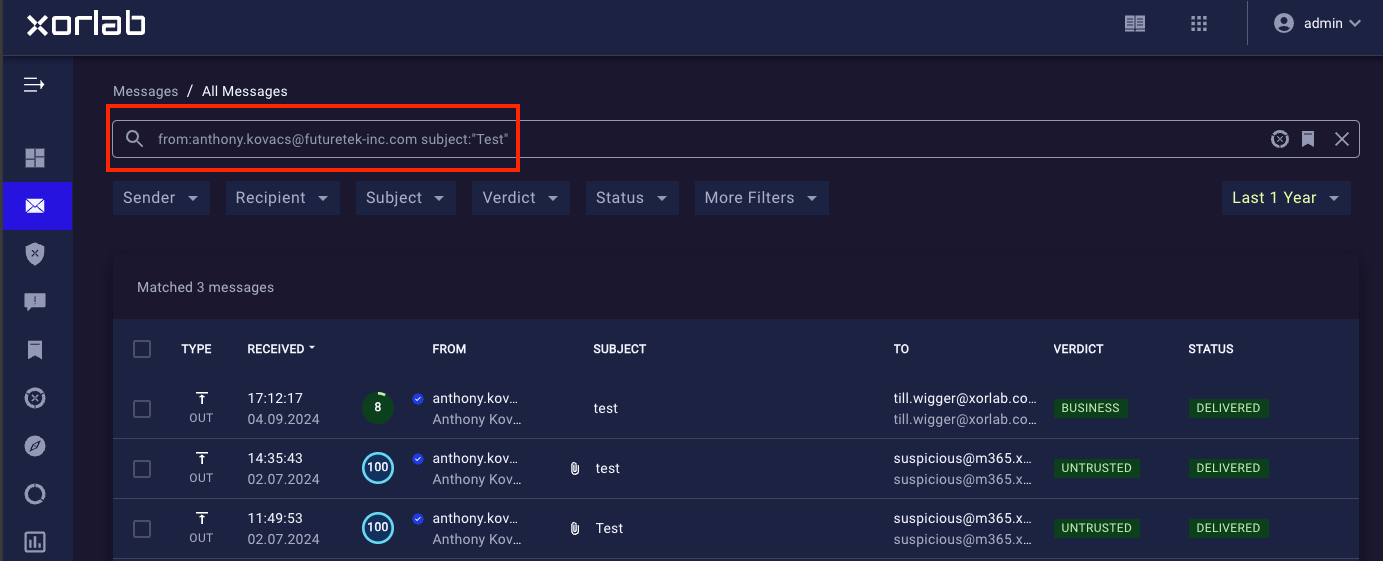
-
If you find the email and it’s status is
DELIVERED, it means that xorlab could send the email successfully to the next hop. In all other cases, proceed below. -
Start checking the SMTP logs to see if the email arrived at xorlab and whether postfix could forward it to the core or not. SMTP logs are available on MTA:
/var/log/xorlab/activeguard/mta/mail.info. -
Check SMTP logs if the core sent the email back to postfix after processing and whether postfix could forward the email to the external system: use
grepformessage-idinmail.info. There should be two entries: one when the email arrives at postfix, and one when it is coming from the core. Verify that the email has been forwarded to the external destination. -
If the email got stuck on the core, then check the Processing log (
activeguard.log). Processing logs on MTA are located here:/var/log/xorlab/activeguard/core/activeguard.log. We recommend togrepfor the email GGRID to find all logs for a specific email (zgrep <ggrid> <logfile.zip>, e.g.,zgrep 7ce1d657-3a0b-48d3-9bbe-cea302d535db activeguard_2022-05-11.0.log.zip).
SSQ no mailbox configured error
If you open the SSQ and see the following error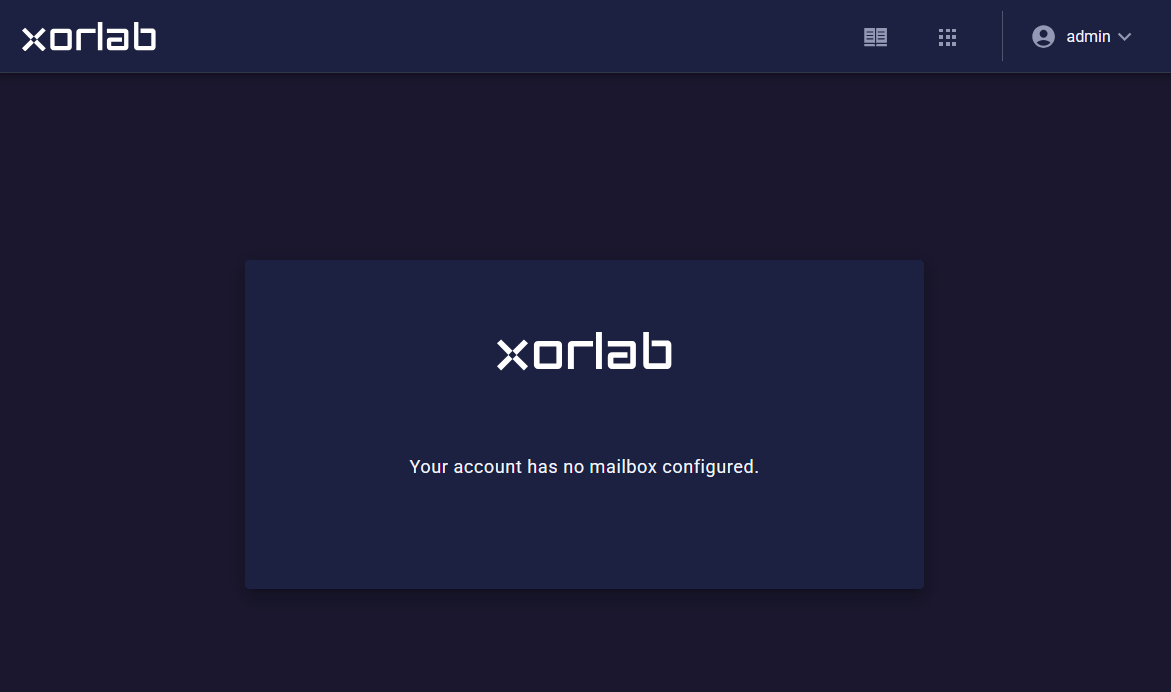
emails attribute. This attribute is populated as part of the login mechanism. Follow the guide below to see how to configure it for your login mechanism:
What to do with external blacklist false positives
When an external service such as Spamhaus flags some messages as spam, but their senders are legitimate, you can use a special whitelist called Spam blacklist exclusion—simply add domains that should be excluded from the spam blacklist.How to view the current permissions of a user
To check what permissions a particular user has:- Log in to xorlab as the said user.
-
Go to the
/api/v2/user/v1/getInfoendpoint on your xorlab instance, e.g.,xyz.activeguard.cloud/api/v2/user/v1/getInfo. -
You will see a list of permissions:
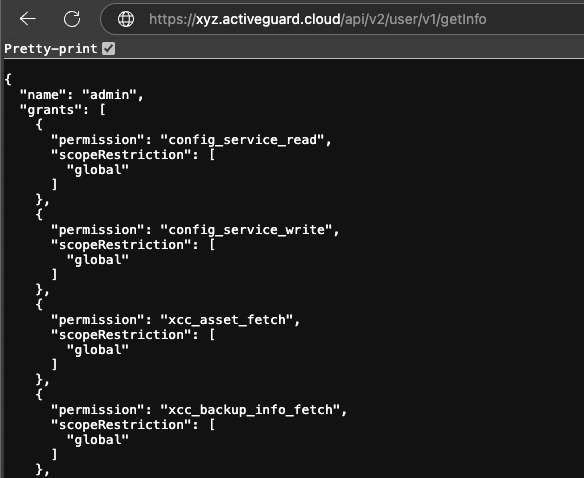
SAML ADFS troubleshooting
-
Use the URL claims from the authentication success log for the
attributeMapping. - Make sure the user is allowed to authenticate: check the logs on the AD side to ensure that the user has the required permissions.
- Install a SAML Tracer browser add-on. A SAML Tracer is a tool designed for debugging and analyzing Security Assertion Markup Language (SAML) communications between a service provider (SP) and an identity provider (IdP). This tool is especially useful in Single Sign-On (SSO) and federation services, where SAML is often used to convey authentication and authorization data. As you authenticate or complete the SAML exchange, the extension will capture and display the SAML messages. You can click any captured message to view the detailed contents of the SAML assertions, requests, and responses.
- Enable extensive debug logs for SAML authentication. Contact support@xorlab.com for the required configuration.
-
Check the ADFS configuration: xorlab requires
nameID. Make surenameIDis sent in the response; it might be necessary to create a new property for it if xorlab says the subject is missing. For more information, please refer to Microsoft documentation.