

Get a high-level understanding
To get a first understanding on how and why an email was classified in a certain way, open it in the detail view and follow the steps below.Verdict and confidence
On top left, you find the classification and action:- Verdict: Spam
- Confidence: High
- Action: Quarantine

The Verdict and Confidence combination defines the action.
low or medium Confidence that is set to the Deliver action.
Sender and relationship
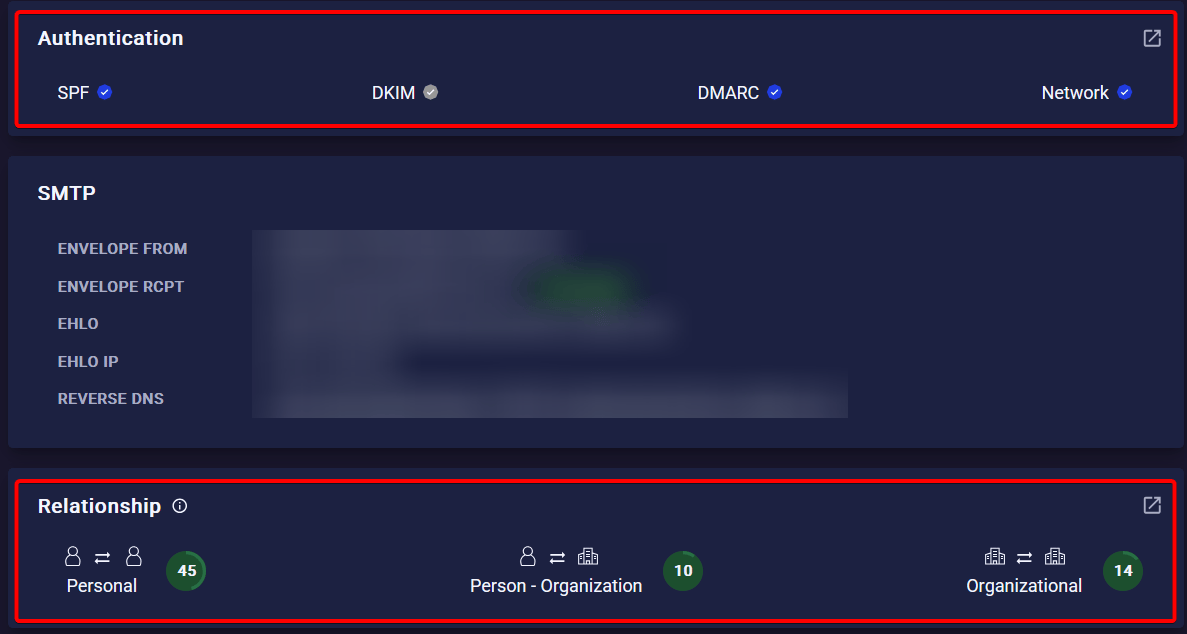
Scroll down and check in the Authentication Box if the sender is authenticated:- No authentication leads more often to a Quarantine action, because the relationship data can not be used.
- However successful authentication by itself is not a positive indicator, as many malicious emails have it.
- Emails with no relationship are filtered more aggressively.
- On the other hand, existing relationship can be a reason for a false negative.
- Hover over the individual values to see if there was one-sided communication.
Indicators
On the bottom, the list of indicators shows you the most important reasons why the email was blocked.- 🔴 - Counts strongly for a malicious verdict
- 🟠 - Counts slightly for a malicious verdict
- 🟢 - Benign indicator, some are just informational (like SPF/DKIM tags) and some count for a benign verdict (like having a relationship)
Phishing and Spam
For Pishing and Spam verdicts, the Sender, Links and Content boxes contain the responsible indicators: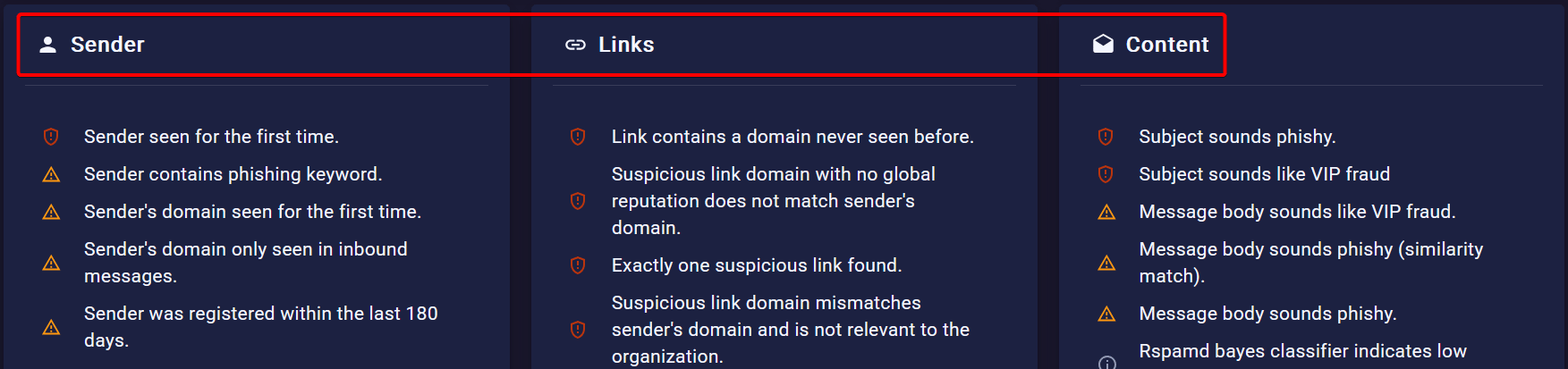
Malware
For Malware verdicts (dynamic and static), the Attachment and Dynamic Analysis boxes give more insights on why it was classified as Malware: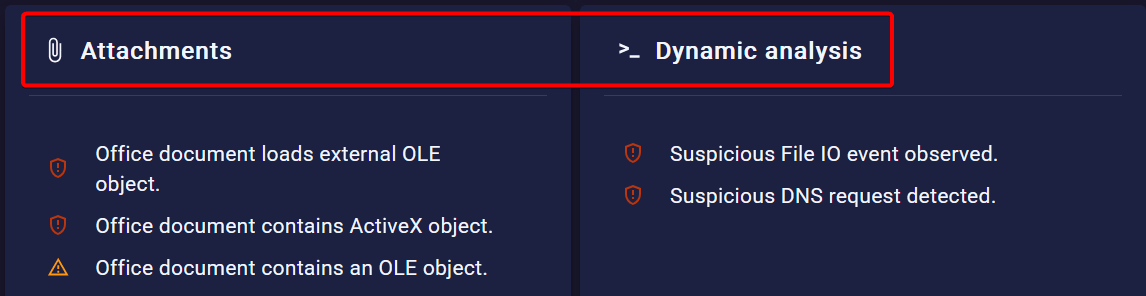
Get an in-depth understanding
Here we explain how you can go even further and understand in-depth why a verdict was set. This can be helpful in cases like false positives to find out why an email was blocked. For this we need to have a look at the xorlab rules.The verdict and confidence is always set by rules, and rules rely on indicators.All applied rules are visible in the CLASSIFIERS & RULES tab. The most important facts about rule application:
- Rules are applied sequentially according to a priority. In the CLASSIFIERS & RULES tab, you see the last applied rule on top.
- Every rule can set a decision:
UNDECIDED,DELIVERandQUARANTINE. As soon as the first rule sets eitherDELIVERorQUARANTINE, no further rules are applied and the action is carried out. - The rules implement the actions that you configured in the Actions configuration screen.
Tag Rules
TAG_*: TAG_spf_passThey set the tags and indicators that you see for each email. They are always set to UNDECIDED.Verdict Rules
<verdict>_*: MALWARE_office_activexThey propose a verdict and confidence for the email. They are always set to UNDECIDED.For one verdict, multiple verdict rules can apply. If they have different confidences, the highest one will be taken.Multiple different verdicts can be proposed for a single email.Adapt Rules
ADAPT_*: ADAPT_phishing_ml_verdictThey avoid false positives by applying various heuristics.They can lower the confidence or remove proposed verdicts completely.Can sometimes be the reason for a false negative.Decision Rules
*_decision: MALWARE_dynamic_decisionThey apply the final action DELIVER or QUARANTINE for the email.They decide which of the proposed verdicts is set as final verdict based on the Verdict Precedence.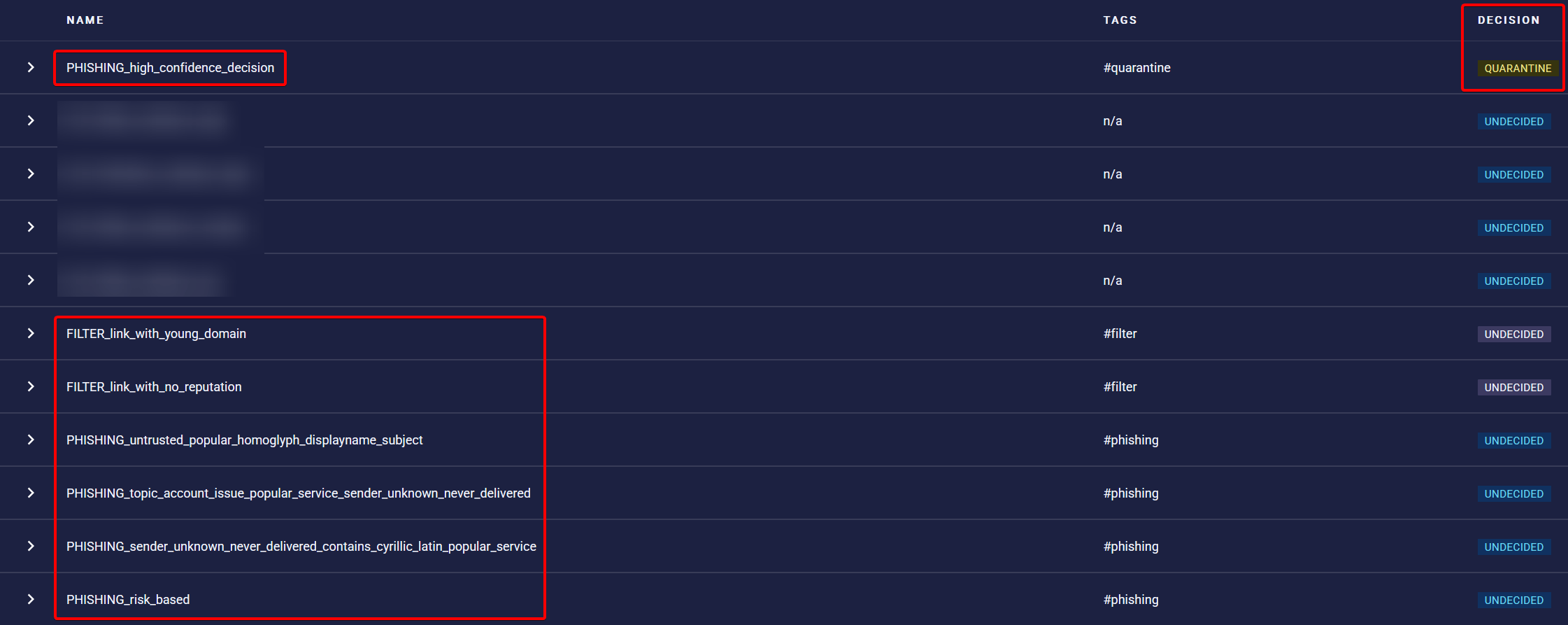
- The final verdict is Phishing as it has precedence over Filter.
- One Phishing verdict is rule is enough to classify the email as Phishing. In this case even multiple applied.
Understanding verdict rules
In most cases the name of the verdict rule gives already enough information why it triggered. Some examples:PHISHING_risk_based: The overall risk of the email was above a certain threshold.MALWARE_office_dangerous_vbascript: Suspicious VBA Script was found in an office attachment.SPAM_score_high: The email has a high spam score.SPAM_sa_freemail_forged_replyto: The Reply-To header is set to a freemail address but the email was not sent from a freemailer.
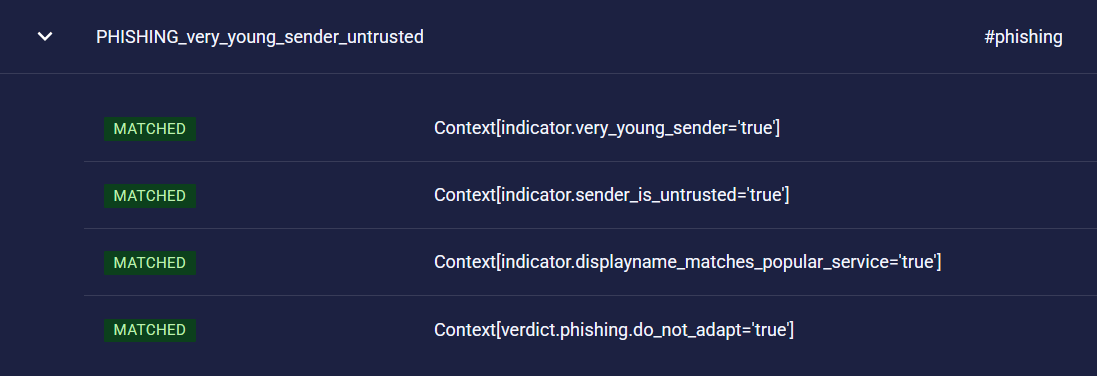
The web interface shows only indicators that matched and were relevant. It is possible that a rule also checks other indicators via an OR condition, which are not shown.
Passive rules
xorlab has some built-in passive rules that are indicated via a gray UNDECIDED decision. Rules are usually set as passive due to the following reasons:- Some rules do not work in every environment
- For evaluation purposes - to see how well a rule performs
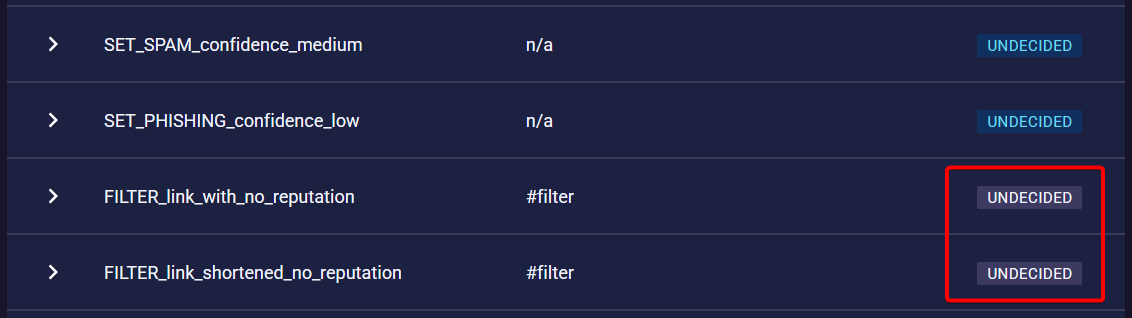
passiveRule: in the search.