Backfill the relationship and reputation models from mailbox history, so protection is effective sooner after go-live.
Import past emails from M365 and pushes them through xorlab for analysis (Retrospective Email Scanning).This is intended as a one-time onboarding step for a new tenant or customer. It can only be used for domains that are not already inline with xorlab.
Observe imported emails in the normal xorlab message view
Imported emails are processed similarly to live emails. In the message list, the Received date remains the original date of the message, not the import date.
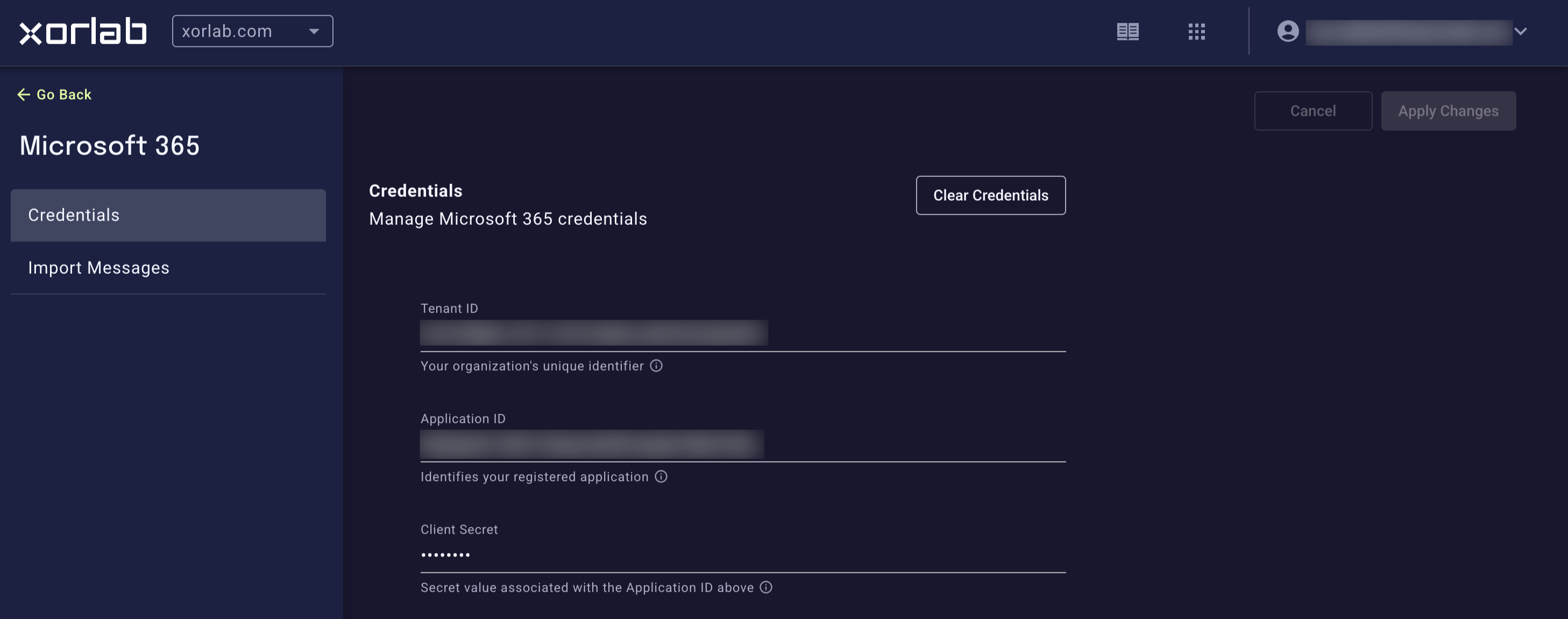
Follow exactly as described in Configure Entra ID for Case Isolation. If you have done that already for case isolation, then this step is not necessary anymore.
Same credentials as case isolation
Retrospective Email Scanning uses the same Graph credentials as Case Isolation.
The application must include these permissions:
Mail.Read
User.Read.All
The Graph credential is currently shared between the Retrospective Email Scanning and Case Isolation. If you also use Case Isolation, Mail.Read must be replaced with Mail.ReadWrite.
Choose a tenant
If you have more than one tenant, you need to select one of them in the dropdown on top.
Click on New Import.
Enter a name for the import.
Set the time range to 3 months. Depending on the situation, this can be increased or decreased. However, for proper learning at least one month is required. For a quick test, you can choose a short time range of 1 hour.
Start the import.
Tenant data reset
Starting a new import job removes all past email data of that tenant.
After the import is through, you can continue with the normal M365 onboarding by either activating Inline or Monitoring.
Tenant data resetStarting an import job wipes the tenant data before the import begins. This includes result publication, trust values, reputation values, and related learned state. xorlab then starts from a clean slate for that tenant.
Only emails from the tenant domains defined in shared/guarded_tenants.yml are imported.If a guarded domain contains a pattern, xorlab strips the pattern and uses the base domain instead. Example:
Retrospective Email Scanning is not supported for tenants with active mail flow. In multi-tenant environments, tenants
not affected by the import may still have mail flow activated
The Sandbox is always disabled for imported messages, even if it is enabled elsewhere