

- On the main screen, click the tiles icon next to your account name and click the Admin icon in the displayed menu.
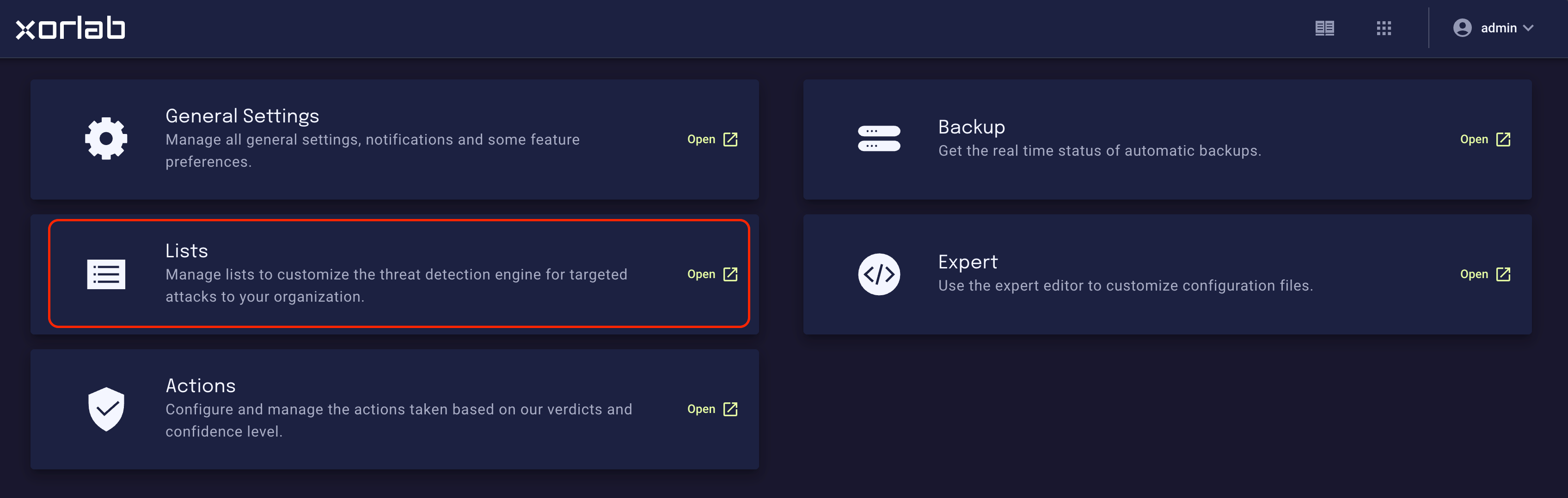
- On the resulting Admin page, click the Lists tile:
A note on terminologyThis documentation uses Blacklist and Whitelist because that is how these lists are named in xorlab Security Platform. They are also commonly known as blocklist and allowlist.The terms blocklist and allowlist are used only where they refer to something outside xorlab, such as third-party DNS blocklists.
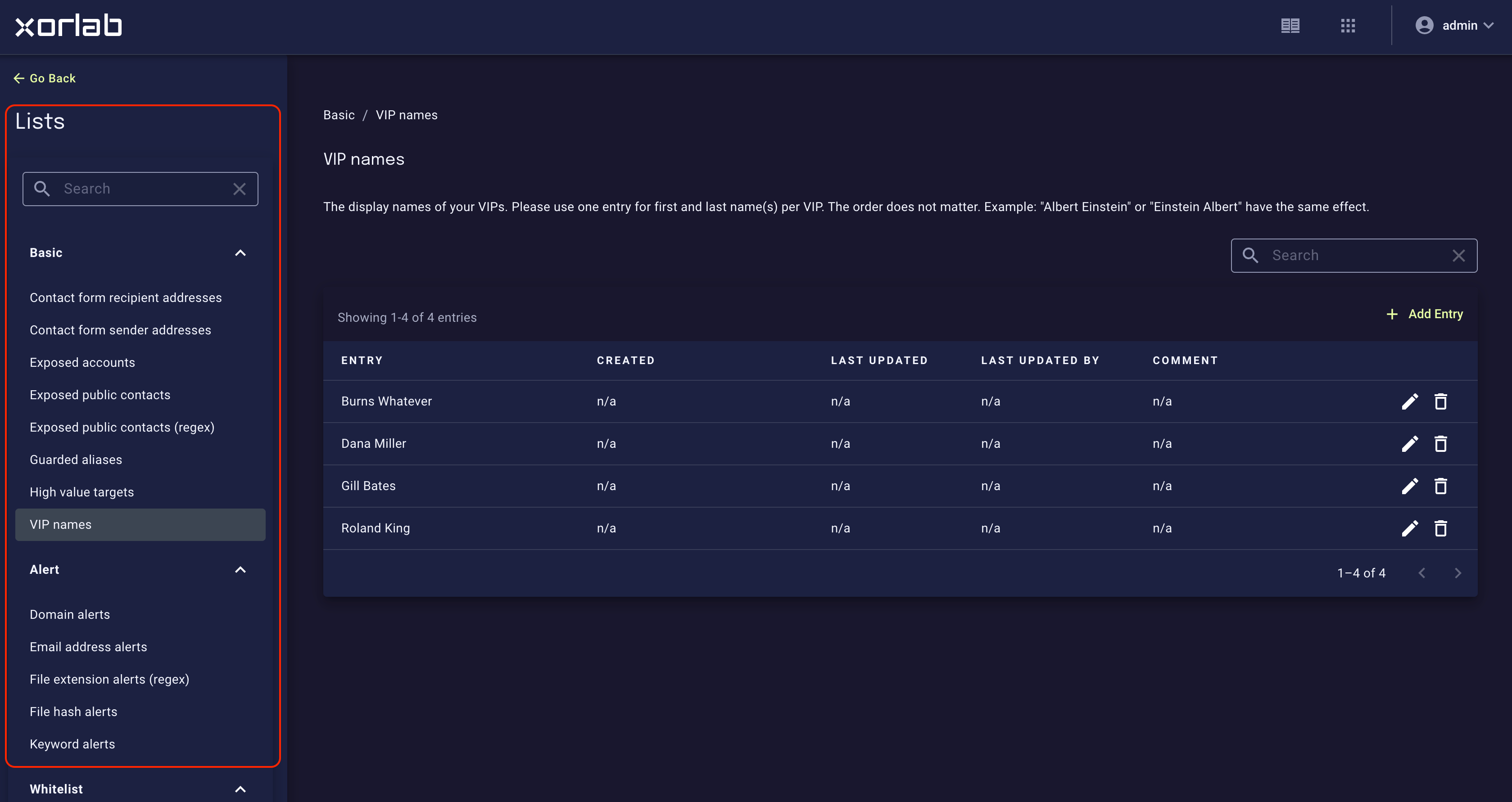
Custom listsIt is possible to add additional lists to this overview that can then be used in custom rules for specific use cases. Contact support@xorlab.com for detailed instructions.