

▶ Watch the video tutorial: Detection Concepts & UI introduction
▶ Watch the video tutorial: Detection Concepts & UI introduction
Indicators, Verdicts and Actions
The xorlab Email Security Platform uses a proactive detection model. This means it learns from the normal communication behavior within your organization and identifies messages that deviate from expected patterns. xorlab extracts over 300 indicators from each email. These are transformed into abstract labels, evaluated through an extensive rule set, and weighted using machine learning models.It’s the combination of indicators that gives xorlab the context it needs to detect sophisticated threats — not any single signal in isolation.Based on this context, xorlab assigns one of 22 possible verdicts to each message. These range from malicious (e.g. phishing, extortion, malware) to benign (e.g. newsletters, CRM emails, freemail). For most malicious verdicts, xorlab also indicates whether the assessment was made with low, medium, or high confidence. The action that xorlab should take can be defined based on the verdict and confidence. There are three actions to choose from; quarantine, subject rewrite, or deliver the email.
Reputation and Trust
Reputation and Trust are two important signals that help inform the verdict xorlab assigns to an email. Trust and Reputation are most powerful in context to other indicators. Reputation Reputation reflects how well-known a sender domain is — across the internet (global reputation) and within your organization (local reputation). Each domain receives a score between 0 (unknown) and 100 (highly reputable). The xorlab UI displays the higher of the two scores to give you the most relevant signal.- Global reputation: Calculated by xorlab using public data sources, domain rankings, and threat intelligence feeds. A high global reputation means the domain is widely known and commonly used on the internet.
- Local reputation: Built from your organization’s own email traffic. It increases as the domain appears in legitimate communication and decays over time if no longer seen.
Reputation is a useful signal for determining how familiar a domain is — but it doesn’t necessarily imply trustworthiness.Trust Trust goes a step further: it indicates a verified relationship based on actual communication behavior. Trust is directional, dynamic, and harder to fake than reputation.
- To build trust, xorlab must observe outbound communication to the domain. One-sided inbound communication is not enough.
- Trust decays if your organization stops sending emails to the domain over time.
Trust is more resilient against spoofing and impersonation, and takes precedence over reputation when available.
UI: Dashboard
Dashboard is the first page you will see after you login to the xorlab Email Security Platform. It gives you a summary of the platform activities in a concise and comprehensible way. You can see the statistics of email traffic, the status of the defense system, and the results of its activity.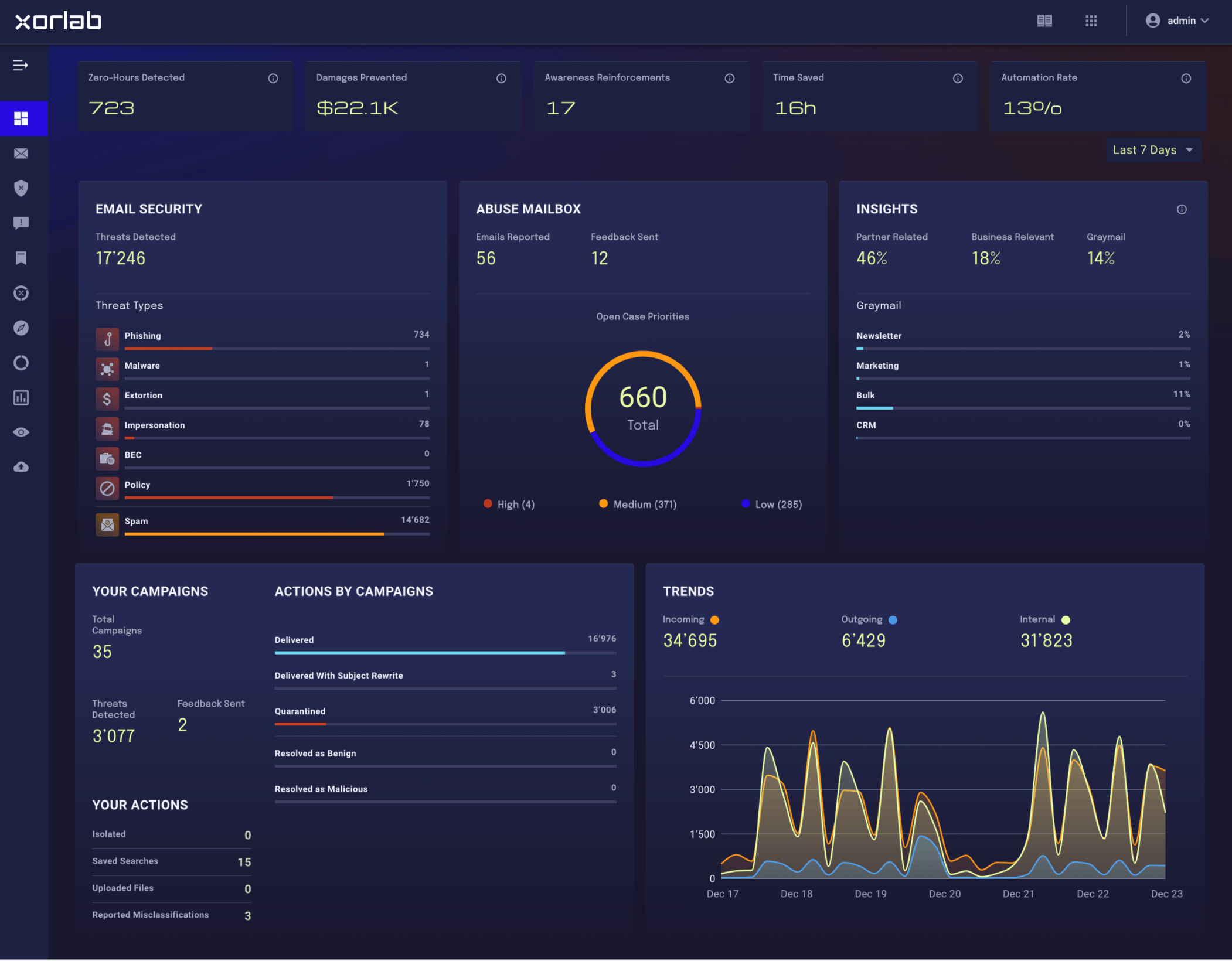
- Messages: A list of All Messages processed by xorlab.
- Quarantines: A list of quarantined messages grouped by a type of threat (malware, phishing, etc).
- Reported: A list of messages reported as suspicious by users and grouped by priority or status.
- Saved Queries: A list of your saved custom search queries.
- Campaigns: The panel for managing your Campaigns.
- Explore: A list of messages grouped on base of shared characteristics.
- Insights: The panel for accessing statistic information presented as Elastic-powered graphs.
- Threat Intelligence: The panel for accessing more detailed information on main five areas in Elastic-powered dashboards.
- Monitoring: Directs to the Grafana, a centralized access where you can access logs and dashboards, see also Monitoring Guide.
- File Upload: A tool that allows you to manually upload a file for dynamic sandbox analysis.
UI: All Messages
This page shows an overview of all messages that have been processed by xorlab. The search bar on top of the page enables you to filter the list view for messages. It includes user-friendly features such as autocomplete, filters, and time range selection. Please refer to the Search Documentation for more information. For each email in the list view, you find the following information:- Type: IN (incoming email), OUT (outgoing email), INT (internal email)
- Received: The timestamp on which xorlab received the email
- Reputation/Trust: A color-coded and numeric indicator. Reflects either trust or reputation, depending on which is more relevant and available.
- Authentication: The blue or grey check symbol. A blue checkmark shows that the sender is authenticated, a grey checkmark indicates broken authentication.
- From: The sender address of the message and the display name of the sender.
- Attachment: A paperclip symbol appears if the email includes one or multiple attachments.
- Subject: The subject of the email.
- To: The recipient address of the message and the display name of the recipient.
- Verdict: Classification of the email, ranging from malicious (red) to benign (blue). Exceptions are spam (orange) and simulation (blue).
- Status: Explains the action that xorlab took with the email. Most frequent actions are either quarantined (yellow) or delivered (green).
- Contextual Banners: If enabled, the Status field might also include a symbol to indicate which contextual banner was applied.
- Green: A trusted relationship has been established based on prior two-way communication. This means xorlab has observed outgoing emails to this sender, making them highly trustworthy.
- Blue: The domain has a high global reputation but no established trust yet. It’s widely known and likely safe, but hasn’t interacted directly with your organization.
- Orange: The domain has moderate global reputation but no trust. This may indicate a legitimate but less common sender.
- Red: The domain lacks both trust and meaningful reputation. This is often a sign of new or suspicious activity.
- Gray: No trust and no usable reputation data, due to missing authentication (e.g., no SPF/DKIM). This can indicate spoofing attempts or misconfigured senders.