

Detection
- What are the default actions for handling emails in XSP? All default actions are listed in Inbound Email Security.
- How can I change an action? You will find all necessary information in Actions, Rules and Profiles.
- Is there a way to fine-tune the detection engine to reduce false positives/negatives? Please refer to Detection Tuning.
-
How can I allow delivering documents with macros that are normally blocked?
If your emails with documents containing macros are blocked by xorlab Security Platform, you can use Macro file whitelist (hash) described in Whitelists to add the hash value of the macro to the whitelist. Just open the blocked message in XCC, and in the Detail view, click the Context Variables tab and type
dangerousinto the search box. You will see a list of potentially dangerous objects in your document. The problematic macro(s) will be nameddce.file[XXXXXX].indicator.office_dangerous_vbascript, where theXXXXXXvalue inside the square brackets is the hash of the macro. Copy the hash value of every macro that should not be blocked and add it to the Macro file whitelist (hash).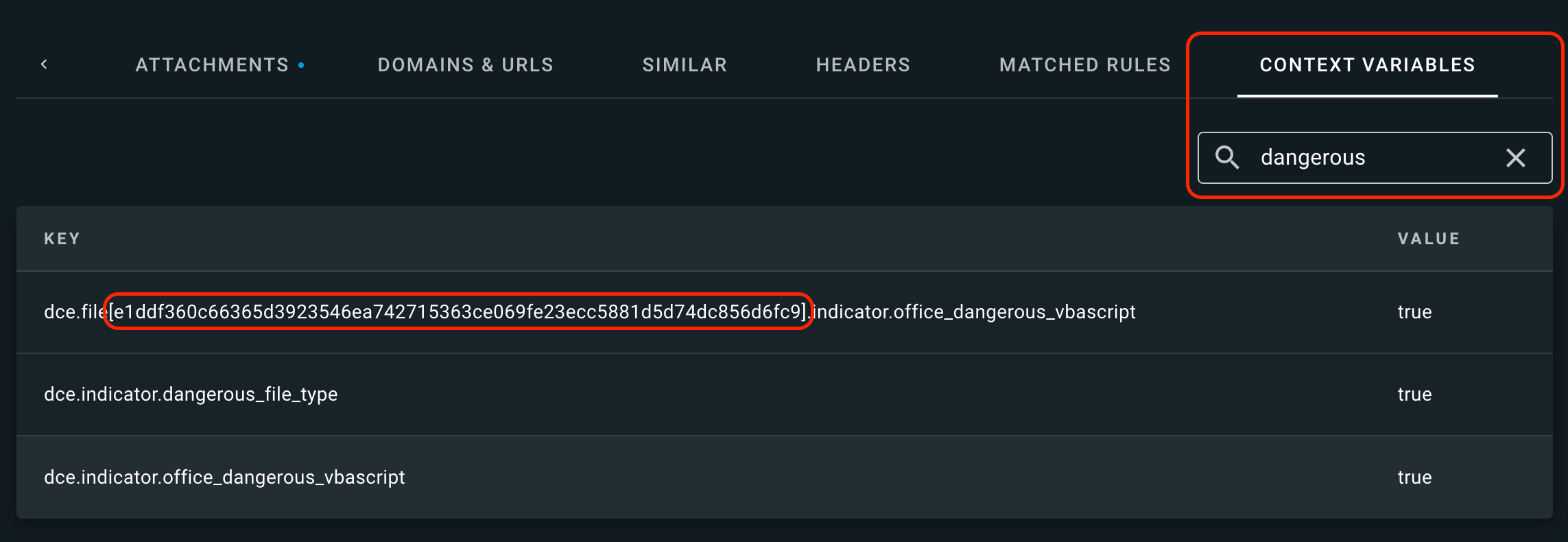
- Note that usually, no file hashes remain the same. Therefore, for every new blocked message, you need to copy the hash values into the whitelist again. But if you have a specific macro that is reused in different files, it can be useful to whitelist this macro once so that it’s not detected as suspicious anymore.
Reported emails
- Are some reported emails handled automatically by default? Yes, based on a verdict. Please see Verdict based automation.
- How can I further automate reported emails, so more of them are handled automatically? You can do that either by creating new campaigns, or by configuring more verdict-based automation. Please see Abuse Mailbox Automation.
M365 integration
- Is it possible to login to XCC with M365 credentials? Sure! All you need to do is to perform the steps described in SAML Authentication Using AAD Services.
- How can I make the Report Message button in M365 work with XSP? The process of configuring this button is described in Reporting suspicious emails - Default Outlook button.
- Is it possible to delete a message from a user’s M365 mailbox directly from XCC? Yes, but you have to configure your M365 instance properly as described in Case Isolation for M365.
Email notification templates
- How can I customize or localize email notification templates? Please follow the instructions described in Email Template Customizations.
- Is it possible to disable a certain template? Definitely! Please see Disabling a template.
- How to choose a default response template for emails categorized as a specific verdict? xorlab Security Platform is highly customizable and provides the functionality to send automated responses to users in case an email is quarantined, reported, and so on. The admin can decide if a response should be given, what kind of response it should be, and choose the actual email template. As a rule of thumb, XSP usually returns its default templates in case an email is reported by the user, a reported email is processed by XSP, and when an email is blocked. Please see Creating a New Email Notification Template for a detailed explanation.
Miscellaneous
- You sent me a custom rule, but how can I enable it? Please refer to Adding a Custom Rule.
- I would like to enable logging for some actions. What should I do? All necessary steps are described in Logging.
-
An email is missing. How can I check if it was delivered by XSP, or if it is stuck on XSP, or it has never arrived there?
Use search query language first to find the email in xorlab and verify that it has not been quarantined. If it’s not there, ask support@xorlab.com (in case of a SaaS instance) or search in the SMTP logs on the MTA in
/var/log/xorlab/activeguard/mta/mail.infofor the sender and recipient of the email (in case of an on-prem instance). There you will find what happened to the email. If you can’t find it, the email was never sent to xorlab. - I have an on-prem instance of XSP. I changed some config files in XCC and now the GUI is no longer available. Is there a way to fix these files and bring the GUI back? Please follow the instructions from the Troubleshooting guide.
-
What DNS traffic do the xorlab servers utilize?
xorlab Security Platform does DNS lookups only for domains of the email, not filenames. However, it might happen that a filename that is written in the email body is (mistakenly) treated as a URL and therefore a DNS lookup is done. You could do a search based on
domain:matches:<example>orfile.name:matches:<example>. -
How to change the default action for the RESOLVE button?
Admins can manually resolve, categorize, or quarantine emails. The standard value for the action button can be changed for the following cases:
- Bulk resolving of reported emails.
- When a reported email has a benign verdict.
- When an email has no verdict (rare error case).
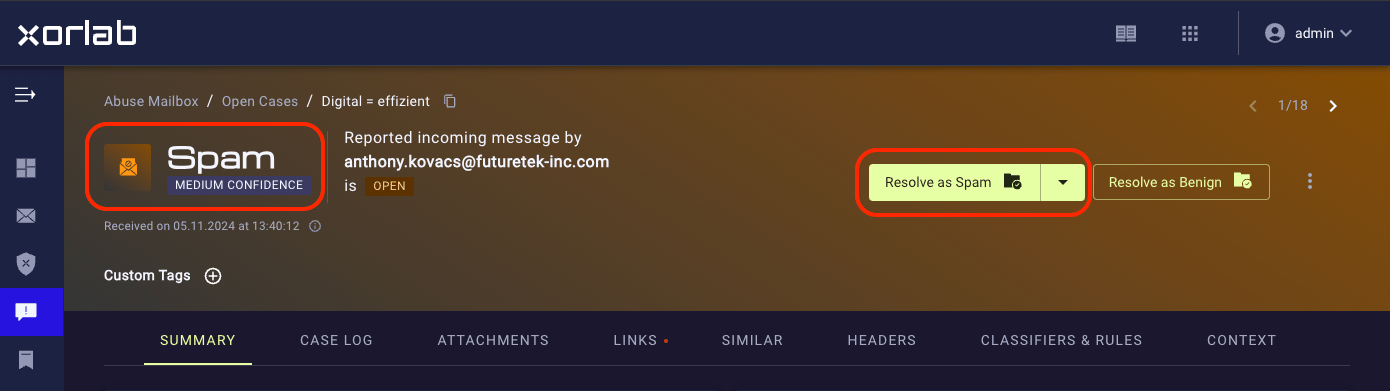
xccfolder, expand it, then click itsbackendsubfolder and click to open thexcc.ymlfile (only for a bulk resolve and the mentioned exceptions). Please see the example below: -
What browsers are supported?
If you want to know which browsers are supported by xorlab, type this URL in a tab where you are already logged in to xorlab and replace
xyzwith your customer ID:https://xyz.activeguard.cloud/supported-browsers.txtFor on-premise, replace the domain above with the domain of your XCC.