

- Use trust relationships between sender and recipient for better classification
- Detect threats such as impersonation, BEC, and phishing
Understanding the information in the UI
Each email shows a summary of authentication checks in the Authentication box of the detail view. A checkmark next to the header from address indicates whether the email is considered authentic overall.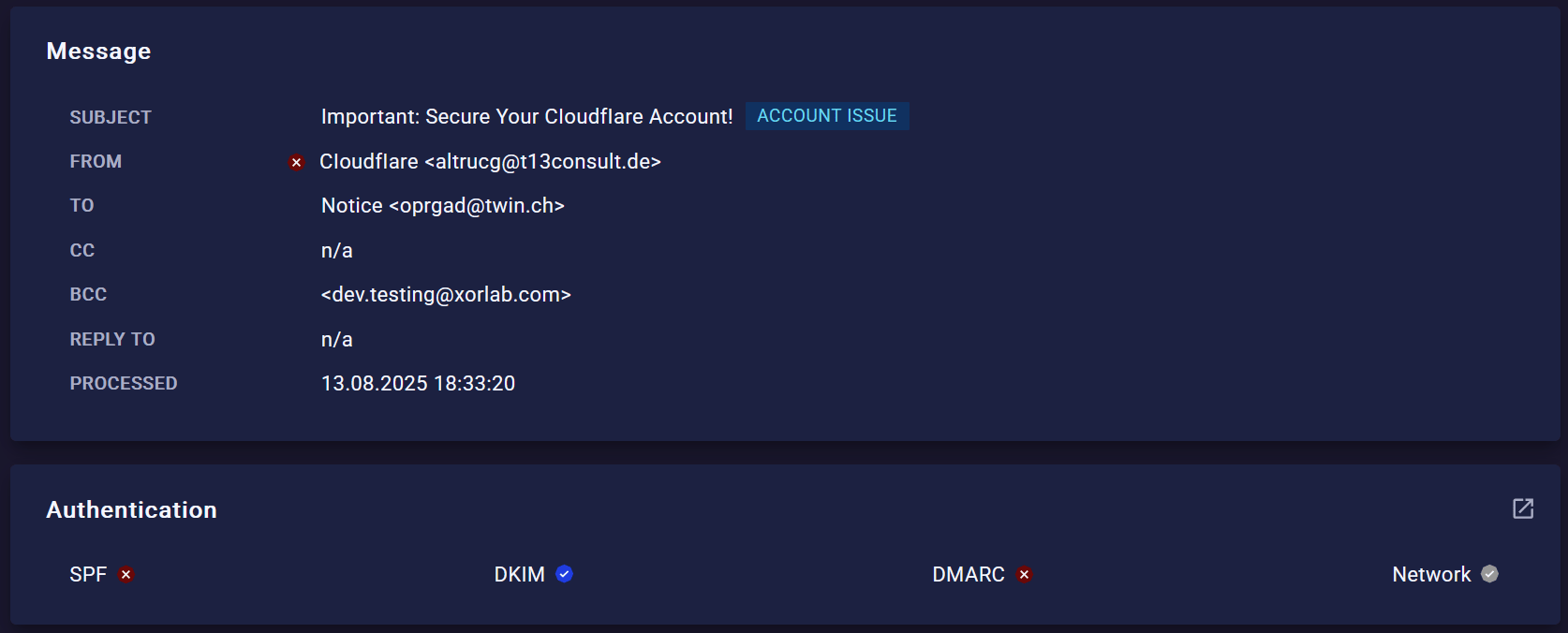
- Blue — Check passed
- Red — Check failed and flagged as suspicious
- Gray — Check unavailable (e.g., missing SPF/DKIM) or failed but not considered suspicious
SPF
SPF checks if the envelope from domain allows the sending server to send emails for it.On its own, SPF doesn’t stop attackers from faking the header from address (the one which is seen in the inbox).
That’s why SPF only counts when it also passes DMARC alignment — meaning the envelope from and header from domains match. You can see both in the email detail view.
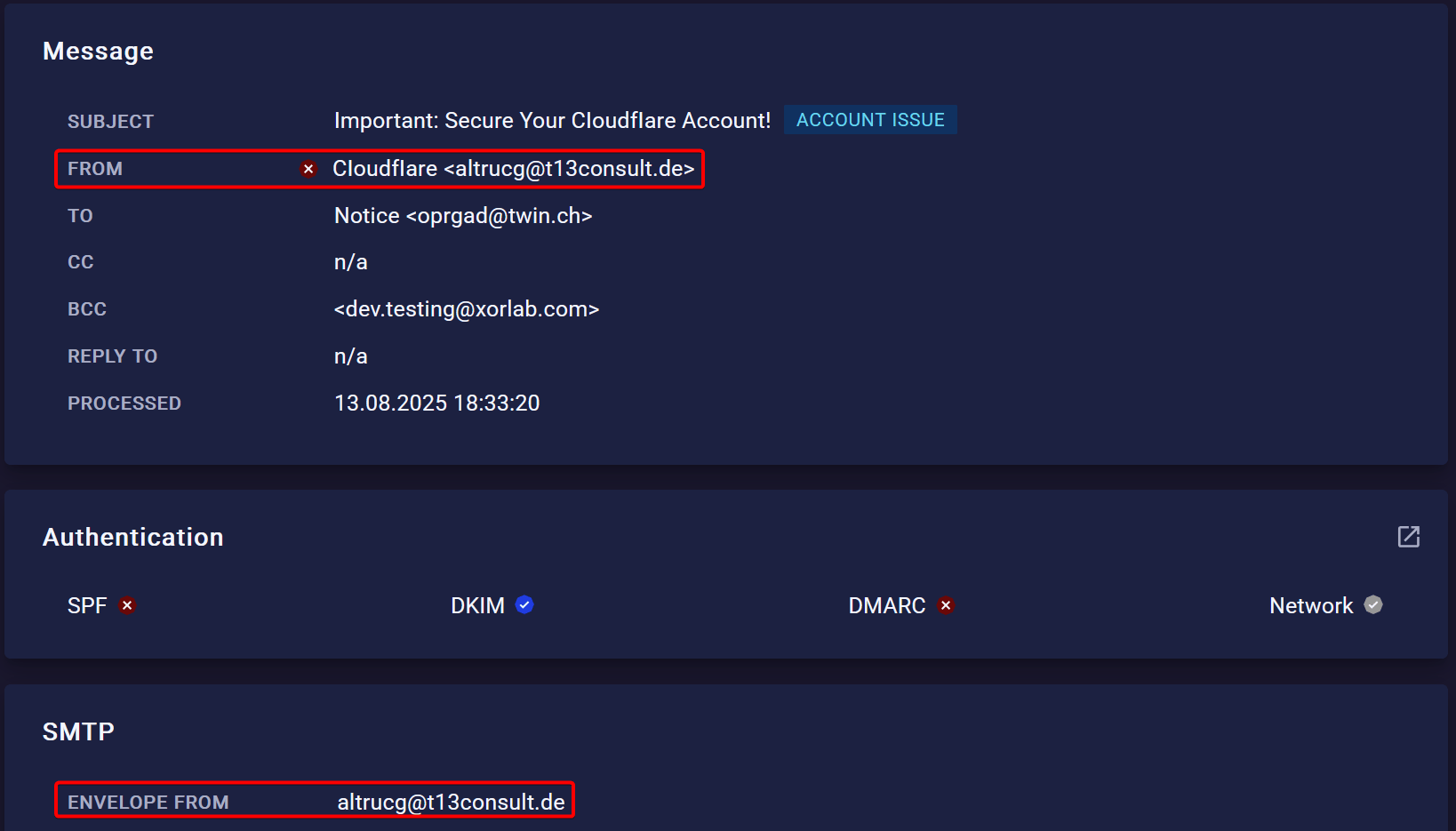
DKIM
DKIM makes sure the email hasn’t been changed on the way by checking its digital signatures.But an attacker could still create a fake email and sign it with their own DKIM key. That’s why DKIM only counts with DMARC alignment — the signing domain has to match the header from domain you see as the sender. You’ll find the signing domain in the
dkim-signature header (d= value).

DMARC
DMARC ties everything together. It works only if at least SPF or DKIM is valid, and makes sure they match the visible sender.Specifically:
- With SPF, the envelope from and header from must match
- With DKIM, the signing domain and header from must match
Network
The Network check consists of several individual checks. Passing any one of them is enough for the overall Network check to pass and to authenticate the sender.Results are either pass or neutral — there is no negative outcome.
Common situations
The table below lists typical issues with email authentication and how to handle them.Configuration options
We generally recommend leaving email authentication settings unchanged, as adjustments can reduce detection accuracy.However, the
active_guard.yml file provides parameters to fine-tune authentication checks, which may be useful in some on-premise setups.
See the authentication block in active_guard.yml for all available options.
For example, the configuration below optimizes Network checks so they run only if no other check passes.This reduces DNS requests but also limits the information shown in the UI.