

- Log in to the Azure Portal.
-
Add a new Enterprise Application: start writing
Enterprisein the search box and select Enterprise Application from the suggested matches: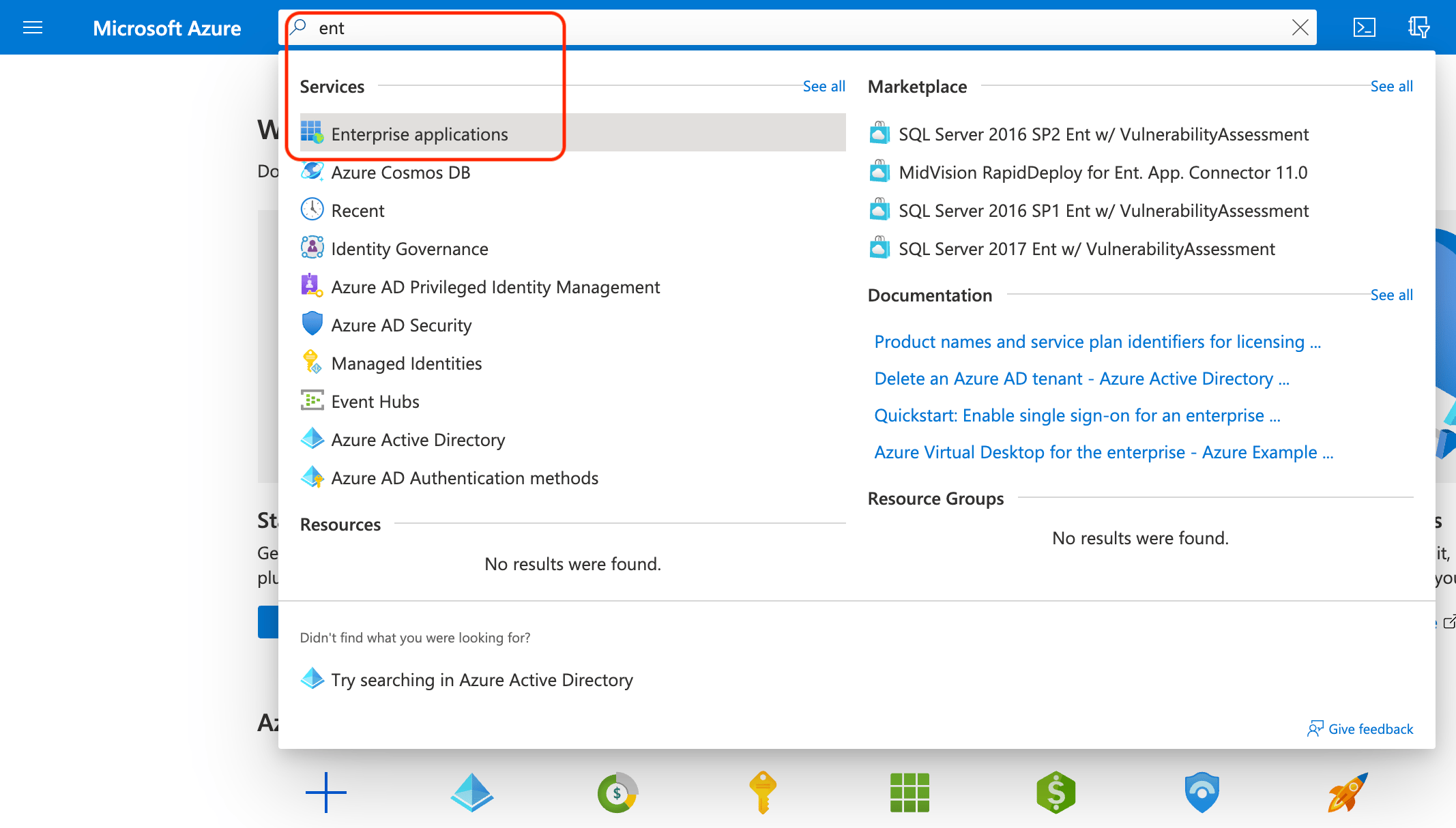
-
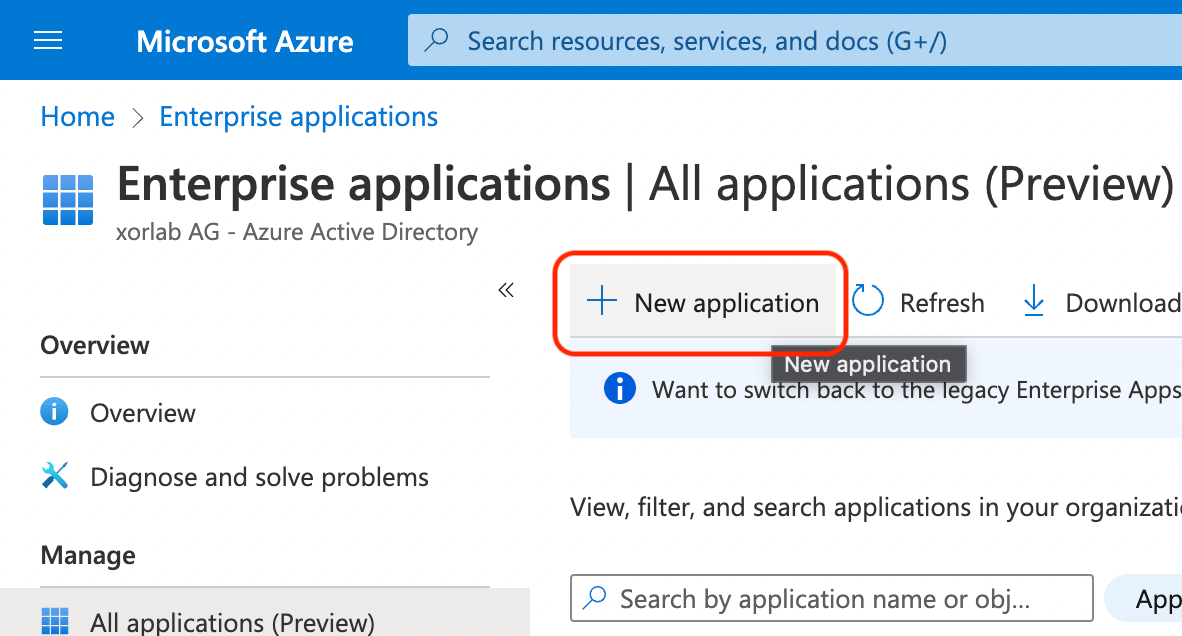
On the Enterprise Applications page, click New application:
-
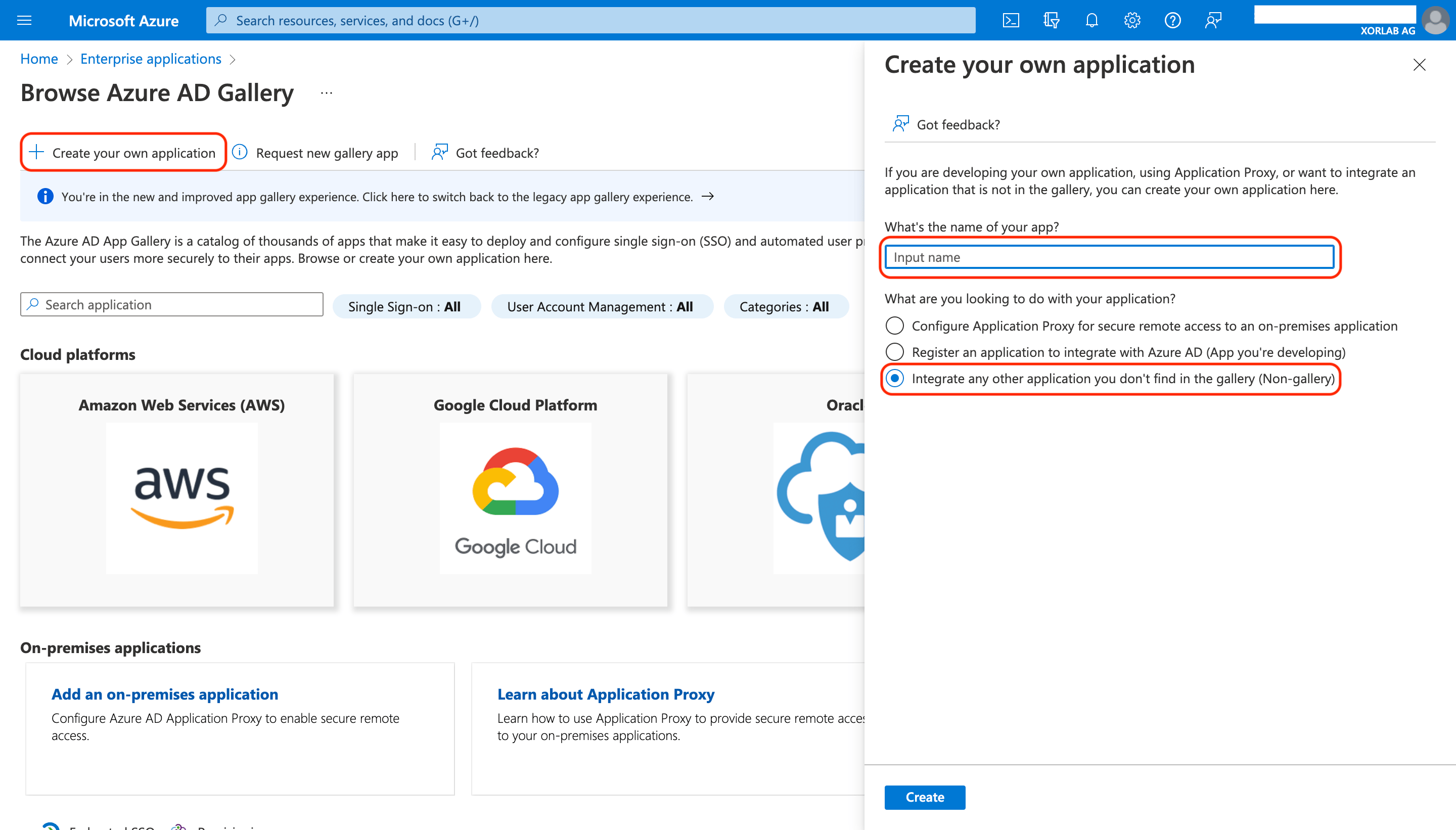
On the next page, click Create your own application on the left. In the pane displayed on the right, enter the name of your app, select Integrate any other application you don’t find in the gallery, and click the Create button at the bottom:
M365 Integration
Essential Setup for M365
To fully integrate with M365, you need to create an application in Azure Entra ID. This application can be set up for Single Sign-On (SSO) to let users log in to xorlab with their Entra ID credentials.
You can also use it to enable case isolation in xorlab, which lets you delete messages from a user’s inbox. You can choose to enable either feature or both in the same app.
Creating an app in Entra ID is simple and requires just 4 steps: