

Not all messages can be movedAlthough you can force M365 to pass quarantined emails to XSP, the ones recognized as malware or high-confidence phishing cannot be moved out of M365 quarantine.
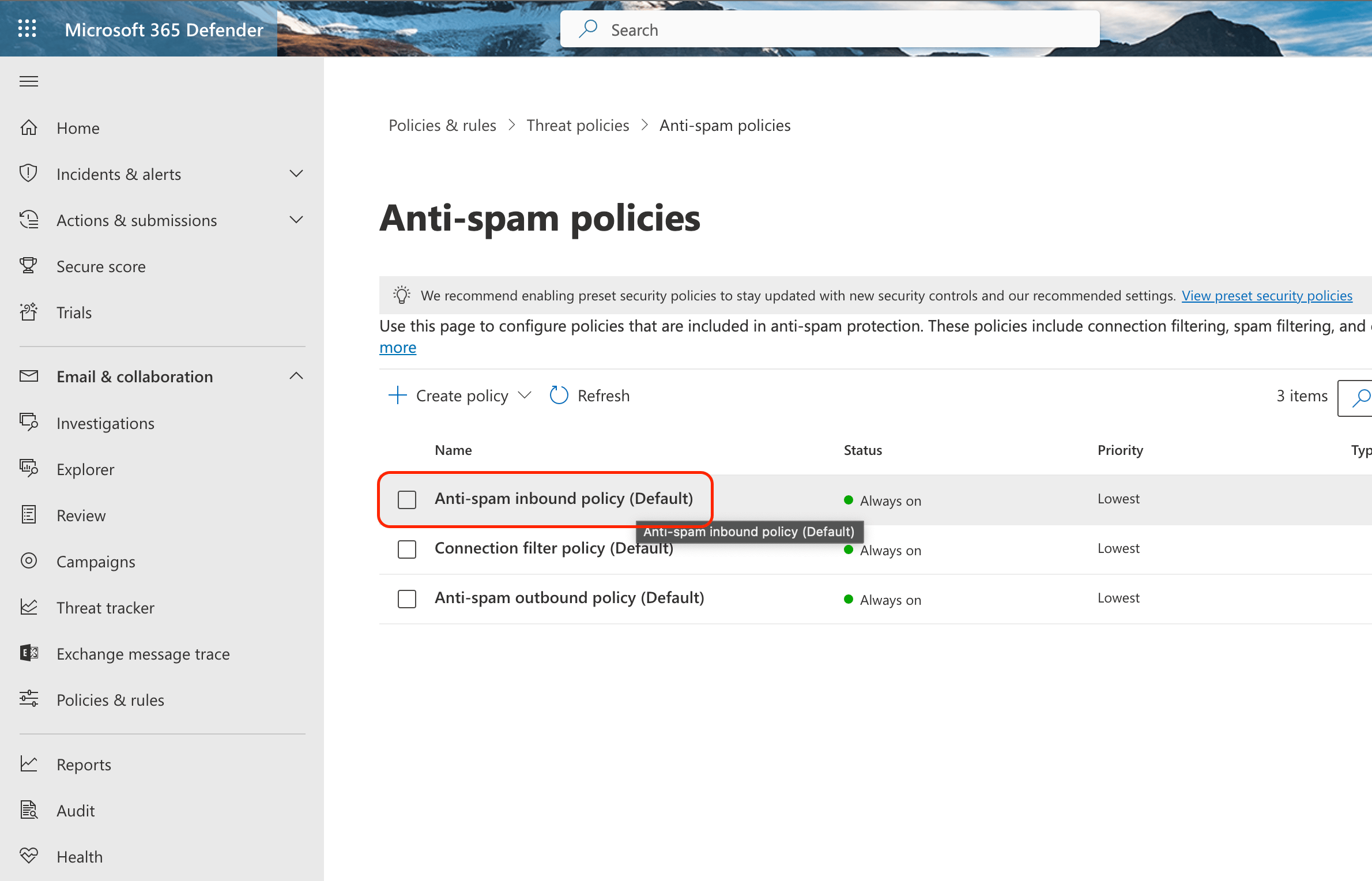
- Open the Anti-spam settings page in the Microsoft 365 Defender portal (or, on the main page of the M365 Defender portal, click to expand Email & Collaboration in the left pane, then select Policies & Rules, click Threat policies and then click Anti-spam under the Policies section).
-
Click the Anti-spam Inbound policy (Default) item from the displayed list:
-
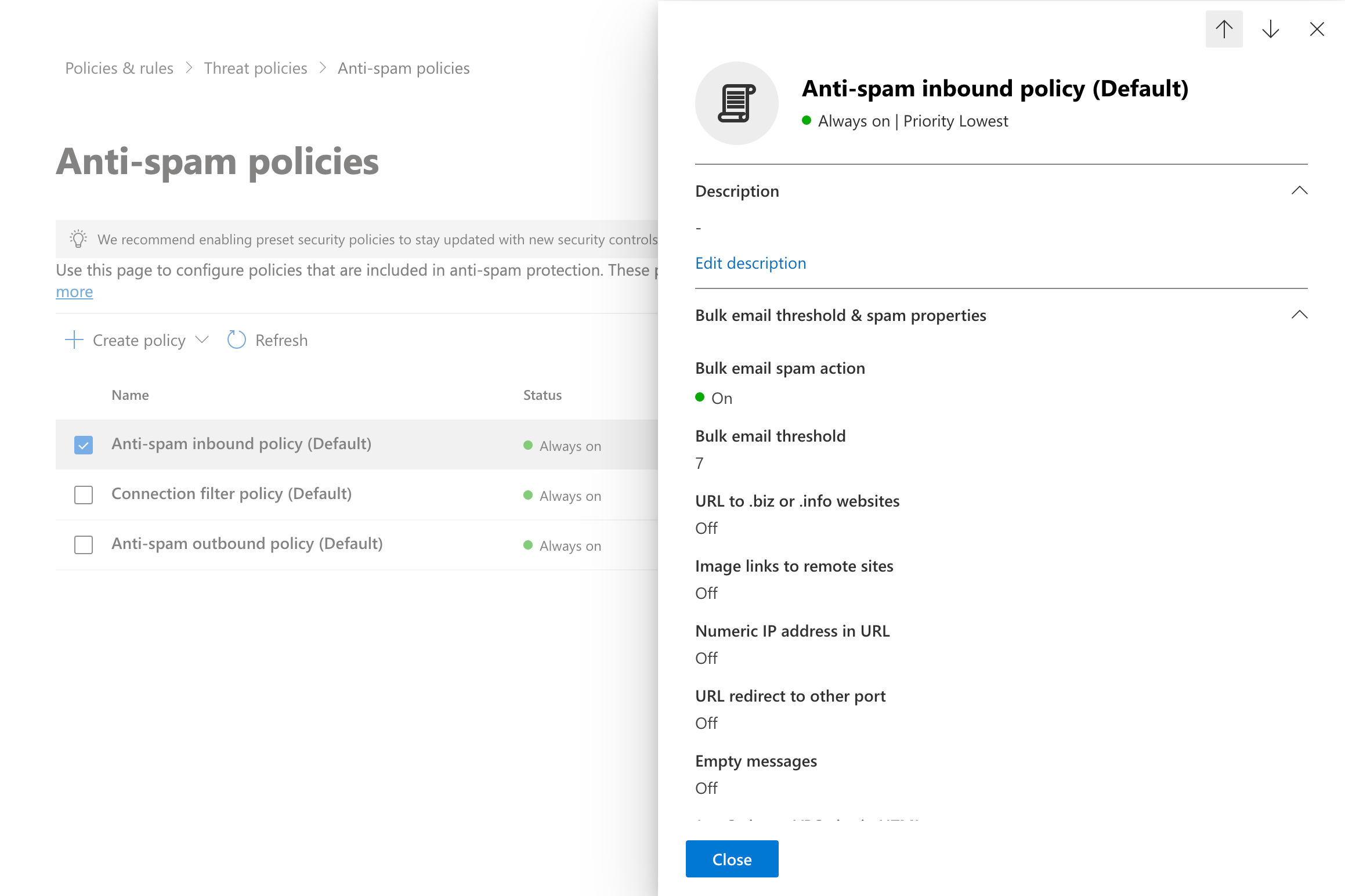
A new pane opens on the right with all anti-spam policy settings:
-
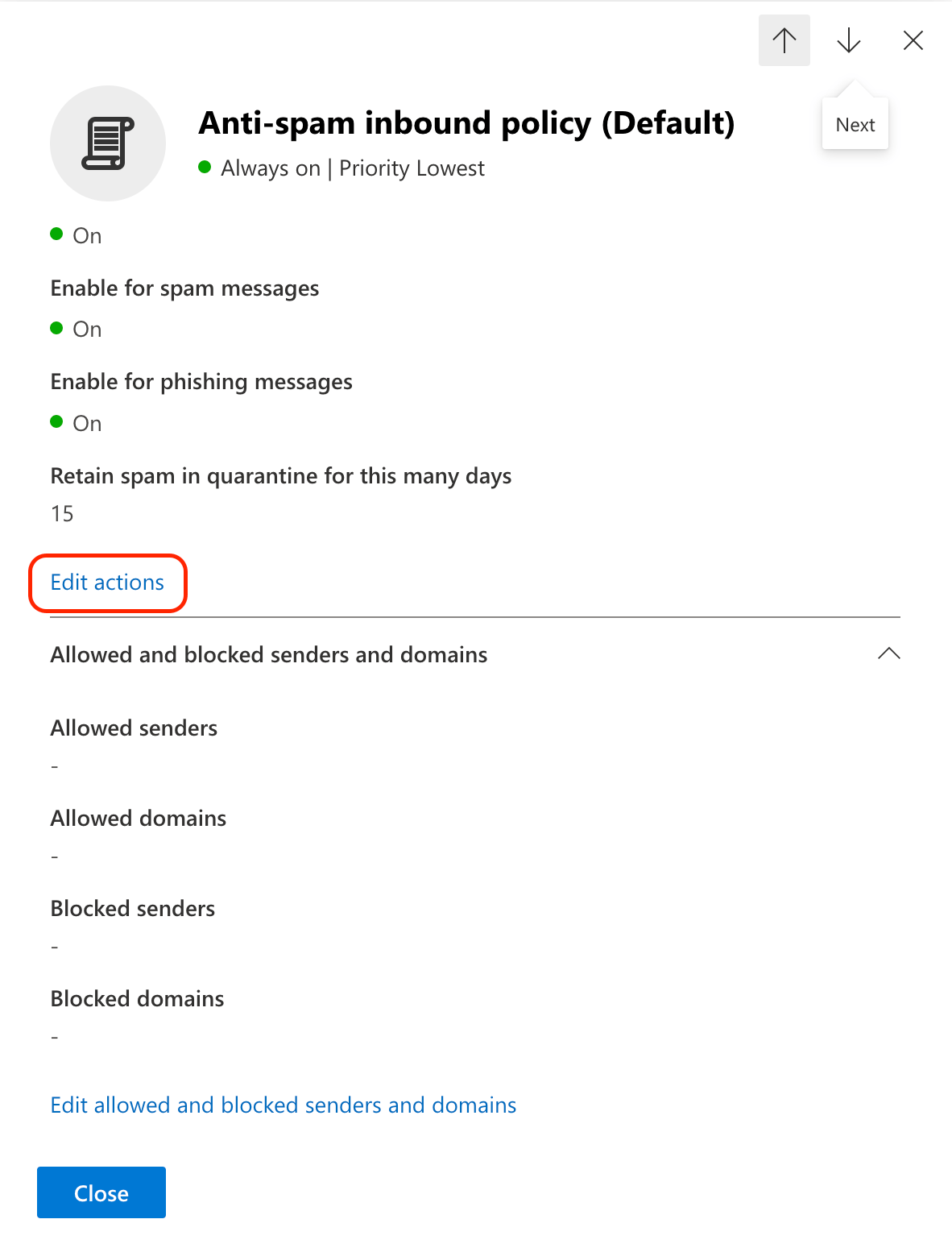
Scroll down the pane until you see the Edit actions link. Click it:
-
On the Actions page, select Add X-header from the drop-down list for the following message categories: Spam, High-confidence spam, Phishing, and when Bulk complaint level (BCL) met or exceeded. In the Add this X-header text input box, enter
x-eopmarkedspamas the text which will be added to the message header: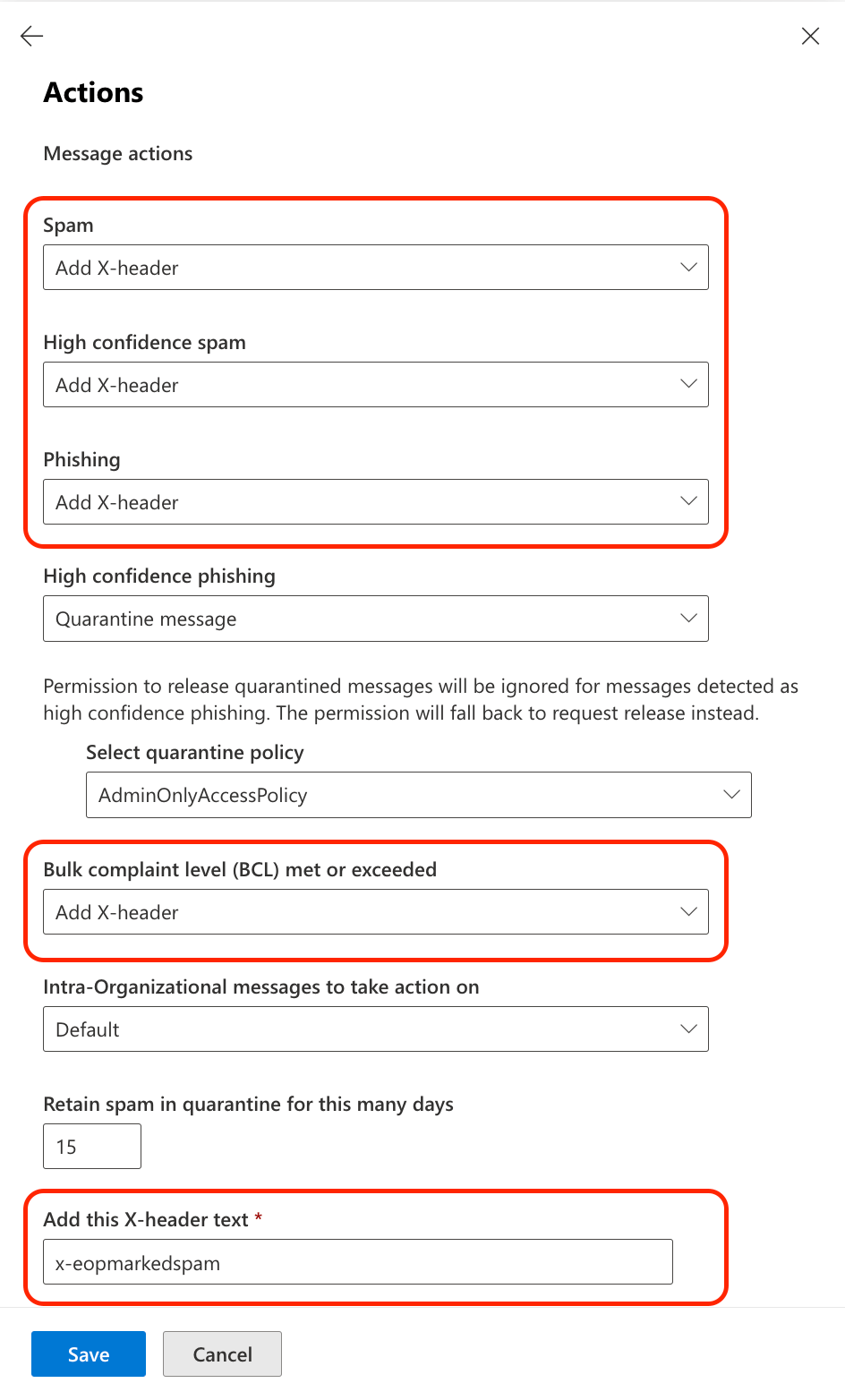
- Click Save.
SPAM rule which looks for the x-eopmarkedspam header text, please make sure that you entered the header text correctly in step #5.